
Quick Audience Clarification:
This is a professional IT enterprise-focused blog. I’ve had several home-type / non-IT folks reach out with this issue, looking for solutions. If that is you, I’d recommend checking out these Microsoft QA posts on the same topic:
CapabilityAccessManager is devouring my hard drive – Microsoft Q&A
Why is Capability Access Manager growing 1.9GB/day on my PC? – Microsoft Q&A
To that non-IT end of the audience, you don’t seem to be alone; even the pros have noticed something’s up.
Getting onto the topic:
I’m here to discuss a growing issue on my radar, that being the file…
“C:\ProgramData\Microsoft\Windows\CapabilityAccessManager\CapabilityAccessManager.DB-wal”
…growing endlessly.
This concern could be anywhere from a new large-scale issue that is just starting to emerge, and I’m one of the first people to find it, to an environmental issue caused by some niche piece of software, or just a complete fluke, and nobody else will ever find this useful. That is sometimes the problem with being on the bleeding edge of an issue, but I’d rather put this out and help no one than do nothing and find out I was the first to know of a new issue and didn’t help where I could have.
In this article, I will cover…
- How We Got Here:
- What Is This File? (CapabilityAccessManager.DB-wal)
- How Bad Is the Issue?
- Automated CapabilityAccessManager.db-wal File Size Check:
- How to Clean Up CapabilityAccessManager.DB-wal:
- The Unknowns:
- Update 4/24/26 – Cracking Open the Database:
- Update 5/4/26 – The Fire Grows
- Update 5/11/26 – Why Is This Happening v2 (Geolocation?), the Speed of Microsoft
- Update 5/13/26 – Microsoft Confirms This Is a Known Issue
- Update 5/19/26 – Script Adjustments
- Update 7/10/26 – Permanent Fix in Preview:
- Why Is This Happening?
- Conclusion:
How We Got Here:
This week, 4/20/2026, I have seen a rapidly growing quantity of devices that have run out of disk space. Early investigation struggled to understand why, as WinDirStat could not locate this space. If, under options, we enabled it to display “Unknown,” it was seeing huge quantities of consumed space it couldn’t explain (anywhere from 50-200GB), similar to what is shown below.
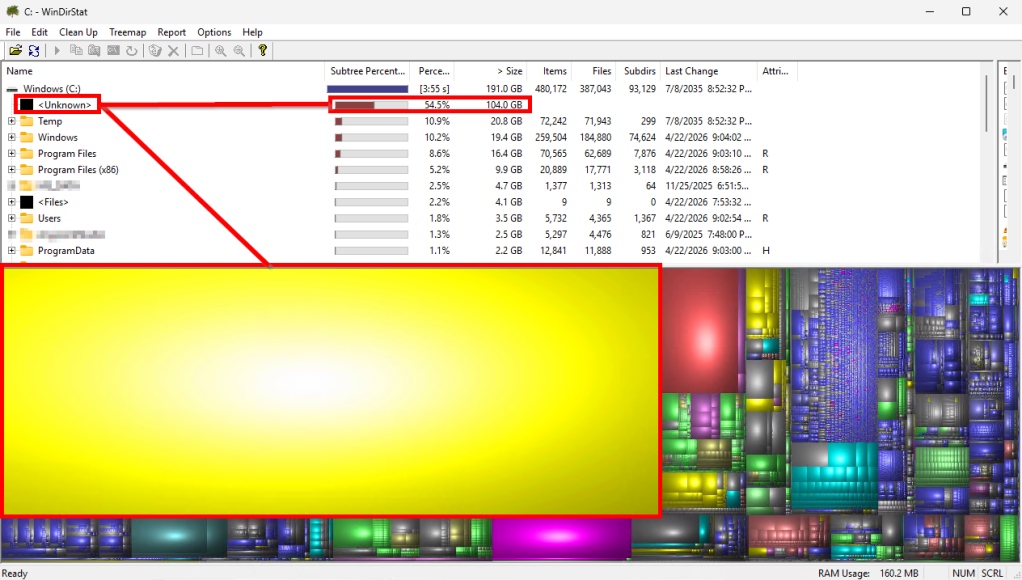
The WinDirStat blog, What is “<Unknown>”?WinDirStat Blog, is pretty clear that this likely comes down to a permission issue with whatever content you’re trying to find. Basically, WinDirStat knows based on HDD stats that 300GB is consumed, but can only find 250GB worth of files, therefore 50GB of space is shown as “unknown” usage, as it cannot locate those 50GB worth of missing files.
While that blog may advise against the use of System, we felt we had no other choice, so with the power of PsExec (please be careful with this tool) in hand, and the simple command…
.\psexec.exe -s -i "C:\Program files\WinDirStat\WinDirStat.exe"
…We can now run WinDirStat as the System account to try and find these files. What this revealed on every station we tried it on was that the file “C:\ProgramData\Microsoft\Windows\CapabilityAccessManager\CapabilityAccessManager.DB-wal” had grown to utterly ridiculous sizes (50-200GB). That’s not normal.
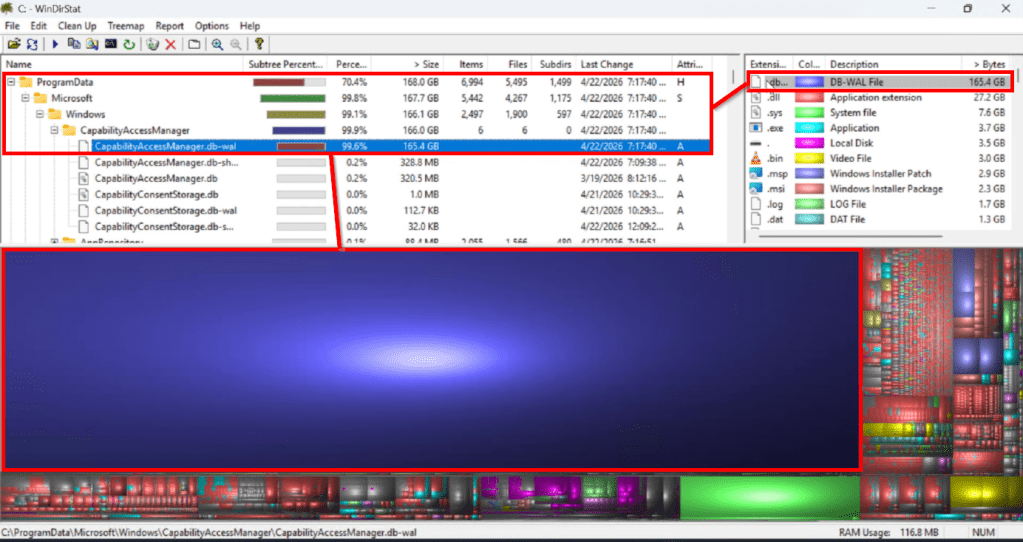
The reason we could not see this folder/file is that it is not meant to be accessible, not even by a user like the built-in Administrator account. Instead, it can only be interacted with via the System account.
What Is This File? (CapabilityAccessManager.DB-wal)
Unfortunately, there is very little information, and practically zero first-party documentation, on this file. I did locate some forums discussing it in the context of a similar issue.
March of 2025: [Bug] Rainmeter’s WiFiStatus queries cause huge 30GB+ CapabilityAccessManager.db-wal file – Rainmeter Forums
March of 2026: CapabilityAccessManager is devouring my hard drive – Microsoft Q&A
Update 4/26/2026 (new and recent complaint): Why is Capability Access Manager growing 1.9GB/day on my PC?
All of these I will talk about more later.
Summarizing what I could find, CapabilityAccessManager.DB is the actual SQLite database file. The .DB-WAL is a Write Ahead Log. If you try to make queries/write to this database too quickly, faster than it can handle, those changes go into the WAL with the idea being that they should merge/checkpoint/flush into the main DB when time allows. So, the WAL is supposed to be periodically compacted back into the main DB, but the constant stream of new writes prevents that from happening. So, what we know from this is that something is hammering this database, causing the WAL to balloon.
As far as the purpose, CapabilityAccessManager.db is a SQLite database used by the Windows Capability Access Manager service (camsvc). It records when applications request access to sensitive resources like the camera, microphone, location, and other capabilities (the same permissions you see in Settings -> Privacy & Security).
This should be a self-managing file of very small size. Many of our known-good machines have proven to have files less than 1 MB, if even a handful of KB. Some resources are claiming an average expected max size of 4MB, but as I will discuss in the next section, the average seems to be more along the lines of 0.5 MB.
How Bad Is the Issue?
Again, the claimed file sizes online are that they should be less than 1 MB or at most 4 MB.
d3Xt3r (thank you!) on the WinAdmins Discord did a large-scale query and found that… “(of) ~8000 devices, only one device had a file >500 MB (647 MB), 6 devices were between 300-100 MB, 100 devices > 10MB. The remaining devices (~7900) were in single digits. So doesn’t seem to be an issue for us.” They also highlighted that they are 24H2, which will come up later.
Gek on the WinAdmins Discord did a scan across a smaller group and found similar answers with a median of 0.35 MB.
That certainly sounds relatively in line with what online research suggests.
Meanwhile, my mass scan? It’s not good. I’ve reached 3,700 devices and counting thus far. The average currently stands at 5.9 gigabytes. The median stands at 451 MB, so we know that there are a lot of high-end outliers yanking the average up. To detail it a bit more…
1,456 devices are in excess of 1 GB.
361 are in excess of 10 GB.
137 are in excess of 50 GB.
51 are in excess of 100 GB.
7 are in excess of 200 GB.
1 has reached 332 GB. (wow)
Regardless of whether the right answer is 0.5 MB, 4 MB, 451 MB, or 5.5 GB, something seems to be happening to some count of devices. And, scarily, some of these devices are growing by 10GB or more per day.
That all said, it’s worth highlighting that, thus far, there is not a lot of online movement on this topic. It’s just me and a handful of folks on the Microsoft QA as of late.
See 5/4/2026 update.
Automated CapabilityAccessManager.db-wal File Size Check:
To check this file size more simply than WinDirStat, I created this script that can be found on my GitHub. Obviously, test this yourself!!! Do not take my word for it and throw it to the world.
This can either be deployed as an Intune remediation (detection script only, run as system, run as 64-bit), and it will report back the size in MB of the CapabilityAccessManager.DB-wal file. By default, it is configured to flag files over 1 GB, causing them to return as “with issue.” Based on the numbers above, this seems reasonable. Detailed file sizes can be seen in the PreRemediationDetectionScriptOutput column (add to the device status view or export to CSV).
Alternatively, to check one machine, you can use Psexec with the below process to execute the script locally as System.
- Run a CMD as admin
- CD to your psexec.exe location
- .\psexec.exe -S -I powershell.exe
- You now have a new/second PowerShell running as System, which you can validate with the “whoami” command
- We will now ensure this process can execute scripts with…
- Set-ExecutionPolicy -ExecutionPolicy Unrestricted -Scope Process
- And execute our script with…
- .\CapabilityAccessManager-Detection.ps1
- Output will come to the console for the size of the file in MB.
How to Clean Up CapabilityAccessManager.DB-wal:
There are similar DB files I’ve seen explode in size on Windows, primarily the Search Index file. This file, unlike the search index, seems to have no such vendor-provided process for resetting it, which also means there is probably no supported process. Thus, I state clearly that I assume what I am about to provide is not a supported process. Further info on what can likely be expected as a result of running this is in the next section.
Now we come back to this forum: [Bug] Rainmeter’s WiFiStatus queries cause huge 30GB+ CapabilityAccessManager.db-wal file – Rainmeter Forums
A user by the name of jsmorley provided a script, which, after reviewing, kills the processes and services that are using this file, allowing us to then delete the FULL CONTENT of the folder, and then restart those processes. The hope is that this lets a fresh DB begin cleanly, potentially resolving the issue, but I personally believe (and see in my data) that this is just a doomsday clock reset.*
Note: This folder contains TWO databases and their associated .DB-shm and .DB-WAL files. That being the CapabilityAccessManager (CAM) DB as well as the CapabilityConsentStorage.DB. I have no information on the CapabilityConesntStorage (CCS) DB, but for now I’m choosing to trust this action.*
*Update 5/19/26: As part of the 5/19/26 update section, Microsoft has officially recommended deleting only the CapabilityAccessManager.db-WAL file, and none of the other files in the folder, including the CapabilityAccessManager.db itself. See the 5/19/26 update for more information.
I’ve prettied this script up to include logging out to a file as well as tracking of file size before, after, and the space reclaimed. I’ve also added a disablement and later enablement of the service as I often see it auto-restart mid-script, which makes a mess. I’ve tested this on several devices, and, well… they’ve not exploded. But again, the ramifications are largely unknown (see next section).
This cleanup script can be found on my GitHub. Obviously, test this yourself!!! Do not take my word for it and throw it to the world.
I can think of three good ways to deploy this.
- Deployed as a Win32 self-service Company Portal app. Trigger detection based on the creation of the log file, thus restricting it to run once, unless someone knows how to delete or rename said log file.
- Deploy it as an Intune remediation with a detection script only (run as system, 64-bit), and then technicians can use the “run once” remediation feature in Intune to assign it as needed. Because the last line written to the host is the before, after, and space saved info, this should be viewable not only in the local log created by the script, but also in the PreRemediationDetectionScriptOutput column (detailed status, add the column, or export to CSV).
- Deploy it as an Intune remediation with the previous file size query script as your detection, and then use this as the remediation script, automating the detection and remediation of oversized files. Again, because the last line written to the host is the before, after, and space saved info, this should be viewable not only in the local log created by the script, but also in the PreRemediationDetectionScriptOutput column of the detailed device run status export of the remediation from Intune.
I urge caution with this option, though, as the baseline expected size is not a known value, just being assumed from queries of various environments, and by default is set at 1 GB in the detection script. Automating this could let it run many times on a given machine, and it’s not known what even one execution could negatively impact, let alone many executions.
The Unknowns:
Again, this solution is not supported by the vendor (Microsoft). There is very little (or simply no) first-party info on either of the databases we delete*, let alone the one that is the main problem, nor (focusing more back on the CAM DB) its purpose, its expected size, or the ramifications of deleting it. Nor is there any info on this issue yet besides the previously mentioned blogs, which don’t yet seem to scream that this is a global, massive issue (yet).
The current belief is that the CAM DB will gracefully rebuild itself, the deletion does not cause any harm, and that, at best, the issue will not come back (the file will stay under the appropriate size), or at worst, we are at least resetting the clock on this issue.
One expected belief, though, is that you will likely have your app privacy / privileged permission settings blown away. Meaning, you might need to say that Chrome can use your camera, or Teams can use your mic once again to re-establish that setting.
Trust me, I am not too happy about this risk either. But, ultimately, while scary, if you have this issue, your employees are already down. You can either take this risk and try this, and so far in my testing, they are back up for now, but it’s uncertain what the future may hold, or you can be stuck with a full disk, unable to work. It is your choice.
Obviously, test this yourself!!! Do not take my word for it and throw it to the world.
*Update 5/19/26: As part of the 5/19/26 update section, Microsoft has officially recommended deleting only the CapabilityAccessManager.db-WAL file, and none of the other files in the folder, including the CapabilityAccessManager.db itself. See the 5/19/26 update for more information.
Update 4/24/26 – Cracking Open the CAM Database:
There’s obviously a large section after this named “Why Is This Happening?” – and that section still provides some information, which, as I still don’t have a root cause and fix identified, I want to leave for now in case anyone else does have this issue. However, this section will provide details on how to inspect the database, a step that has gotten me as close as possible to an answer.
First, we need to get our hands on the database, and that is not trivial.
- Download and Extract PStools
- Launch an admin CMD
- Change to the directory where you extracted PStools and run the below…
- .\psexec.exe -S -I cmd.exe
- You now have a cmd running as the system account, which you can validate with the command whoami
- Next, we need to stop the service that’s holding onto these files…
- net stop camsvc
- Next, we need to copy the database files to a different location.
Note A: You should get at least these three files…
CapabilityAccessManager.db
CapabilityAccessManager.db-shm
CapabilityAccessManager.db-wal
…If you do not, or get errors, the service either didn’t shut down or started back up already, and you need to kill it first.
Note B: Obviously, you need enough free space to make a copy of these files, which when dealing with this situation, is not a given.
Note C: Obviously, you need a C:\temp folder, or dump it wherever else you want. - Copy “C:\ProgramData\Microsoft\Windows\CapabilityAccessManager” “C:\temp”
- We now have the database files put somewhere where we can play with them.
- Install the SQLite DB Browser
- Fire up DB Browser for SQLite
- File, Open Database, and open the CapabilityAccessManager.db file. Understand that this does include opening the WAL file, as DB Browser knows to look for it. The larger the file, the longer this takes, and you may see DB Browser attempt to merge in the changes from the WAL into the main DB.
- Under the Execute SQL tab, put in this SQL query below.
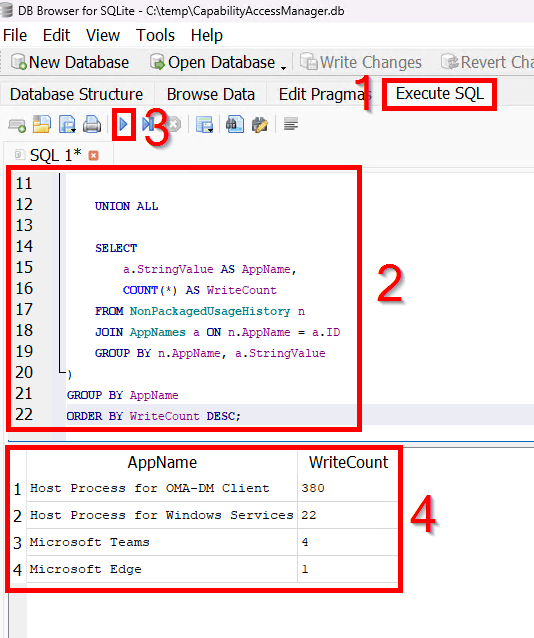
SQL Query:
Credit to Gek on the WinAdmins Discord!
That said, I believe this is querying the total count of entries by app name and assuming those are write actions, as swapping write to query produces the same exact counts. So, when I said earlier that it could be write or query counts, either this is measuring both, or, possibly, I could also see that info being invalid and this database is much more write than query focused.
SELECT AppName, SUM(WriteCount) AS WriteCountFROM ( SELECT a.StringValue AS AppName, COUNT(*) AS WriteCount FROM PackagedUsageHistory p JOIN AppNames a ON p.AppName = a.ID GROUP BY p.AppName, a.StringValue UNION ALL SELECT a.StringValue AS AppName, COUNT(*) AS WriteCount FROM NonPackagedUsageHistory n JOIN AppNames a ON n.AppName = a.ID GROUP BY n.AppName, a.StringValue)GROUP BY AppNameORDER BY WriteCount DESC;
Now, my results above contain entries in the hundreds, and that seems pretty normal both on my personal devices and what others in other orgs are reporting. I’m willing to say, on an older machine, being in the thousands, maybe the 10s of thousands, is normal.
What is not normal is hundreds of thousands, or millions. And when I crack open 15GB or 60GB files, those are the sorts of quantities I am seeing.
That said, for the moment, I’m holding off on saying what product(s) I am seeing creating that crazy count. The reason is that, in our testing, including with the vendor, stopping the products or removing them doesn’t allow the DB to shrink as it should. The line of thinking then becomes, if the DB can’t merge even when it’s not being hit, maybe the DB, or more so the process that’s meant to shrink it, is broken, regardless of what software is or is not doing, and maybe the software creating those high counts isn’t actually going too fast.
This is further supported by the fact that opening these DB and WAL files in SQLite DOES merge them. I’ve seen it take a 1 MB DB and 5+ GB WAL and turn it into a 44 MB DB with no WAL. So, the DB seems okay… and thus the question becomes if something is wrong with CAM itself and it’s entirely unable to perform the merge it should be doing.
As such, my next step is Microsoft, and more is to come.
Update 5/4/26 – The Fire Grows:
In this update, I’m going to discuss the growing activity around this topic, the data over time I now have on it, and my discussions with Microsoft.
More activity:
As much as I like to think I write about cool things, I wind up writing about a lot of niche tools and situations, so I’m used to those articles being fairly low-view. Most of the time, my high-view articles are the common troubleshooting ones, like troubleshooting Autopilot app install failures.
In the week this article has been up, it’s beaten out my most popular posts for the whole month. I have, again in only one week, received more comments and discussion on this post than on any other single post ever. I’ve gotten comments here on the site, I’ve now been hit up on Discord, all by folks saying they have this issue too.
Something is happening.
More data:
In the section “How Bad Is the Issue?” I talked about the initial seen state of the problem. I have since been tracking the issue for over a week. What I’ve found is that, on roughly 10k devices, in ONE WEEK…
- 59% of devices have a WAL file over 1 GB (2,000x greater than the average seen in other large orgs)
- The average growth of this file was 1.1 GB.
- The median was only 142 MB, so yes, we have some serious outliers.
- Several hundred grew by more than 10 GB, 44 grew by more than 25 GB, and the worst device grew by 65 GB in that one week.
And again, I continue to be hit up directly by more and more people saying they too are seeing or starting to see this issue.
Microsoft:
I can briefly say that I have a case on this issue, but so far, there really is nothing to share. Logs, logs, and more logs.
That said, I am at MMS, and while there are sadly not Windows OS developers here, there are plenty of friends, including MVPs and Microsoft employees, so we are doing everything we can to shine a spotlight on this topic.
Update 5/11/26 – Why Is This Happening v2 (Geolocation?), the Speed of Microsoft:
I return from MMS MOA 2026 with some news.
First, Why is This Happening V2, with some newer perspectives.
- I do still believe this has something to do with 25H2, as well as a more recent update (likely in February or March of 2026, possibly 10.0.26200.8037, 10.0.26200.8039, 10.0.26200.8246).
- The rate of growth can be anywhere from tens or hundreds of MB per week to tens of gigabytes per week. Yes, those with smaller HDDs will notice the issue sooner, but the issue has nothing to do with HDD size. HDD size only determines how much space you can burn through before the problem becomes obvious. Thus far, I have had to send an emergency action to around 150 devices as a result of this file being greater than 10 GB and the employee having less than 25 GB remaining on their drive.
- Getting into the fun stuff – After querying the DB file, all the various software I identified on impacted devices (software of various vendors), and that I am hearing in my comments here on WordPress as well as on Discord, now from a dozen plus people and/or orgs, all centrally deal with or use Geolocation. That is one form of sensitive resource that CAM (the service responsible for and using this DB) grants access to and tracks requests for in this very DB. So, something spamming Geolocation requests would be logged here and/or could hit the DB hard enough to cause this issue. However, it is not believable to me that the dozen products/vendors I have seen commented on at this point all did something at the same time to break this. And again, when we shut those identified tools off, we don’t see the DB merge or issue necessarily stop. So, it’s much more likely that the point of failure to get all of this to happen at once was a singular point of failure in the form of CAM/Windows/Geolocation restrictions/etc (something Microsoft).
To further that point, on the 4/24/26 update, Cracking Open the CAM Database, I mentioned having identified potential products of concern on our end. Indeed, the vendor of concern for me acknowledged that this service and polling rates for such sensitive resources required fine-tuning in the past, but that it has been solved for years without need for further changes.
Interestingly, though, there was a concern that denying location could cause the 3rd party tool to go into a request loop of infinite and rapid denials, as it really hates being denied. To that end, it was brought to attention that our Privacy Policy CSP setting of “Let Apps Access Location” being set to Force Allow was, allegedly, only for modern apps (think store apps). This seems plausible as the Policy CSP for this setting does make suggestions specifically towards modern app packages. It was thus brought to attention that there was a separate System policy CSP of AllowLocation that allegedly controls classic Win32-style apps. We did push a policy to enable this in addition to the earlier setting, but saw no improvement on test devices. The interesting thing about this, to me, is that it brings the conversation back to specifically Geolocation. I don’t know if the vendor saw something saying deny, but that certainly shouldn’t be the case with not one but two explicit allows now in place.
While I don’t have a definitive answer yet, it certainly feels like, from all this online noise, that we are narrowing down on a Microsoft-based root cause and a much larger impact audience than myself and the few online squeaks when I first wrote this.
Regarding Microsoft, about a week and a half into this case, so far, the only thing really achieved is rehashing a lot of the information we already knew. I get their need to confirm things, but ultimately, we don’t think there’s been any progress beyond what we already knew.
That said, I was just at MMS MOA. While there were plenty of Microsoft employees, including many friends, for me to chat with… Nobody on the Windows OS side was present. There is a legitimate-ish reason for this, even if frustrating, but ultimately, it means nobody who had direct involvement with this topic was present for me to chat with or escalate with. However, I still have friends who are at Microsoft or are MVPs, and I absolutely showed this to them, and I will pray someone will get some traction.
Update 5/13/26 – Microsoft Confirms This Is a Known Issue:
I have the best news I can possibly have. Today, Microsoft confirmed this has been declared a known issue. In other words, they are aware, and this is on them to fix. Here is the latest news from the horse’s mouth (Microsoft).
- The issue is indeed the CapabilityAccessManager.DB-wal file continuously growing and consuming significant amounts of space on the C: Drive.
- The product team is actively working on a permanent fix.
- The latest update is that a resolution is expected to be released around late June or early July.
- At this time, Microsoft has yet to create a public-facing document covering this issue to clarify their knowledge of it and provide updates on the resolution, but that is expected to happen.
- The trigger event is not currently known, but it’s presumed to have been introduced in a Windows update within the last 3 or 4 months.
- The current Microsoft-provided workaround is to….
1) Press Windows + R, type: msconfig
2) Go to the Boot tab
3) Check Safe boot > Minimal
4) Click Apply > OK > Restart
5) Click Start, type cmd
6) Right-click Command Prompt > Run as administrator
7) Type and hit Enter: net stop camsvc
8) Type and hit Enter: del “C:\ProgramData\Microsoft\Windows\CapabilityAccessManager*.db-wal”
9) Once done, follow step 1 and 2
10) Uncheck Safe boot
11) Click Apply > OK > Restart
Adding in some of my own information, the fix is expected to come out via Windows updates, which almost certainly means a patch Tuesday release. At best, that means a full release on July 14th. At worst, as we have seen in the past with similar advertised fix dates, they are indicating the test fix will be released as an optional update in late June or early July, which means possibly delaying the full release until the following prod window, August 11th. Time will tell.
Regarding the official workaround, yikes. Looking at a roughly 10k endpoint audience, I’ve already had to take action on 200~ devices, and obviously, more will come before the fix arrives (more on that in a moment). Even if you are in the office and can go desk-side, that can quickly rack up to a painful volume of manual help desk interactions. If you’re a work-from-home org, good luck providing instruction to walk employees through that process.
To that end, I’ve provided my script for feedback and to potentially allow Microsoft to provide it to others. Chiefly of concern to me, Microsoft is saying to only delete the WAL file, the write-ahead log for the DB, but not the DB itself. The script, as based on the one provided by the Rainmeter community, currently deletes the entire content of the folder, including both the Capability Access Manager and Capability Consent Storage .DB, DB-SHM, and .DB-WAL files. I’ve asked Microsoft for clarity on the best practice here and will adjust the script as they direct.
Lastly, based on the latest Microsoft updates, we can again assume a full fix on July 14th or August 11th, between 62 and 89 days from now. Again, in the 14 days we have been aware of and tracking this issue, we’ve already had to take action on around 200~ devices. Luckily, I have the data to calculate the average daily growth per device, and by combining that data point with the remaining space per device, I can get the estimated days until each device runs out of space entirely. Looking at that conservatively, I’m seeing around another 300 devices projected to run out of space before that fix is fully released. That probably means another 100 or 200 that will get quite close. Yikes. I’ve presented this data back to Microsoft to hopefully help accelerate that timeline.
To anyone else facing this issue, it’s important that you also open a ticket, make it clear that it’s a known issue so the Microsoft side can quickly get that ticket to the right eyes, and provide similar data to help Microsoft understand the severity of the issue, and thus prioritize and accelerate the fix accordingly.
Update 5/19/26 – Script Adjustments:
To recap, the original script was largely a script from jsmorley on the Rainmeter forums: [Bug] Rainmeter’s WiFiStatus queries cause huge 30GB+ CapabilityAccessManager.db-wal file – Rainmeter Forums
This script deleted the entire content of “C:\ProgramData\Microsoft\Windows\CapabilityAccessManager” including the CapabilityAccessManager.db-wal file that was growing, along with the CapabilityAccessManager.db itself, CapabilityAccessManager.db-shm file, and a second set of database files, CapabilityAccessStorage.db, CapabilityAccessStorage.db-wal, and CapabilityAccessStorage.db-shm. At least, those six files is what I find in that direction when I look at my machines.
Microsoft’s official recommendation is to delete only the CapabilityAccessManager.db-wal file.
I’ll admit, I find this surprising. Yes, I feel it is better to not touch the CapabilityAccessStorage database files, as there seems to be no issue there. But it just feels odd to delete a portion of the total CapabilityAccessManager database files, rather than just clearing them entirely and letting the whole thing start anew. We did ask Microsoft about this very clearly, and they again came back saying to delete only the WAL file.
As odd as this feels to me, it’s what Microsoft is recommending, so it’s best to follow this. As I added to a comment today – if you do your own thing and it causes issues, be prepared to be on your own to fix it. If you do what Microsoft says to do, and it causes issues, you can and should expect Microsoft to help fix it.
Obviously, the initial script provided was doing far more than deleting just the WAL file, but when your options are “do your own thing because there are no other solutions currently, or have 200x+ devices go down”, you have to make a decision.
In any case, the script on GitHub has been updated to target just the WALfile, and that’s what I will be moving forward with for the audiences that need remediation.
That all said, I want to clearly highlight that Microsoft recommendation is still booting into safe mode to delete these files! This script is obviously not magically inducing safe mode, and involves killing the process behind the service as said service ignores calls to stop (which would be cleaner). Much like the initial phase of this issue where there was no solution at all and we had to take a script and run with it, deploying this version of the script is a call you will just have to make. For me, it’s not realistic to instruct hundreds (200 impacted thus far, projected to impact 800 more devices by the time the fix arrives) of remote employees (desk side IT is not an option) through booting into safe mode, possibly dealing with bit locker, somehow granting them admin rights to modify these files and walking them through deleting said files (where screenshare may not be possible). That’s just not realistic. You can tell Microsoft their solution is poor and isn’t enterprise feasible, but it would be about the 300th time I’ve said something similar to them to no avail. (Case in point, go read my article on Everything I Know on Subscription Activation). On one hand, we’ve been running this and haven’t seen an issue. On the other hand, there’s a reason there are disclaimers on my articles, not that I’ve yet to have a reason to point to them, knock on wood.
Update 7/10/26 – Permanent Fix in Preview:
June 23, 2026—KB5095093 (OS Builds 26200.8737 and 26100.8737) Preview – Microsoft Support

Keeping this short and to the point, the June preview update contains a fix to this issue, so it’s likely the fix will come out in full as part of the July updates releasing on the 14th. Worst case, it will be delayed into August.
Why Is This Happening?
Update: Again, the above updates have more current info on this, but I want to leave this original section as is.
I wanted to include this section, but as of writing, we do not know for certain where this is coming from, and thus, ultimately, who all is going to see this. I do have some info, though.
The aforementioned blogs do mention some interesting widgets, none of which are in use. We’ve tried to identify recent common software updates to no avail. And, we are not seeing a common platform, model, etc.
What we are seeing in common so far is that…
- All impacted employees thus far have had a 256 GB root drive.
This is likely survivor bias, though, as we believe devices with larger drives are impacted; it is simply taking longer for them to break simply because they have more space to chew through before this becomes a problem. (I can confirm this to be true now, the 330 GB~ file is on a 1TB machine that still has 400 GB free, so they still have no idea there is an issue). - I cannot ignore that the Microsoft QA over this same topic was born just after the patch Tuesday of March… And that every single impacted device I have seen has been on the March update or later (10.0.26200.8037, 10.0.26200.8039, 10.0.26200.8246). It could be a coincidence due to rapid patching, but it’s interesting.
- I’ll also highlight that this issue is not instant. The file takes time to build up, so whatever is causing the problem today likely started quite a while ago in order to get to these insane file sizes we are seeing. That again makes me wonder about the March update, as it applied to these devices several weeks ago, giving a plausible timeframe for the issue to have built up. That said, I don’t know how quickly the files are growing.
- All of the devices are Windows 11, 25H2, Entra joined, user auto-pilot enrolled.
Again, I have heard from someone on 24H2 who is not seeing the issue after doing a large-scale scan. Maybe it’s 25H2 related. Sadly, nobody on the Microsoft QA forum noted their Windows version.
I did marry my remediation detection data up to a device inventory export to try and find a common theme, but really all I found was that yes, devices reporting to have a huge file really reflect that space consumption (and likely low space). Similarly, our devices are relatively up to date (March, March out-of-band, April, etc). And yes, it’s every model and HDD size under the sun.
Conclusion:
Update: Again, the above updates have more current info on this, but I want to leave this original section as is.
On one hand, I hope this does help someone. On the other hand, I hope this doesn’t help too many people because that would mean this is a broad issue and, oh my god, that would not be good.
In any case, I will update this blog as I gain further insight and information
Disclaimer:
The following is the disclaimer that applies to all scripts, functions, one-liners, setup examples, documentation, etc. This disclaimer supersedes any disclaimer included in any script, function, one-liner, article, post, etc.
You running this script/function or following the setup example(s) means you will not blame the author(s) if this breaks your stuff. This script/function/setup-example is provided AS IS without warranty of any kind. Author(s) disclaim all implied warranties including, without limitation, any implied warranties of merchantability or of fitness for a particular purpose. The entire risk arising out of the use or performance of the sample scripts and documentation remains with you. In no event shall author(s) be held liable for any damages whatsoever (including, without limitation, damages for loss of business profits, business interruption, loss of business information, or other pecuniary loss) arising out of the use of or inability to use the script or documentation. Neither this script/function/example/documentation, nor any part of it other than those parts that are explicitly copied from others, may be republished without author(s) express written permission. Author(s) retain the right to alter this disclaimer at any time.
It is entirely up to you and/or your business to understand and evaluate the full direct and indirect consequences of using one of these examples or following this documentation.
The latest version of this disclaimer can be found at: https://azuretothemax.net/disclaimer/


32 responses to “Out of Control Capability Access Manager.db-Wal File Size”
Max:
Great thread on a problem that is indeed hitting a LOT of people. I’m just an academic user (not an IT professional).
For those readers here who are like me and just trying to fix a single personal computer, there is an effective and safe solution posted over at Microsoft Learn: https://learn.microsoft.com/en-au/answers/questions/5815087/capabilityaccessmanager-is-devouring-my-hard-drive
I added my experience in the comments (needed to reverse two of the 6 steps); the solution is an elegant one that even those with no experience at stopping and editing services can use (I’m OK at it but the solution provided there really made my life easier).
LikeLike
Hey Stephen – Yes, I’ve heard from a few individuals that they are seeing this, but still not any orgs. Still, it seems something is up. I’ve got that same Microsoft QA as well as another thread that just recently started on the same site in the blog, but I’ll add a note to the top to help redirect more personal type users to that solution so they don’t have to trudge through my pro-IT blog. Thanks for the suggestions!
Although, I just read your comment on the QA about specifically deleting ONLY the WAL file. I’m not actually sure that’s a good idea, as that leaves other parts of the existing database intact, rather than deleting and effectively resetting it all and allowing it to start and build from a fresh clean slate. My solutions instead go after the entire content of that folder, not just the singular WAL file. I don’t think anyone’s going to permanently brick anything by just going after the WAL file, but they may have the issue come back or experience other odd issues and ultimately find themselves circling back to clean out the whole folder. That said, there’s basically zero first party information from Microsoft on this file and/or how to reset it if/when needed, so this is more educated guesswork than authoritative answers. Hopefully I’ll have more concrete answers to share in the coming days.
LikeLike
Thanks Max.
Deferring of course to your expertise, most of the discussion I’ve seen agrees that your point about deleting the single file probably means that the problem returns – so it may be better to kill the whole folder.
Being a more nervous amateur (albeit an older one who used to line code), I went the conservative route.
I am monitoring what happens to my db-wal file (as are others) and will circle back with any new info.
I do expect I will have to repeat the single file kill – the question is how often. If its every 2 days, the folder will be my next target. If it is every 3 months, I may stay conservative until Microsoft provides a proper recognition of the problem and a universal fix.
Meantime, great blog here. I’m a reasonably experienced user but it is a huge thing to see a pro like you map out problems like this.
LikeLike
Thanks so much for the efforts you have provided me with the info you have put out.
I have been fighting this thing for 9 weeks. My C; drive was not too big and was able to finally increase it with a disk tool doubling the size and this gave me room and time to trouble shoot the problem. Finally downloaded to utility Tree Size Free and this led me to the .wal file in about 8 minutes. Once I find the name of the service to shut down will probably move the the DIR to an empty drive…
Thanks again
Douglas C Collins
Pensacola Fl.
LikeLike
good work on this Max as i noticed it as well, no where as in depth as your explanation – im certainly intrigued by your findings – gave you a follow on X
LikeLike
Thank you Chris!
You actually reminded me that I needed to move over to Bluesky and update my social links – https://bsky.app/profile/azuretothemax.bsky.social
Sorry to drag you to another site but I can’t with Twitter anymore
LikeLike
I was able to delete the 91 GB Capability Access Manager.db-Wal file from my 250 GB drive. It was growing from Feb 28,2026 to May 6, 2026. After disabling and re-enabling start up apps, it appears the culprit was Geocomply’s player location check application. I reside in Ontario, Canada and this app is required by sports betting websites registered in Ontario to check you are wagering in Ontario. I re-enabled the app and it managed to write 430MB within 10.5 hours! I uninstalled the app and the issue stopped. I use the same app on MacOS with no issues to my hard drive so it appears its a Windows application issue.
LikeLike
Found another one, on a customer’s relatively new computer: Rivet Networks’ SmartByte. That SQL query above showed WriteCounts of “SmartByte Network Service”: 3398244 and “RivetAPS”: 312133. (Third place was “Windows Web Experience Pack”: 74.)
I looked SmartByte up online, and…lots of very very angry comments from around five years ago regarding poor network performance. A few choice ones:
“Whoever designed that software deserves to burn in the deepest pits of hell for eternity.”
“You are obviously in complete denial about the disastrous impact your software has.“
“It’s worse than an actual virus AND is a completely unnecessary piece of bloatware software.“
SmartByte’s web site is now owned by a company that purports to make we-swear-it’s-not-gambling apps.
LikeLike
Geolocation continues to be a trend on this topic – very interesting. Went ahead and just slapped on another update now that I am back from MMS.
LikeLike
Max,
I’m the guy who wrote the second of the two threads you mentioned near the top of your blog:
Why is Capability Access Manager growing 1.9GB/day on my PC? – Microsoft Q&A
I’m a retired IT exec and had the problem occur on a PC in my home. It was so bad I replaced that one with a new one just so I could work on the first one in a lab-like environment.
Since then I’ve used Resource Monitor, Process Monitor and Event Viewer on it and can see svchost.exe is flooding the CapabilityAccessManager.db-wal file, but I still can’t see what app is invoking that. I do know that shutting off Location Services stops the writes to the .db-wal file, but not which Location Services-using app.
Just today 5/11/26 I moved on to trying DB Browser for SQL Lite looking for the culprit, but the file is too big (855MB) and I’m running into memory issues. My next step is to wipe it out again and try again before it grows too big. I don’t know if this path will lead to anything.
Thanks for documenting this now spreading problem and relaying it to Microsoft Support. I sure hope they come up with a Windows update soon.
LikeLike
Yup – the camsvc runs under svchost. You can do tasklist /svc>a.txt&A.txt into an admin CMD to list out the processes and see which individual SVChost PID camsvc is hiding inside. Microsoft just had me to that in order to dump that specific SVChost and provide it to them.
That’s a good plan if the current DB and WAL is just too big to work with. You’d have to open the DB to see what app is hitting it so much with queries. So far the topic of geolocation, as in the update I just now added, seems to be the common theme. You should be able to nuke the DB, WAL, etc out of that folder, let it regrow automatically, and then inspect the now much smaller copy, and likely that app will still quickly make itself known within hours if not minutes.
LikeLike
Ok just ran Gek’s SQL (thanks Gek!) successfully on 43MB created in just 30 minutes worth of CapabilityAccessManager.db-wal after clearing the .db-wal file. Like an earlier post above, I found SmartByte Network Service to be the culprit with the following write counts (again, in just 30 minutes after cleared file then reboot):
9,355 SmartByte Network Service
923 RivetAPS
Now that we know the enemy, what can we do about it? Nothing to disable without screwing up other PC processes, correct?Given what you also have sent to Microsoft, sounds like we wait for them to issue a Windows update.
LikeLike
Well, SmartByte Network Service is not something I recognize, other than another comment mentioning it. But, given I’ve seen half a dozen pieces of software now be the claimed source of issue (including some pretty major vendors), I have to believe that the issue actually isn’t any of these individual pieces of software, as that timing between so many vendors is just not plausible. Rather, the simplest single point of failure to me is something in Windows having changed, which is now impacting all this different software. You could probably remove that software for now to help with the issue, if that’s an option, or yes, we wait.
LikeLike
Here’s a 2022 article saying SmartByte is just an extra layer over network services balancing certain types of internet/wifi traffic, and that there have been complaints about it for years (“…it’s been a problem since about 2017). The article says it can just be disabled or uninstalled without affecting fundamental network flows. The article adds Dell could reinstall or reactivate it in a future update so I would check on it or the CapabilityAccessManager.db-wal periodically.
https://helpdeskgeek.com/smartbyte-telemetry-what-it-is-and-how-to-uninstall-it/
If there are no more recent insights than 2022 confirming either of these is the right action to take, I’m going to disable it and keep an eye on it while I watch on your thread for further developments.
LikeLike
Unfortunately in my Windows 25H2 system there is no App or Service entry that lists SmartByte or the vendor Rivet Networks. I therefore cannot follow the helpdeskgeek.com 2022 article’s simple procedures to Disable or Uninstall the App or Service.
Doing a Windows Explorer scan of the C drive, I did find SmartByte folders in Program Files and ProgramData including a SmartByteTelemetry.exe file the article mentions along with a couple of other .exe files and a .dll file. But other than renaming the files or folders and watching if startup errors can be ignored, I don’t know how to disable these files.
Any advice here on how to proceed with the Disable SmatByte option which, as I stated earlier, is my preference at least until a more thorough resolution is found? Thanks.
LikeLike
Max, I agree there must be a common cause within the Windows OS responsible for this behavior. I’ve investigated two completely independent cases of CAM running a computer out of disk space and I appreciate all your work on this.
After reading your update from yesterday, I dug around in the registry key HKLM\SYSTEM\CurrentControlSet\Services\camsvc but did not find much. Then on a hunch I then went digging around in Event Viewer Application and Service logs to see if there were any logging settings related to camsvc.
What I found (and could not find) lead me to dig around in the registry again, this time here: HKLM\SOFTWARE\Microsoft\Windows\CurrentVersion\CapabilityAccessManager\
Looking into these keys lead me back to the rainmeter bug forum post you linked above, which also pointed me to part of a deep dive article series on CAM: https://medium.com/@cyber.sundae.dfir/capabilityaccessmanager-db-deep-dive-part-2-e44fd9b92933
The recent Windows updates which you suspect are related probably enabled what amounts to verbose logging with OSPrivacy and everything its tendrils are stuck into; possibly the “CapabilityUsageHistory” subkey as the rainmeter posts implicate. The culprit might also be related to “ConsentStore” subkey; “auto-consenting” users to sharing an enormous amount of new telemetry data seems on par with Microsoft.
I’ll let you know if disabling any usage history or data collection consent values proves helpful.
LikeLiked by 1 person
I am not a professional IT person but I have many (nearly 60) years doing software and I have been poking at this issue for a week or 2. The -wal file is a mechanism in sqlite to allow applications to add to the .db file without disrupting the file itself. Instead, files write to the -wal file and at intervals, typically when there are no open connections to the database, sqlite will incorporate the data from the -wal file into the .db file and then truncate or delete the -wal file. If there is always an open connection or the code is compiled with certain options, then this mechanism is disabled and the file will grow without bound. (see sqlite.org/wal.htm). I discovered that by making a copy of the files when camsvc is stopped, just by opening the ,db file with sqlite3, doing almost any operation, then quitting, the -wal file is truncated. Periodically executing the following seems to repair the files:
net stop camsvc
.sqlite3 CapabilityAccessManager.db
.tables
.quit
net start camsvc
where .tables and .quit are sqlite3 commands. Doing almost anything besides the .tables will accomplish the same thing, but .tables produces minimal output and is quick.
This does not fix the real problem caused by the applications adding to the database, but it does provide a simple way to cure it at least temporarily.
LikeLike
Hi Max; update on my testing with CAM Usage History as the cause.
Changing DWORDS “EnabledByUser” and “EnabledOnEdition” to 0 did indeed stop the CAM Write Ahead Log from growing. It hasn’t been written to since I posted two days ago. It’s still 40 GB but there’s enough free disk space that I can avoid deleting files or booting to Safe Mode.
The registry path is HKLM:\SOFTWARE\Microsoft\Windows\CurrentVersion\CapabilityAccessManager\CapabilityUsageHistory
Hopefully this is helpfu!
LikeLike
Of all the solutions, this was the one that worked best without the need to write scripts. After doing some research, I found that it only disables Windows from recording part of the capability usage history (camera, microphone, location, etc.).
I recommend doing this in Safe Mode after disabling the service. Once the registry has been edited, re-enable the service and set it back to Automatic.
If Microsoft releases an update that fixes this issue, don’t forget to change the values back if the update doesn’t do it automatically.
LikeLike
This worked for me.
Open Start Menu
Search for
powershellRight-click Windows PowerShell → Run as administrator
Make sure you replace the path below with the exact path of your
.db-walfile if it is different.In this example, the file path is:
C:\ProgramData\Microsoft\Windows\CapabilityAccessManager\CapabilityAccessManager.db-walRun these commands one by one:
Take ownership of the folder/files:
takeown /f "C:\ProgramData\Microsoft\Windows\CapabilityAccessManager" /r /d yGrant full administrator permissions:
icacls "C:\ProgramData\Microsoft\Windows\CapabilityAccessManager" /grant administrators:F /tDelete the WAL file:
Remove-Item "C:\ProgramData\Microsoft\Windows\CapabilityAccessManager\CapabilityAccessManager.db-wal" -ForceVerify deletion:
Test-Path "C:\ProgramData\Microsoft\Windows\CapabilityAccessManager\CapabilityAccessManager.db-wal"If the final command returns
False, the file was successfully deleted.LikeLike
I can confirm the same file deletion results reported above by William Leigh (thank you). I completed it using the simpler DB Browser for SQLite equivalent instead that I already had installed. I did notice that if the .db-wal is too large (grown to 22.8GB in 1 of my Dell PCs!), it was too big for the SQLite access to delete it (memory issue? just taking too long?). When I deleted it instead with a longer cmd line deletion procedure and thenreplaced it with a smaller backup one I restored, it deleted ok with this shorter method.
I was also able to successfully modify the 2 registry entries as posted by Ian (thank you) on 3 different Dell desktops in my home. After 2 days all 3 desktops are operating with no issues and the .db-wal file has not grown.
Until or unless Dell drops Rivet Networks Smartbyte from its updates, which I earlier identified as the cause of my .db-wal problems, I consider this case closed for me.
LikeLike
Interestingly, my organization is seeing this but only on specific laptop models. All affected users have been on 24H2.
We currently have 3 main deployed laptops:
– Dynabook Portege X30W-K
– Dynabook Portege X40-M
– Dynabook Tecra A60-M
This database issue ONLY happens on the X30W-K model.
LikeLike
I also have a few computers that have this problem, Instead of deleting the .db-wal file, what if the compact command was used on it instead?
LikeLike
I’m going to do my best to answer this question.
Does merging the WAL into the DB with an external tool like SQLite DB Browser succeed (with no visible error or warnings)? Yes, that will successfully merge the two and greatly reduce the total size. We did this several times on our Microsoft case as part of the proof that these DB’s were seemingly not corrupted and could merge. Yet, despite stopping the tools that the DB showed were hitting it the most, which was allegedly the reason they were not merging, that merger still did not happen, suggesting the issue was with how Windows was handling the DB, not 3rd party software hitting the service too fast.
However, I assume your question is not just for a one-off test and is instead angled more towards the concept of broadly merging the WAL file as a temporary resolution to reclaim space, instead of deleting the WAL, I assume, because that merger feels cleaner and more comfortable than deleting the file.
To that, my first comment would be to highlight the issue of touching these files at all. Microsoft’s current resolution, I believe, still recommends booting into safe mode because in that scenario, the services aren’t running, so you can “cleanly” play with these files. If you’re looking at deploying this solution in mass, that’s not really a good option, and you’re stuck nuking the service because this service just ignores stop calls. That’s probably not the cleanest method, but that is how we obtained every copy of the WAL and DB we played with, and again, they seemed to merge without any visible issue.
My second concern would be, well, this is a bit of a chicken-and-egg to explain. For example, on these machines that had been around for literal years, the DB files were relatively small, and merging the WAL would 10x+ the size. Granted, going from 5 MB to 50 MB to save 10 GB is pretty good. But, if the file in all this time leading up to this was only 5 MB, and suddenly we have these huge WAL files that 10x the DBs size… Well, it makes me wonder if these WAL files are capturing something they should not, and thus merging it into the DB is merging content that should not be there, hence the size increase.
The problem with all these concerns and questions is that, frankly, nobody except Microsoft really knows how this DB should be behaving – there’s no documentation. Maybe the DB on old machines is small because it cleans content after 90 days, and it’s perfectly reasonable to merge it – we just don’t know. So, unless someone feels like spending a whole awful lot of time to reverse engineer this, I doubt anyone’s going to have those answers.
At the end of the day, I don’t much care for Microsoft’s response of deleting the WAL. To me, that feels weird and unclean to delete the WAL but not delete the DB. I’d rather delete it all and just start over fresh, just like the Windows Search Index DB.
However, I am going to follow their recommendation because if their recommendation causes an issue down the road, that’s on them to fix. If I do my own thing, and that causes an issue, I can’t expect any help from them, and that would be an especially bad position to be in on an issue like this.
LikeLike
I think I didn’t explain myself completely; there is a command built into the Windows OS called compact.exe (https://learn.microsoft.com/en-us/windows-server/administration/windows-commands/compact), and it can be use to transparently compress files within the NTFS infrastructure.
My guess if the .db-wal file is predominantly text with a lot of repetition, it would compress pretty well. I unfortunately don’t have any test machines that are exhibiting the large .db-wal, only production machines, and I am not going to do anything without going through test first.
LikeLike
I wanted to add one real-world data point, since I ran into this exact issue and this post helped me understand what was going on.
On my Windows 11 machine,
C:\ProgramData\Microsoft\Windows\CapabilityAccessManager\CapabilityAccessManager.db-walhad grown to about 13–14 GB. I deleted only that single WAL file, not the wholeCapabilityAccessManagerfolder and not the main.dbfile.The disk space was recovered, and Windows did recreate the CAM database files. After the deletion, the files were back to a normal small size, for example:
CapabilityAccessManager.db— 4 KBCapabilityAccessManager.db-shm— 32 KBCapabilityAccessManager.db-wal— about 65 KBHowever, the deletion did have some unpleasant side effects in my case. After rebooting, Wi-Fi no longer showed any available networks. The Wi-Fi adapter itself was still present, WLAN AutoConfig was running, and both hardware and software radio status were “On”, so it did not look like a normal driver or adapter-disablement issue.
I also found that the Capability Access Manager service (
camsvc) was broken. When I tried to start it, it briefly enteredSTART_PENDINGand then stopped withWIN32_EXIT_CODE: 1067. The Settings app was also very slow, and trying to open the Location privacy page failed with an “app did not start in the required time” type of error.netsh wlan show networks mode=bssidalso failed, saying that location permission was required to access WLAN information.What fixed the important part for me was resetting the ACLs on the CapabilityAccessManager folder:
icacls "C:\ProgramData\Microsoft\Windows\CapabilityAccessManager" /reset /T /CAfter that,
camsvcstarted normally again, the CAM database files were recreated properly, and after a reboot the system became usable again. I also ran:DISM /Online /Cleanup-Image /RestoreHealthand then:
sfc /scannowSFC reported no integrity violations. DISM was slow and at one point appeared to be stuck at 62.3%, although CBS logs showed Windows Update/component servicing activity in the background.
Final result: the huge WAL file is gone and has not returned so far. Wi-Fi works again. The only lasting practical side effect I noticed was that Windows forgot my saved Wi-Fi passwords, so I had to reconnect to my wireless networks manually.
My takeaway: deleting only
CapabilityAccessManager.db-walcan recover the lost disk space, but it may temporarily break the Capability Access Manager service, privacy/location permission handling, the Settings app, and Wi-Fi network discovery. If someone tries this, I would strongly suggest checking afterwards thatcamsvcstarts successfully and, if necessary, resetting the ACLs on theCapabilityAccessManagerfolder rather than deleting more files.LikeLike
Thanks for the comment!
That’s an interesting experience you had. I have to ask, though, how did you delete the WAL file? I ask because deleting a file in a folder should never change the ACLs of the folder. However, this is a very hard to access folder, and I’ve seen some other folks try to change its permissions in order to access it with their normal admin accounts, rather than properly run things as the System account, which I could absolutely see causing this issue as you described it.
LikeLike
Thanks for the help. I had about 243gb of my 500gb drive used up by this. Crazy. I used the process on Microsoft site to delete file. It then didnt allow wifi access. I had to reinstate permissions and start the file again. Restart. Good to go. Thanks again.
LikeLike
I just for a 90gb db-wal file then found this site. I decided to nuke it from orbit, similar to the initial microsoft recommendation.
I set the cam service to automatic delayed-start and created a scheduled task
Run with highest priv; runas SYSTEM; trigger: on system startup ACTION: start a program: cmd
start in: c:\temp
arguments: /C “DEL /F /Q C:\ProgramData\Microsoft\Windows\CapabilityAccessManager\CapabilityAccessManager.db-wal”
(make sure you set the scheduled task to start in a folder that exists… sometimes they fail if the folder is too restricted, not specified, or doesn’t exist… one of my old dos days habits… making C:\Temp on everything…)
Nukes it from orbit every restart. No safe mode, no registry tweaks… once Microsoft fixes the root cause, one only needs to disable (or delete) the scheduled task. I’m going to check to see if anything is critically low on space at work next week and maybe set this up in an OU if I get any hits.
LikeLike
Great troubleshooting and write-up. I found this happening on our systems and traced it to a monitoring program that continuously requests location data. Since that program never stopped for an extended period, constant changes were being written to the WAL file, and Windows could never process all the changes and commit them to the main .db file. Reading the DB file and checking the access details revealed the program as described in the blog. Stopping the service or program that performed the location polling effectively prevented the file from growing. Remediation for us is deploying a script that runs as LocalSystem (for permissions), stops the service, deletes both the wal and shm files, then restarts the service. I found that if you only delete the .wal file, camsvc does not continue or recreate it, which breaks functionality. Running as SYSTEM eliminates the need for reboots or changes to file/folder permissions. This can be tested by manually running the process with Microsoft PSTools -> PSExec[64] -si cmd.exe, which opens a system-level command prompt, or by running a script as a scheduled task running as LocalSystem. If the file size is too large, the service attempts to read and process it on startup, but times out or errors out, probably due to the size.
LikeLike
[…] de TI Max Allen rastreó el error en casi 10.000 puntos finales En su blog Azure to the Max y en los productos que su equipo marcó como un gran escritor, todo […]
LikeLike
[…] admin Max Allen tracked the bug across roughly 10,000 endpoints on his Azure to the Max blog, and every product his team flagged as a heavy writer was about […]
LikeLike