
Introduction:
Following my initial article in the series, this article will cover an overview of the Admin Inventory component of this collector / workbook with a primary focus on what this tool does for you and how the data is visualized in the workbooks.
In this section we will cover…
- Prior Knowledge Requirement Abridged
- Credit where Credit is Due Abridged
- What does this tool provide? (Further breakdown in this section)
- Excluding Certain Accounts
- Why up to Date Isn’t Great
- What About Groups?
- Conclusion
- The Next Steps
Prior Knowledge Requirement:
I don’t want to repeat this in every article, but it obviously still stands true. If you haven’t seen this section of my initial article, please do.
Credit where Credit is Due:
Again, I don’t want to repeat this in every article, but it obviously still stands true. If you haven’t seen this section of my initial article, please do.
Again, this component has been upgraded to both the new DCR based API as well as to the newest certificate-based HTTP(s) Function App authentication mechanisms.
What does this tool provide?
Let’s get right to the meat and potatoes. What does this achieve?
Intune has a lot of reporting shortcomings, and this tool aims to fill in those gaps. This Log Analytics collector will pull information regarding who has somehow become a local admin on your Windows Endpoint machines. It will then compile it into Log Analytics in a human friendly manner for both viewing and exporting. If you want, you can take it to the next level and forward that data to other data warehousing or manipulation solutions.
Below is a brief summary of the primary data points it both collects and displays. We will do a bit of a deep dive on each of these.
NOTE: All of the following screenshots are previews and subject to change! The content will remain the same, but presentation may be altered.
This article only covers Admin Inventory, not application and device!
- How many local admins are seen day-by-day for trend tracking.
- All Admins on all devices
A line-by-line breakdown of the device and who the admin is that was detected, along with other relevant device info. - Queries!
Check to see who is an admin on certain device(s) or, where a certain account is an admin. - Information regarding what accounts are automatically ignored by this workbook.
- And as always, an ingestion information page
Local Admin Trend Tracking:
Right at the top of the dashboard you will find the Local Admin Count by Day graph which shows just that, how many total local admins were seen day-by-day. This is used for trend tracking, primary to either identify spikes or to monitor controlled rollouts or decommissions of admin accounts.
Note: The dips you see are caused by weekends – not as many devices are online to report in, so less total admins are seen that day.

All Admins on All Devices:
This is pretty much just what it sounds like, a line-by-line of each local admin and where/when it was seen. However, this chart does have a few more tricks up its sleeves. By using the ComputerName field, we can join the data collected here with the data in our Device Inventory to then add on other information such as that devices primary user, make, model, and serial number.
Unfortunately, I do have to blur basically everything in this chart, but I can tell you the fields it has.
- ComputerName – self explanatory
- Admin – The account that was found as a member of the Local Admins group. If one device has more than one account found, separate lines are displayed.
- TimeOfData – When we received the data. I will discuss this more later.
- PrimaryUserUPN – again this is reliant on having Device Inventory also setup, but it displays the account that enrolled the device.
- PCSystemTypeEx – What kind of device it is (Laptop, Desktop, etc)
- Manufacturer – self explanatory
- Model – self explanatory
- SerialNumber – self explanatory
Note: While I do provide a search on this specific chart, if you have more than 250 results you will have to export it using the triple-dot icon in the top right corner of the query (not shown below) as the in browser list query tops out at 250.

Query – Admins by Device:
This lets you search for device(s) by using a full or partial name and see the same data points as above for the resulting device(s).

Query – Admins by Account:
Rather than blindly searching account names to see if they happen to be an admin, this selector actually uses a query to create a drop-down list of every unique local admin account out there. From there you can pick the account and see every machine that account is a local admin on.
Note: For organizations with over 250 unique local admins across their devices, this drop-down might not work and you may need to simply use a more traditional manually entered method.

Account Information:
This section is actually more so for you to use and keep track of. This is the page that explains what accounts all the queries ignore existing, and why. It also provides links to pages which provide information on how to look up and confirm these accounts. This is something that will be discussed more in a later section of this article, as well as extensively when I write the guide on how to deploy this.

Ingestion Information:
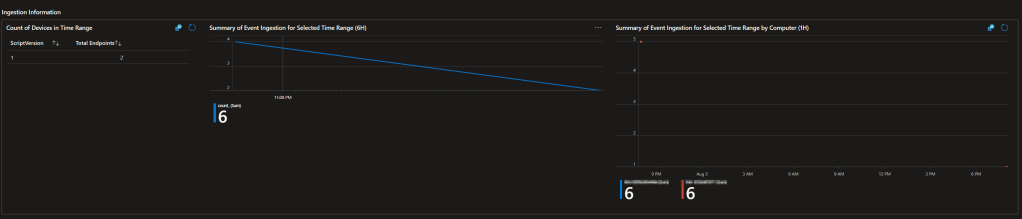
This is the same as my prior articles. This page is primarily intended for the admins running Log Analytics. It monitors how many data points are sending in data, what version of the script they are using to do so, how many data points come in per day, and what machines are sending the most data points. As this collector is a single data point per upload, that last graph should be rather flat.
I don’t have an exciting data-filled screenshot of this page yet. Truth be told this collector is so stupidly cheap I didn’t add this until recently.
Excluding Certain Accounts:
Of worthy mention, you will need to do some customization to this collector to tell it to ignore various accounts. For example, your unique Global Admin SID and Azure AD Joined Device Local Administrator SID will be in this group and show up for every device. I will guide you on how to find these and exclude them in the setup article. Another big one will be the local Administrator account, or whatever you renamed it to, along with any other accounts you have deployed.
It’s also worth mentioning that some groups/accounts, especially Azure based ones, don’t have proper names and will just show as a SID both on the device and in the workbook. The GA and AD local admins groups actually do just that. However, normal user Azure accounts don’t seem to do this thankfully.
Why up to Date Isn’t Great:
I need to go on a short technical tangent. In my AppInventory, I talked about how important it was to be able to know what the most accurate and up to date data is. One such method I briefly mentioned was compacting all entries into a single array (and thus single upload entry) such that we know the most up to date data is simply the one single entry with the highest TimeGenerated stamp. That’s actually what I use for this collector as the list of admins isn’t going to ever exceed the crazy 10,000 or so character limit per array.
However, while it can be useful to know the most recent data point to confirm the current status, my workbook will display data regardless of it being from the most recent data point or not. This is because, well, if someone was an unauthorized local admin for the 12 hours but isn’t as of an hour ago, don’t you still want to know about it? I think you do. So, you will notice I display the time generated (possibly called TimeOfData) throughout this collector and it might not always be a recent time despite the device checking in. The TimeGenerated stamp will be the last time X account was detected as a local admin on a given machine.
What About Groups?
Since I am sure someone will be curious, what if someone adds a whole group? It will be shown! I have seen things like AD groups, local groups, and Azure AD groups wind up inside a device’s local admin group, all of which were reported into the collector.
That said, if some group is added, the workbook will display that one group and not every account in the group.
Conclusion:
You should now have an idea of what this collector can give you, the value it provides, and the improvements that have been made. In the next part we will be looking at the cost part of this puzzle.
The Next Steps:
See the index page for all new updates!
Log Analytics Index – Getting the Most Out of Azure (azuretothemax.net)
I will be putting the Windows Endpoint guides on the Log Analytics Index page under the Win365 series.
Disclaimer:
The following is the disclaimer that applies to all scripts, functions, one-liners, setup examples, documentation, etc. This disclaimer supersedes any disclaimer included in any script, function, one-liner, article, post, etc.
You running this script/function or following the setup example(s) means you will not blame the author(s) if this breaks your stuff. This script/function/setup-example is provided AS IS without warranty of any kind. Author(s) disclaim all implied warranties including, without limitation, any implied warranties of merchantability or of fitness for a particular purpose. The entire risk arising out of the use or performance of the sample scripts and documentation remains with you. In no event shall author(s) be held liable for any damages whatsoever (including, without limitation, damages for loss of business profits, business interruption, loss of business information, or other pecuniary loss) arising out of the use of or inability to use the script or documentation. Neither this script/function/example/documentation, nor any part of it other than those parts that are explicitly copied from others, may be republished without author(s) express written permission. Author(s) retain the right to alter this disclaimer at any time.
It is entirely up to you and/or your business to understand and evaluate the full direct and indirect consequences of using one of these examples or following this documentation.
The latest version of this disclaimer can be found at: https://azuretothemax.net/disclaimer/
 Azure to the Max