
This is something I didn’t write before that I really should have. This article will cover how to troubleshoot an upload failure. This is applicable to ANY log client script, not just the sample collection.
Critical: If you (recently) altered/alter ANY of the Function App permissions either via the guide or by following the steps below, they take time to apply. More accurately, it takes time for the old token with the wrong/changed permissions to expire and thus a new one to generate. At most, this would take around an hour and rebooting the Function App can sometimes alleviate this.
In this section, I will cover…
- How to Access Function App Logs
- How to Restart the Function App
- Scripts reports error “Invoke-RestMethod : The Remote Server Returned an error: (403) Forbidden.”
- Script reports error “Invoke-RestMethod : The Remote Server Returned an error: (401) Unauthorized.”
- Script reports no error, only “SampleCollector:Fail” (or other Log Name)
How to Access Function App Logs:
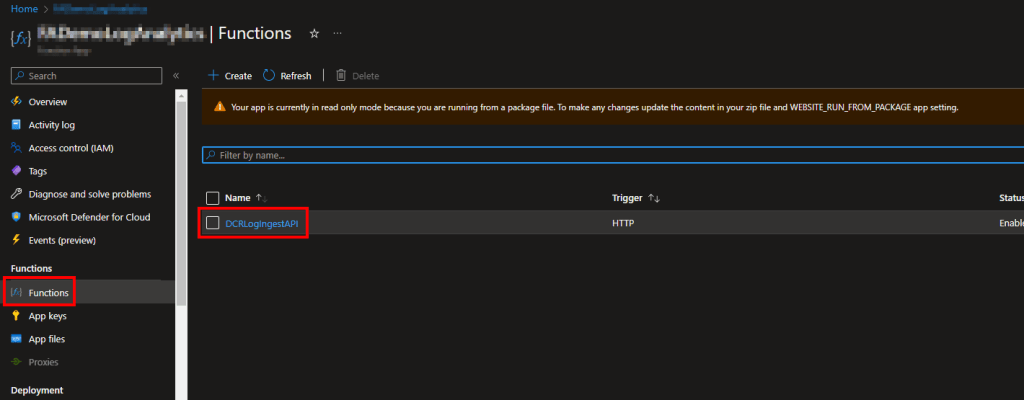
Very powerfully, this is the best way to see logs (during testing) from the Function App in my opinion. First, head into your Function App.
Then, head to Functions on the left, and then choose the DCRLogIngestAPI function.
Choose Monitor, Logs, and wait a moment for it to show as Connected.
Note: You need Application Insights ENABLED for this to work.
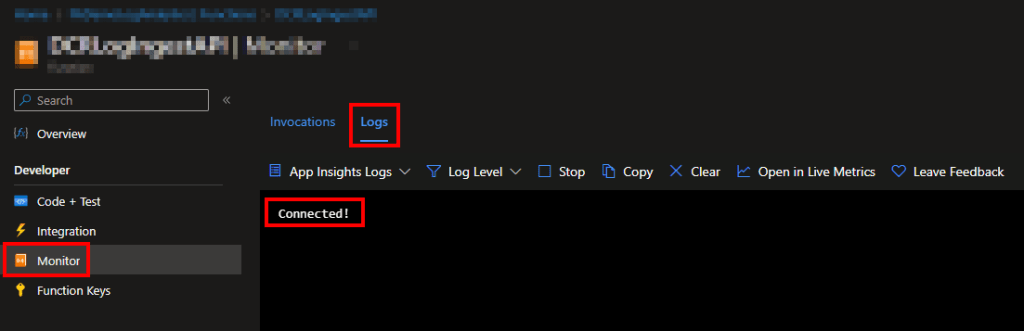
You can now re-run your client-side script and should rapidly see output here reflecting the status.
A Successful Execution:
As it may be helpful, this is what a good execution looks like in that Function App logs view.
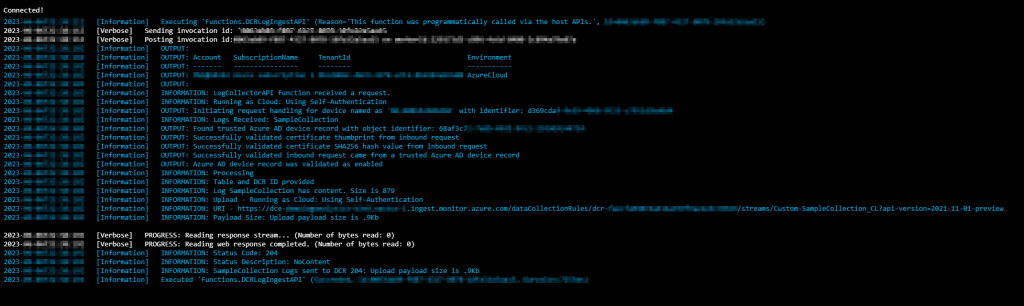
And in text format…
2023-XXXXXX  [Information]   Executing 'Functions.DCRLogIngestAPI' (Reason='This function was programmatically called via the host APIs.', Id=XXXXXX-XXXXXXXXX)
2023-XXXXXX  [Verbose]   Sending invocation id: 'XXXXXX-XXXXXXXXX
2023-XXXXXX  [Verbose]   Posting invocation id:XXXXXX-XXXXXXXXX on workerId:XXXXXX-XXXXXXXXX
2023-XXXXXX  [Information]   OUTPUT:
2023-XXXXXX  [Information]   OUTPUT: Account   SubscriptionName     TenantId                             Environment
2023-XXXXXX  [Information]   OUTPUT: -------   ----------------     --------                             -----------
2023-XXXXXX  [Information]   OUTPUT: XXXXXX    Azure subscription 1 XXXXXXXXXXXXXXXX                     AzureCloud
2023-XXXXXX  [Information]   OUTPUT:
2023-XXXXXX  [Information]   INFORMATION: LogCollectorAPI function received a request.
2023-XXXXXX  [Information]   INFORMATION: Running as Cloud: Using Self-Authentication
2023-XXXXXX  [Information]   OUTPUT: Initiating request handling for device named as 'DEVICE NAME' with identifier: Azure-Device-ID
2023-XXXXXX  [Information]   INFORMATION: Logs Received: SampleCollection
2023-XXXXXX  [Information]   OUTPUT: Found trusted Azure AD device record with object identifier: Azure-Object-ID (not the same as Device ID)
2023-XXXXXX  [Information]   OUTPUT: Successfully validated certificate thumbprint from inbound request
2023-XXXXXX  [Information]   OUTPUT: Successfully validated certificate SHA256 hash value from inbound request
2023-XXXXXX  [Information]   OUTPUT: Successfully validated inbound request came from a trusted Azure AD device record
2023-XXXXXX  [Information]   OUTPUT: Azure AD device record was validated as enabled
2023-XXXXXX  [Information]   INFORMATION: Processing
2023-XXXXXX  [Information]   INFORMATION: Table and DCR ID provided
2023-XXXXXX  [Information]   INFORMATION: Log SampleCollection has content. Size is 879
2023-XXXXXX  [Information]   INFORMATION: Upload - Running as Cloud: Using Self-Authentication
2023-XXXXXX  [Information]   INFORMATION: URI - https://DCE-NAME-b3n0.eastus-1.ingest.monitor.azure.com/dataCollectionRules/DCR-ID/streams/Custom-TABLE-NAME_CL?api-version=2021-11-01-preview
2023-XXXXXX  [Information]   INFORMATION: Payload Size: Upload payload size is .9Kb
2023-XXXXXX  [Verbose]   PROGRESS: Reading response stream... (Number of bytes read: 0)
2023-XXXXXX  [Verbose]   PROGRESS: Reading web response completed. (Number of bytes read: 0)
2023-XXXXXX  [Information]   INFORMATION: Status Code: 204
2023-XXXXXX  [Information]   INFORMATION: Status Description: NoContent
2023-XXXXXX  [Information]   INFORMATION: SampleCollection Logs sent to DCR 204: Upload payload size is .9Kb
2023-XXXXXX  [Information]   Executed 'Functions.DCRLogIngestAPI' (Succeeded, Id=XXXXXXXXX, Duration=7255ms)
Note that…
- The Azure ID and Object ID will not be the same.
- The URI is basically DCE-NAME.ingest.monitor.azure.com/DCR-Immutable-ID/streams/Custom-TABLE-NAME_CL?API – the DCE is hard coded to the Function App in it’s configuration and you set the table and DCR ID in the script.
- Sometimes the logs do not come out in perfect order, that is not abnormal for this live view.
How to Restart the Function App:
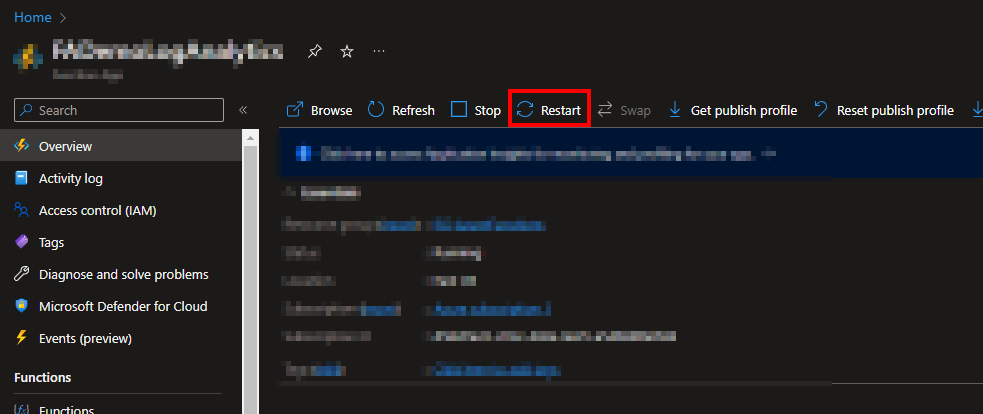
This can be done right from the overview screen of the Function App. It will ask you to confirm the reboot and takes a matter of seconds to complete (usually).
This sometimes helps speed up the applying of permissions, but it is not guaranteed.
Script reports error “Invoke-RestMethod : The Remote Server Returned an error: (403) Forbidden.”
The log output will look like this…

And the script output will likely look like this…
Again, it may be slightly out of order.

Note how it’s saying it can’t find the associated Azure AD Device for that Device ID due to a 403 error. This is because it lacks graph permissions to lookup the device. You can further confirm this by searching that ID in your Azure AD Devices list. The device should come up as a result.
Please see the previous post covering the Function App setup. Specifically, the section “Assigning the Function App Permissions” which details how to check the permissions are applied, and if not, apply them. I would highly recommend you confirm if they are there or not prior to simply re-running the script. You may simply need to restart your Function App after granting this permission, this does not always speed it up though. Again, this could take up to 1 hour.
This is mainly a self-reminder. If you get a 403 and the Function App states that the record thumbprint and hash matched, but the signature failed, this means something is wrong with the Azure ID the client is using to calculative the signature. Double check the ID is correct and that it is in all lowercase. This was a problem for Cloud PCs which came down to Get-AzureADDeviceID and was fixed in the most recent sample scripts and W365 collectors.
Script reports error “Invoke-RestMethod : The Remote Server Returned an error: (401) Unauthorized.”

You won’t see any logs in the Function App.
This is an easy one, your Function App URI is wrong. More specifically, the token on the tail end is messed. See the Function App setup to get that URI and replace the one in the script.
Script reports no error, only “SampleCollector:Fail” (or other Log Name)

And your Function App looks like this…
Again, it may be slightly out of order.

Here we can see that the script successfully verified the device, and much later failed with a 403 which was not sent back to the client. It also notates no status or description code.
The answer: Your DCR permissions are either wrong, missing, or haven’t had time to apply. See previous post 2.5 regarding the client-side script.
For reasons unknown to me, rebooting does not speed up the permission application and instead only time does. Typically, around an hour. Additionally, one time, deleting and re-adding the DCR permissions for the sake of demoing somehow initiated a Graph permission issue (the other 403 previously discussed) which was resolved upon rebooting – very odd.
The why: In the old HTTP API, Microsoft returned a success HTTP status on a successful upload. I forget the exact message and code. In the new API, they return a 204 which means “no content.” Invoke-restmethod, which we use for the graph calls, doesn’t handle this status code well. Its answer is to LITTERALLY give you nothing. That would mean passing the local client basically null and treating that as implied success, which I hate.
So, for the command to upload to Log Analytics, I instead used invoke-WebRequest which does handle a 204 by both returning that 204 status code and the no-content message. You can see this in the good run towards the bottom where it says “Status Code: 204” & “Status Description: NoContent” – this allows me to return that 204 to the client and the client to determine success based on seeing that code. This same explanation is in the code of the Function App itself.
Unfortunately, Invoke-WebRequest doesn’t handle errors well. This is why the attempts to display the status code and description are empty when an error happens, and why the client thus has no error to report on or display. While I could possibly fix this with some sort of catch loop, I almost prefer it this way as it helps quickly differentiate it from a graph based 403 error.
Conclusion:
Hopefully, this helped you get any errors you are facing fixed. If I have any other frequent issues come up, I will add them here in the future.
The Next Steps:
See the index page for all new updates!
Log Analytics Index – Getting the Most Out of Azure (azuretothemax.net)
Disclaimer:
The following is the disclaimer that applies to all scripts, functions, one-liners, setup examples, documentation, etc. This disclaimer supersedes any disclaimer included in any script, function, one-liner, article, post, etc.
You running this script/function or following the setup example(s) means you will not blame the author(s) if this breaks your stuff. This script/function/setup-example is provided AS IS without warranty of any kind. Author(s) disclaim all implied warranties including, without limitation, any implied warranties of merchantability or of fitness for a particular purpose. The entire risk arising out of the use or performance of the sample scripts and documentation remains with you. In no event shall author(s) be held liable for any damages whatsoever (including, without limitation, damages for loss of business profits, business interruption, loss of business information, or other pecuniary loss) arising out of the use of or inability to use the script or documentation. Neither this script/function/example/documentation, nor any part of it other than those parts that are explicitly copied from others, may be republished without author(s) express written permission. Author(s) retain the right to alter this disclaimer at any time.
It is entirely up to you and/or your business to understand and evaluate the full direct and indirect consequences of using one of these examples or following this documentation.
The latest version of this disclaimer can be found at: https://azuretothemax.net/disclaimer/
 Azure to the Max