
Welcome to part three of the second generation of PowerShell DCR Log Analytics. In this blog we will finally be getting into actual setup and creation! However, we will be keeping things simple and knocking out some easy targets.
Note: There is no functional changes in this article from part 3 of the original series.
In this article we will cover…
- Why You Should Make a New Resource Group.
- Creation of a new Resource Group.
- Creation of a new Log Analytics Workspace.
- Creation of a new Data Collection Endpoint.
Why You Should Make a New Resource Group:
Anyone reading this guide almost certainly has a resource group in Azure already. However, I would highly advise you to make a new one for organizations sake which will house all elements of this guide series. Keep in mind, by the end of hits guide all of these elements will have been created…
- Log Analytics Workspace
- Data Collection Endpoint
- Event Hub – if needed.
- Any Workbooks you create
- Your Function App
- Your Function Apps Storage Account
- Your Function Apps Application Insights
- Your Function Apps App Service Plan
…and you probably don’t want all that mixed in with existing items.
Note: Optionally, for even more organization, you can make a resource group for just the Function App which will also contain the storage account, insights, and service plan. Then, store the workspace, DCE, workbooks, etc, in a different RG.
Creating Your Resource Group:
The good news is that there isn’t much of anything easier to make than a resource group.
- Head to the Azure Home.
- Choose Create a Resource.

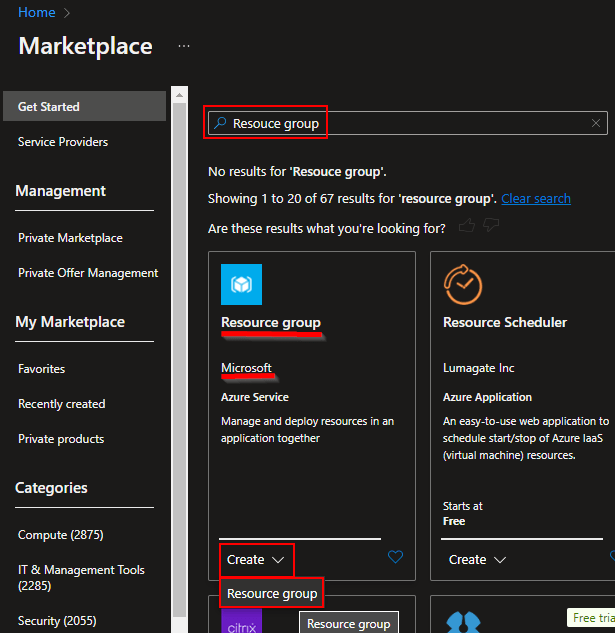
- Search for Resource Group and locate the Microsoft offering.
- Click the Create button on the bottom of the tile and choose Resource Group
- Simply give it a Name and Region and place it in an Azure Subscription. I will be using RG-LogAnalytics for the name.
Please note: The pricing of the contents we will soon create in this RG are affected / controlled by the subscription/region you place it in. - At the bottom choose Review + Create
- Wait for validation to complete, and then choose Create at the bottom.
Creating the Log Analytics Workspace:
Next, we need to create the Log Analytics Workspace. This is where data will be sent.
- Again, head to the Azure Home.
- Under Navigation choose Resource Groups
Note: You could use the main Create a Resource again but, this is a simpler route going forward.
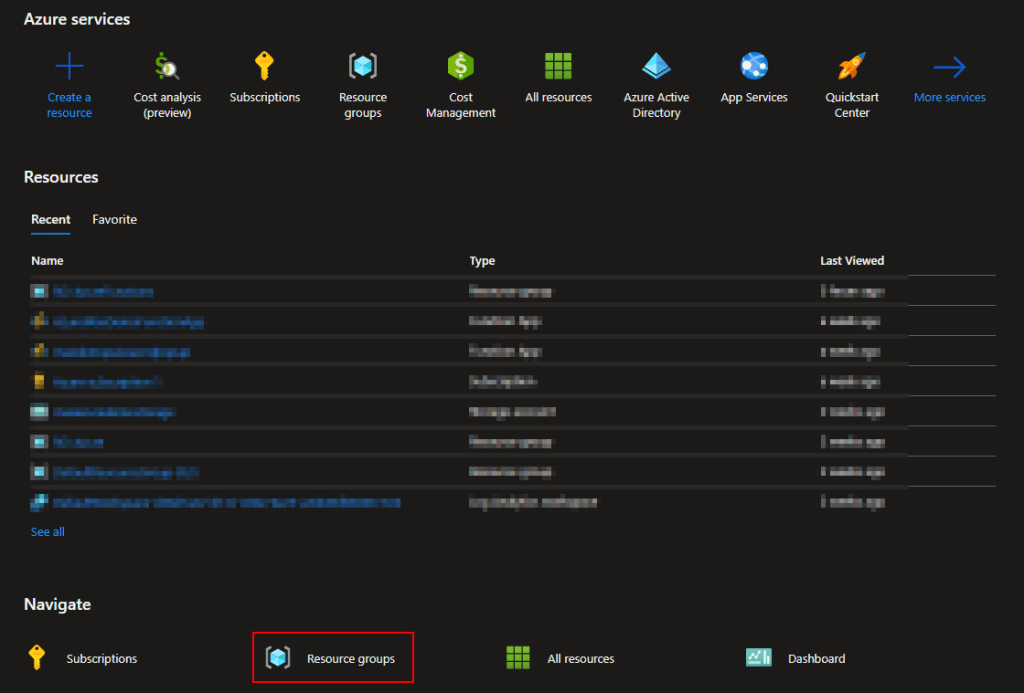
- Click into your new Resource Group
Note: Once you do this, this Resource Group will show in the Azure Recent menu which is above the Navigate section.

- Next, click Create
Note: You can use the arrow next to the search to minimize the Resource Group menu.

- Search for Log Analytics Workspace
- Locate the Microsoft offering, click Create at the bottom of the tile, and choose Log Analytics Workspace.

- Once again it needs a Subscription and Resource Group but, these should be pre-filled in assuming you used the “create” button inside your Resource Group.
- Beyond that it also simply needs a Name and Region.
- Hit Review + Create and the bottom, or hit next if you need to apply tags first.
- Wait for validation to pass and then hit Create
- You will then be taken to the deployment screen; it shouldn’t take long to show the deployment as a success.
Creating the Data Collection Endpoint:
This is less straight forward, although still not difficult.
Instead of using the Create a Resource Button, or Create button, we need to use an Azure menu named Monitor.
- Head to the Azure Home
- Using the search at the top, search for Monitor
- Chose the Monitor result that looks like a gauge
Note: We will come here several times so remember how to get here!

- Way down on the left we need to find Data Collection Endpoints
- Then choose Create to create a data collection endpoint

- Once again things are failry easy. Choose a Subscription and Region.
- Place it in the Resource Group you created
- And name the endpoint as you see fit. I will be using DCE-DemoLogAnalytics.
- Review + Create and then Create
Your new DCE should appear within a few minutes inside the DCE menu as well as within the Resource Group.
Getting the Ingestion URL on the DCE:
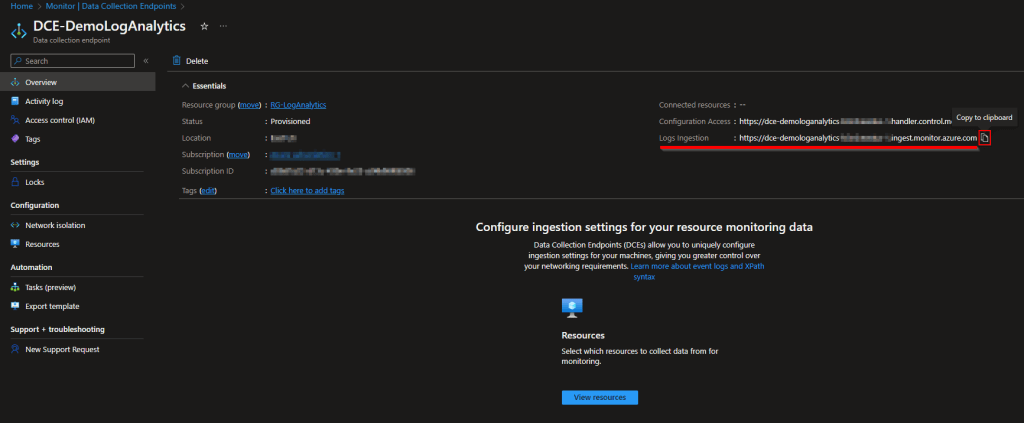
Once created, enter the DCE by clicking on it.

Then, look for the Logs Ingestion URI off to the top-right hand corner. You will need this value for the next section of the guide. You can always return and look this up at a later time and date.
Conclusion:
You should now have your Resouce Group, Log Analytics Workspace, and Data Collection Endpoint that we will use going forward.
The Next Steps:
See the index page for all new updates!
Log Analytics Index – Getting the Most Out of Azure (azuretothemax.net)
Disclaimer
The following is the disclaimer that applies to all scripts, functions, one-liners, setup examples, documentation, etc. This disclaimer supersedes any disclaimer included in any script, function, one-liner, article, post, etc.
You running this script/function or following the setup example(s) means you will not blame the author(s) if this breaks your stuff. This script/function/setup-example is provided AS IS without warranty of any kind. Author(s) disclaim all implied warranties including, without limitation, any implied warranties of merchantability or of fitness for a particular purpose. The entire risk arising out of the use or performance of the sample scripts and documentation remains with you. In no event shall author(s) be held liable for any damages whatsoever (including, without limitation, damages for loss of business profits, business interruption, loss of business information, or other pecuniary loss) arising out of the use of or inability to use the script or documentation. Neither this script/function/example/documentation, nor any part of it other than those parts that are explicitly copied from others, may be republished without author(s) express written permission. Author(s) retain the right to alter this disclaimer at any time.
It is entirely up to you and/or your business to understand and evaluate the full direct and indirect consequences of using one of these examples or following this documentation.
The latest version of this disclaimer can be found at: https://azuretothemax.net/disclaimer/
 Azure to the Max