
This is the story of how a rather innocent seeming policy, a policy which many other blogs “suggest” (to one degree or another), can absolutely destroy Windows 11 performance. This issue can slow the machine down by an order of magnitude – under the right conditions.
This issue took me the better part of a week to unravel and resolve. As a result of all that pain, I wanted to put this article together to hopefully save others some time. In this blog I will cover what the policy is, what the results are so you can confirm you are facing the same issue, and what you should do about them.
Note: Despite my best efforts, I have been unable to replicate this issue outside of the production environment it occurred in. I currently believe there is some other policy or application influencing this behavior, perhaps even a policy which requires licensing I don’t have. Either way, despite my best efforts to eliminate everything else from the mix, I again can’t replicate it elsewhere. However, that’s not to say testing in my developer environment has had no abnormalities.
Regardless, I know one singular policy is capable of starting / stopping the issue in that prod environment so I still think it worth writing this.
Disabling Windows Defender:
Windows Defender has earned somewhat of a bad rap. In years past, it has been a bit of a nuisance for going head-to-head with other installed anti-virus solutions and togethering chewing up the CPU. Or, just chewing up the CPU all on its own.
For that reason, the Google search “How to disable Windows defender” or even “how to disable Windows defender in Windows 11” has no shortage of results. You will find plenty of articles likes all of these detailing various methods to achieve this goal, some of these even featured on prominent websites.
- 5 Ways to Permanently Disable Microsoft Defender in Windows 11 (makeuseof.com)
- Windows Defender Turned Off by Group Policy [Solved] (varonis.com)
- How to permanently disable Microsoft Defender Antivirus on Windows 10 | Windows Central
- How to turn off Windows Defender using Group Policy (prajwaldesai.com)
Our concern focuses on the use of the group policy setting Turn off Microsoft Defender Antivirus. Although, the DisableAntiSpywareDefender registry key mentioned several times has the same effect as that registry key is what that policy puts in place and controls.
So, what’s so bad about this policy setting? Surely, it’s safe if Microsoft makes it available? Well, the description present for this setting on all platforms (Intune, Group Policy, etc) states rather plainly otherwise.
This capture is taken from an Intune settings catalog, although the description is again the same everywhere.
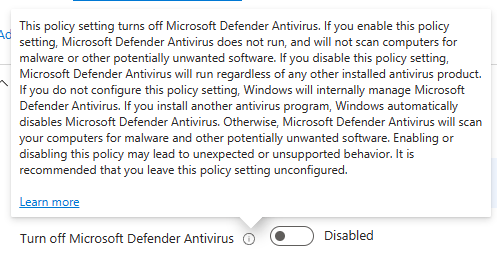
Do you see the concern? It’s the last two sentences.
Enabling or disabling this policy may lead to unexpected or unsupported behavior. It is recommended that you leave this policy setting unconfigured.
This warning should not be taken lightly, and that unexpected behavior is what we will now be taking a deep dive on.
So, what happens if you set this policy to enabled?
Note: Again, I have not yet been able to replicate this issue outside of the production environment it occurred it. It’s entirely possible that enabling this setting alone on Windows 11 will not cause these effects. However, in my dev testing I still saw strange results which I will detail later.
If what I saw happens to you… This is what will happen from the end-user’s perspective on a modern autopiloted device.
They will autopilot provision like normal, login, and everything will seem fine – so long as the machine has yet to reboot. This is because, while this policy does apply during ESP, it requires a restart to take effect. So, as long as between the device portion of ESP and reaching the desktop it doesn’t reboot, the policy will yet to have taken effect. It’s what happens after the reboot that things get messy.
The restart and login will likely happen at normal speed but, once into the desktop, you will find things are not acting right. For instance, it might take two minutes to launch Chrome. It might take minutes with multiple freezes just to open a file explorer. You might find multiple services like VPN applications and even your primary Anti-Virus service might not be starting in a timely manner, or at all.
The OS itself will freeze (taskbar, start menu, and other menus), and if you look in event logs you will see the SVChost hanging and crashing. Explorer.exe will likely crash periodically and restart. Once apps (office apps, browsers, anything) are open, they will likely perform very poorly and frequently freeze or outright crash even from simple actions like page changes or clicking on a new email.
All in all, it will be very obvious something is very wrong.
Curiously though, it’s likely you won’t see much of any CPU usage reported whatsoever. Even as an admin, task manager will likely show very little CPU usage occurring. That is once you manage to get one to actually open and load which could be a two-minute ordeal.
Also curious, this issue seems to vanish just as quickly as it appeared after using the device for several days. It seems to be kicked back up again by performing Windows Updates though.
What on earth is going on?
First, take another quick look at task manager. Again, odds are you won’t see much CPU usage. However, if you scroll down, you will see this scary sight.
If you see this, you likely have this problem.
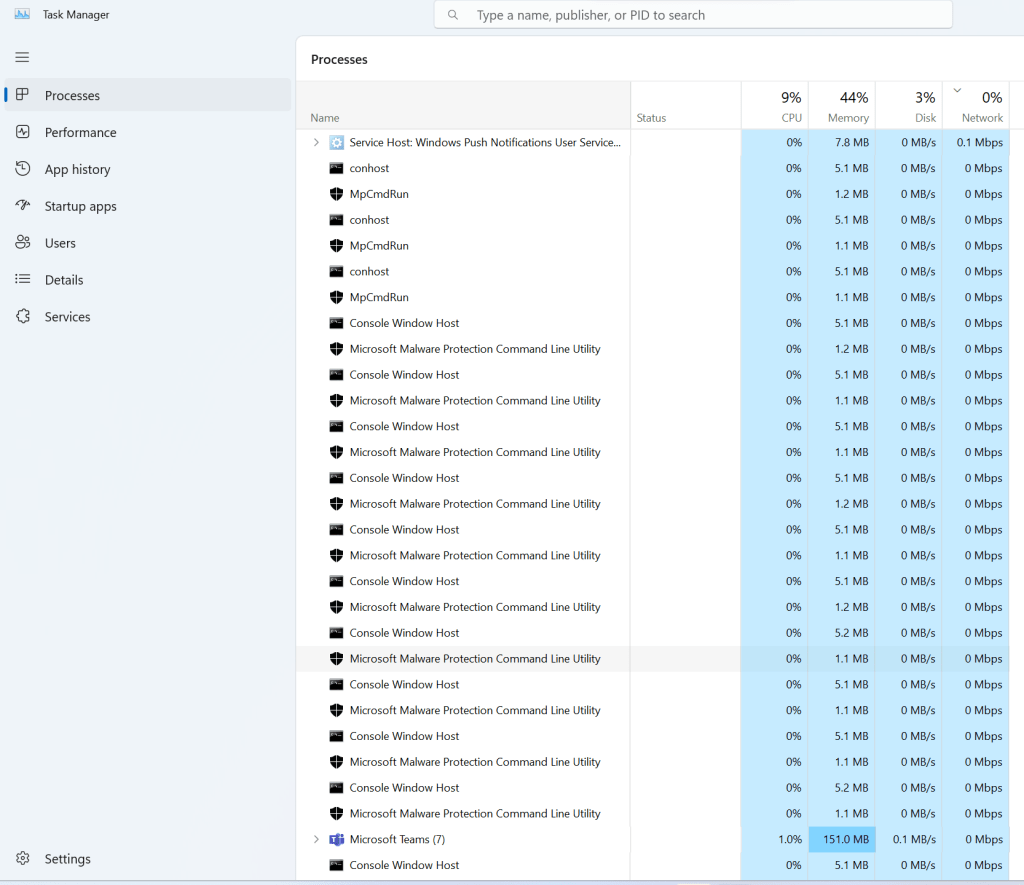
Up to 100 or so instances of “Console Window Host” and “Microsoft Malware Protection Command Line Utility” alternating back and forth over and over. They’re not doing anything it seems judging by CPU usage, but a ton of them will be present.
But what are these, and what are they doing? This is where we cross from the land of basic troubleshooting to serious and deep. To answer that question, we need Processor Monitor. If you run a Processor Monitor on one of these devices, you will likely be terrified to see it generating around 2 million events (and roughly 1 GB) of logs per minute. Processor Monitor logs are never small, but that is ridiculous. I have a roughly 6-minute trace standing at 9 GB and 22 million events with the default filter enabled.
Fun Fact: Process Monitor and Process Explorer when ran as admins can see things that Task Manager (even as admin) sometimes will hide. For instance, if you ever see 80% CPU usage in Task Manager (even as admin) but the CPU usage of each app seems nowhere near that total, go run Process Explorer and you might be able to see the missing peice of the puzzle. Usually this is AV applications or other system services.
So, with that knowledge in mind, you might immediately go run a Process Explorer, go to Tools, and run a Process Activity Summary. This will show you the usage summary (including CPU) of the various processes that ran, and display that in an over-time format.
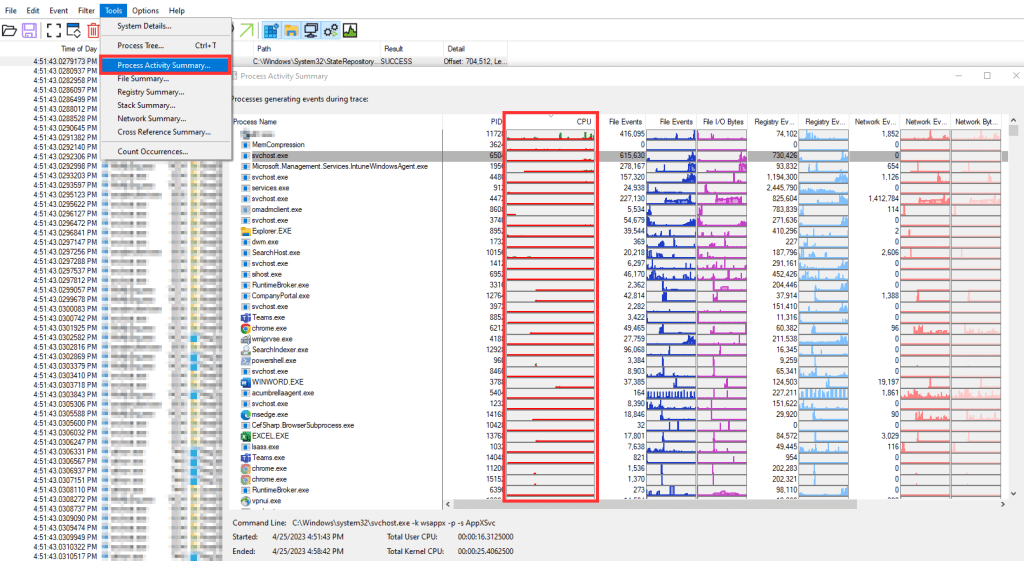
Unfortunately, you’re not going to find any answers here. Nothing was really touching the CPU. Even by sorting by the other metrics, nothing is really going to stand out. As a matter of fact, I found it a bit confusing how there seems to be such low totals (file events, registry events, etc) on these highest apps yet we totaled over 22 million events.
This is because the problem isn’t a singular processing saturating the machine, it’s hundreds of simple small individual items. To see this, go to Tools and Process Tree.
Here we can see the process that ran, the PID of that process, the lifetime*, and the exact command that executable was running with. Regarding the lifetime, bright green means it was still running at the end of the trace. Dark green means it stopped running before the trace completed.
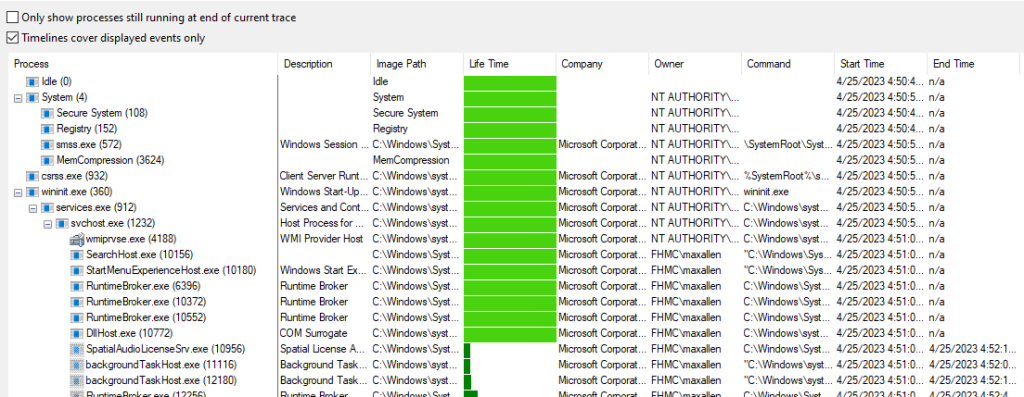
If you scroll down, you will find the MsMPEng.exe and MpCMDRun.exe over and over and over.
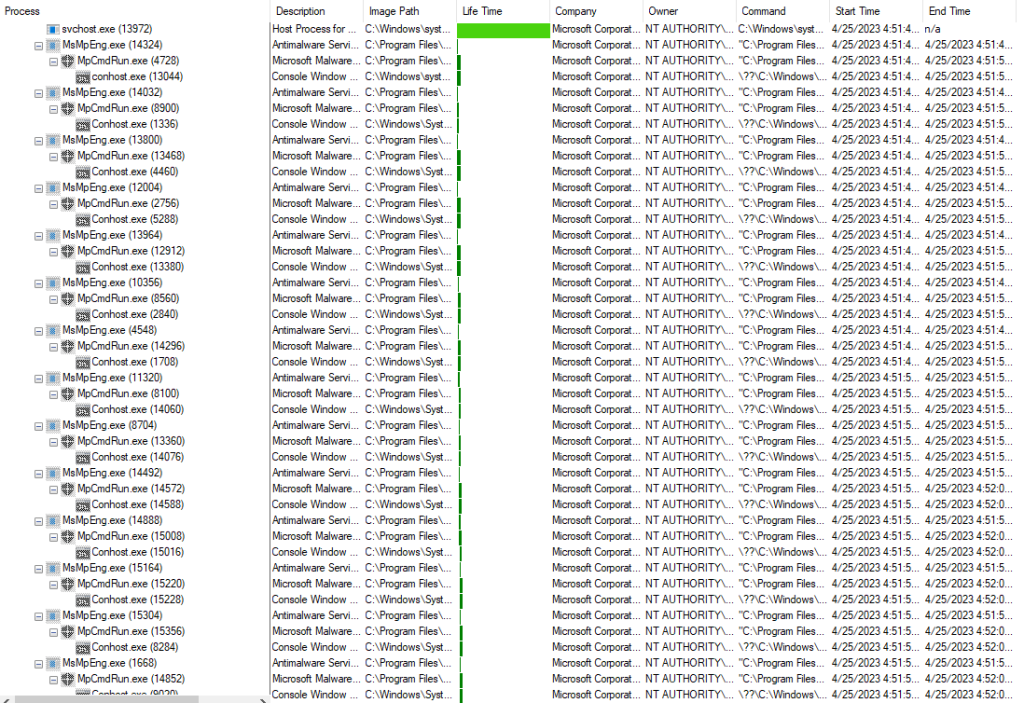
As you can see from the lifetime, these are very short lived. However, the machine was kicking off several per second and continued to do so throughout the entire trace. So, while the task manager may look relatively static with 30 of these open, the truth is those processes are ending and then being replaced at Mach speed.
There are two processes getting created that stand out.
- Svchost.exe calls MPCMDRun.exe with a -WDeneable
- MsMpEng.exe calls MpCmdRun.exe with a -DisableService
If you look up MpCMDRun.exe, you will learn it’s the command line utility used to configure and manage Microsoft defender. Unfortunately, the switches -WDenable and -DisableService are not documented. However, it’s pretty obviously Windows Defender Enable and Disable Service (likely referring to the Windows Defender services). I tested and there is an EnableService, I don’t know what the difference between that and WDEnable is.
So, what is happening here?
It certainly appears that part of the OS (or at the least, not Defender) is trying to turn on Defender, and then Defender itself (MsMPEng.exe) is rapidly trying to turn itself back off. That just seems to loop back and forth which absolutely murders the machine.
I did try to manually run the various commands it was doing, and the resulting output seemed successful, but I noticed no impact from it in terms of breaking that loop.
So, what do you do to stop this?
Simple, stop trying to disable Defender!
If you set this policy up in a production environment, I would guess your company has a 3rd-party solution you want to use and that’s why you tried to disable Defender. Simply put, Defender isn’t that stupid anymore. Nowadays it knows when you have a 3rd-party solution in place and automatically shuts itself off. That’s what you need to let happen.
In other words, stop manually dictating that Defender shut down (via a policy Microsoft recommends you do not use) and instead let it shut itself off the proper way. You will still see it appear in task manager from time to time, mainly just after device startup as it communicates with and detects your AV. But, overall, you should see it no longer appear in terms of usage.
Obviously, this suggestion means testing the elimination of that policy, and that will then be followed by the question “How do I know if Defender is shutting itself off?”
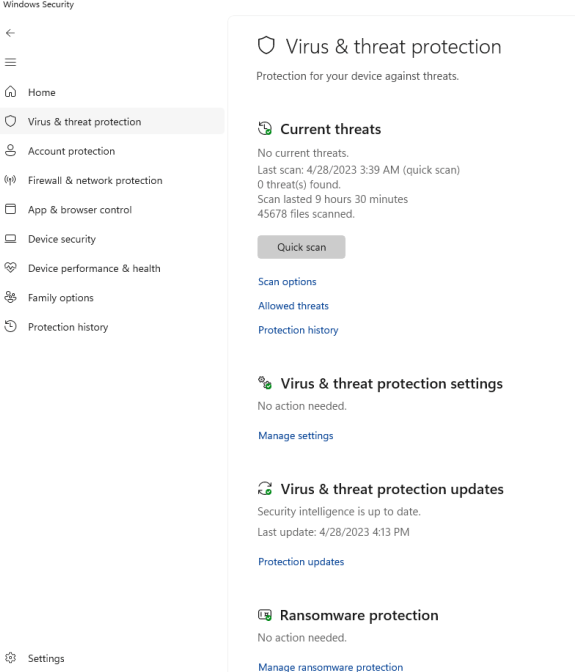
Simple, go into the Windows Security Settings menu, and click the Virus & threat protection tile.
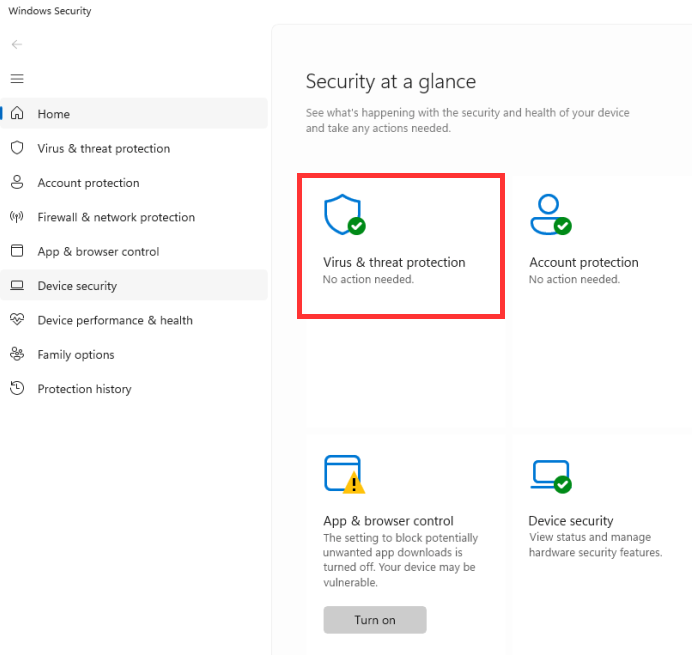
It will either look like this indicating Defender is on.
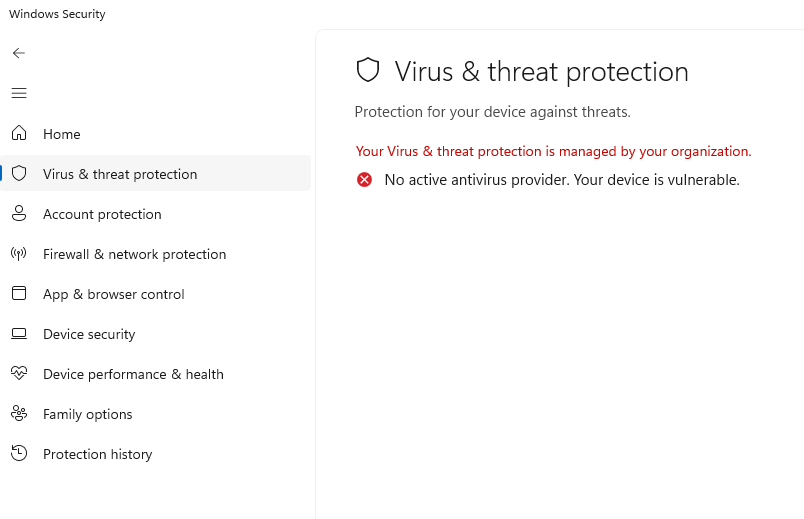
This is what it will look like if you have Defender off AND no 3rd party AV detected.
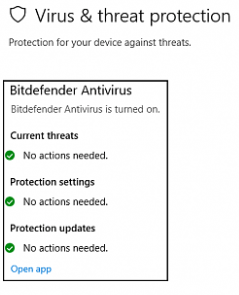
And this is what it looks like with a 3rd party AV enabled. Swap “Bitdefender” with whatever anti-virus you have. I managed to Google up a few of these screenshots and it appears they always appear the same minus the changing of the 3rd-party solutions name.
If for some reason Defender doesn’t acknowledge your AV and continues to run, you need to reach out to your vendor support to figure out what’s wrong.
Dev Testing:
This is something else I wanted to touch on. As I mentioned in a few notes throughout this article, I wasn’t able to replicate this exact issue in my developer environment. In our production environment, I eliminated as many other factors as I could. My biggest concern was our third-party AV, but that didn’t seem to be playing a part in this situation at all.
I replicated over to dev many of the other policies from prod, especially those related to Defender, but I still couldn’t get the same issue to happen. However, things also didn’t work as I expected them too either.
I tested both the policy and registry key to disable Defender and found that only sometimes would Defender disable. It felt like each time I rebooted, Defender simply flipped a coin as to whether or not it would turn off. Sometimes it would disable and show the “No active antivirus provider”, other times it would be green and happy like everything was fine.
One time I even saw this. The “Virus and Threat Protection” tile, along with the option on the left were entirely gone.
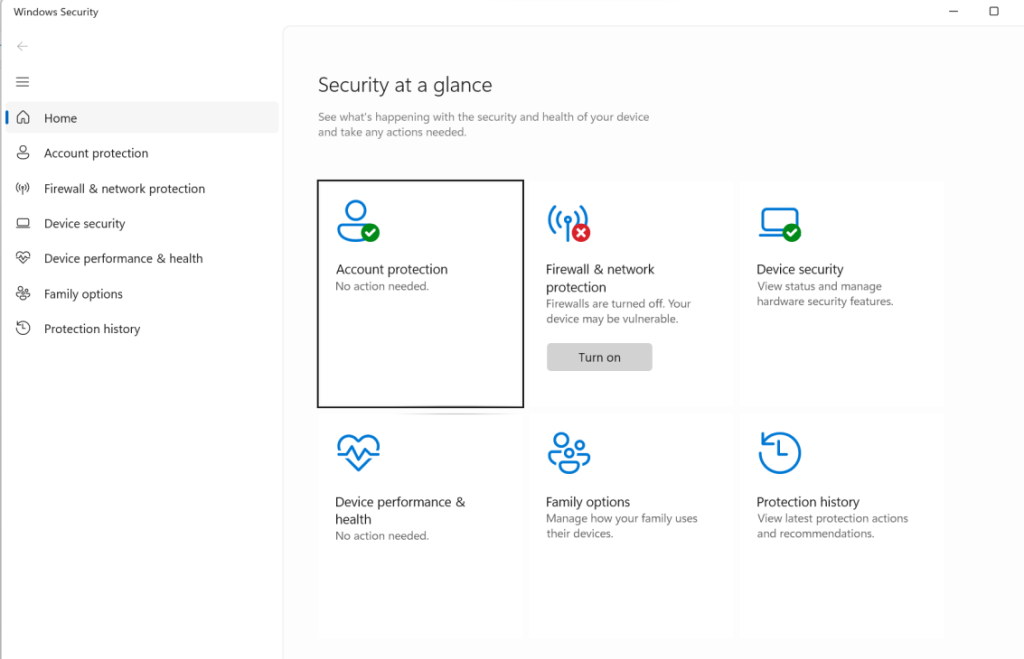
So, if you needed any more convincing that this policy causes abnormal behavior and thus should not be trying to use it, hopefully this will do the trick.
Conclusion:
Don’t manually disable Defender. Let it detect your third-party antivirus and turn itself off. Honestly, this is best from a security standpoint too as, should anything ever happen to your third-party AV, it’s better to have another line of defense lying in wait.
Disclaimer
The following is the disclaimer that applies to all scripts, functions, one-liners, setup examples, documentation, etc. This disclaimer supersedes any disclaimer included in any script, function, one-liner, article, post, etc.
You running this script/function or following the setup example(s) means you will not blame the author(s) if this breaks your stuff. This script/function/setup-example is provided AS IS without warranty of any kind. Author(s) disclaim all implied warranties including, without limitation, any implied warranties of merchantability or of fitness for a particular purpose. The entire risk arising out of the use or performance of the sample scripts and documentation remains with you. In no event shall author(s) be held liable for any damages whatsoever (including, without limitation, damages for loss of business profits, business interruption, loss of business information, or other pecuniary loss) arising out of the use of or inability to use the script or documentation. Neither this script/function/example/documentation, nor any part of it other than those parts that are explicitly copied from others, may be republished without author(s) express written permission. Author(s) retain the right to alter this disclaimer at any time.
It is entirely up to you and/or your business to understand and evaluate the full direct and indirect consequences of using one of these examples or following this documentation.
The latest version of this disclaimer can be found at: https://azuretothemax.net/disclaimer/
 Azure to the Max