
You know what I don’t care for? Half-managed, broken devices getting into Intune, resulting in employees’ devices having to be wiped and set back up. Nobody likes that, it stinks for everyone, and today I’m here to talk about one way that can happen and what you should do about it.
I will quickly say, this article is targeted at the Intune Autopilot audience.
In this article, I will cover…
- How Autopilot Should Work (Recap)
- The Problem With the Default ESP
- How to Disable the Default ESP
- The App That Kills ESP
- How to Assign the App, Creating Your Filter
- Configuring the Default ESP
How Autopilot Should Work (Recap):
What we want to happen in Autopilot, at least the user-driven side, is that we enroll the device in Autopilot and assign it a group tag. That group tag is picked up by a dynamic group (our group tag group, how confusing), and that dynamic group is then assigned to things like apps, policies, etc. This is done such that we can calculate what devices need to receive before they ever actually come online. As part of this, your machine will be assigned a Deployment Profile, as well as an Enrollment Status Page. You can see this deployment profile get assigned in the Autopilot Devices menu (where the status says Profile Status is Assigned).
The Deployment Profile is responsible for things such as joining to Entra over Local AD and hiding those pesky privacy and keyboard screens (the latter of which don’t work on laptops since those screens come up before you get on wifi to receive this dictation). More importantly, it dictates your corporate naming convention for devices and sets the enrolling user to NOT be an admin. Again, this profile would be assigned to your group tag group.
The Enrollment Status Page, acting as the other half of this process, dictates things like the max length of ESP, the apps to install during ESP, whether or not to install updates, whether or not to allow employees to use the device if required apps fail, etc.
The Problem With the Default ESP:
Here’s the problem – what happens if you enroll a device into Autopilot, but either do not tag it, make a typo in the tag, or simply don’t give the tag long enough to detect and apply the corresponding profile? Well, it’s not going to fall into a group tag group, so it’s not going to get assigned to all those things our group tag group should give (apps, policies, deployment profiles, etc). Uh oh…
You might think, as it’s not assigned to anything, it’s going to be treated as a personal device and blocked, as you’ve got those best practice Enrollment Restrictions set to block personal Windows devices. Or, ultimately, for whatever reason, it just won’t work.
Except here’s the thing, there is a default Enrollment Status Page assigned to everything. This device is in Autopilot, therefore it is declared a corporate device, not a personal device, so it will be allowed to both join to Entra and MDM Enroll into Intune.
What happens on the employee’s end is they see the “Is this a work or school device?” screen during OOBE, similar to what one would see if it were a personal device. If they click on Work Or School, and sign in with their work credentials, the device will get NO deployment profile or anything else tied to the group tag.
Instead, it sets up the following Windows Defaults as you have no Enrollment Profile (Entra join, the user is a LOCAL ADMIN, default naming scheme, etc), and follows whatever dictation of things are assigned to all devices and/or all users, as well as what apps or other configurations may be set on your default ESP. This typically results in broken devices with non-standard names like LAPTOP-XXXXX, where the employee IS a local admin, and they are missing a ton of policies and apps (everything the group tag should have given them). Most of the time, the employee can work well enough to not realize the device is in this bad state, and thus they won’t ask for help and can go on working for a long time before someone realizes something is wrong, only for the device to have to be entirely reset to fix it once it is caught, costing the employee all of the setup time they’ve already endured.
Yikes!!!
Admittedly, this is again assuming you’re not using the default ESP. If you are, things will be more okay, but odds are you are still going to have some issues, as you’ve probably used your group tags to scope something (like apps and policies), and especially the deployment profile.
How to Disable the Default ESP:
Step one to disabling the default ESP is to not use the default ESP. If you currently do use the default ESP, it’s really easy to get away from. Just create a new ESP, copy over all the same settings, and assign it to your group tag group (or other needed groups). Wallah! You no longer need the default ESP.
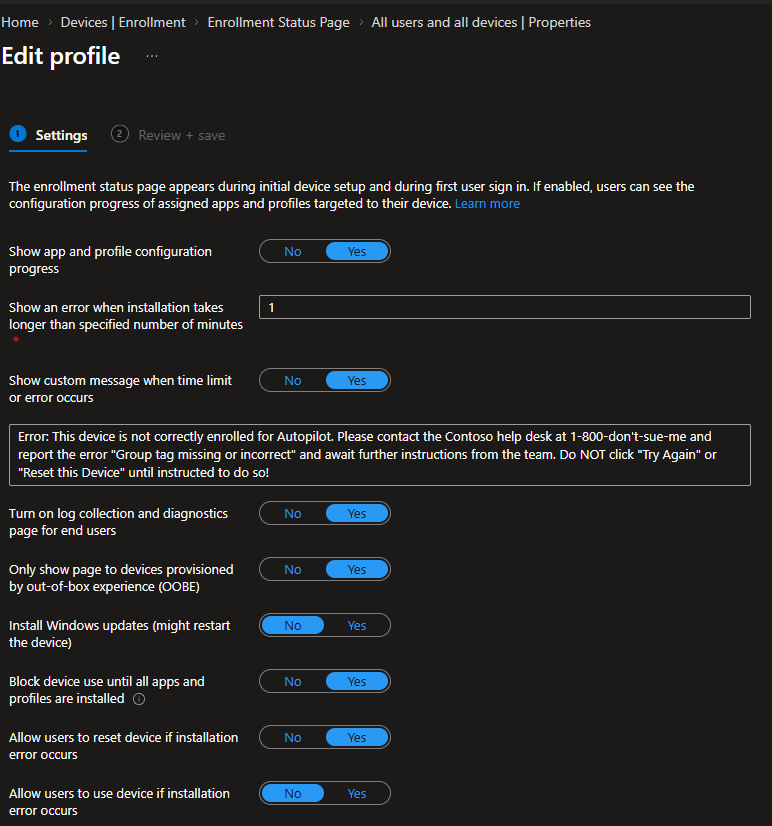
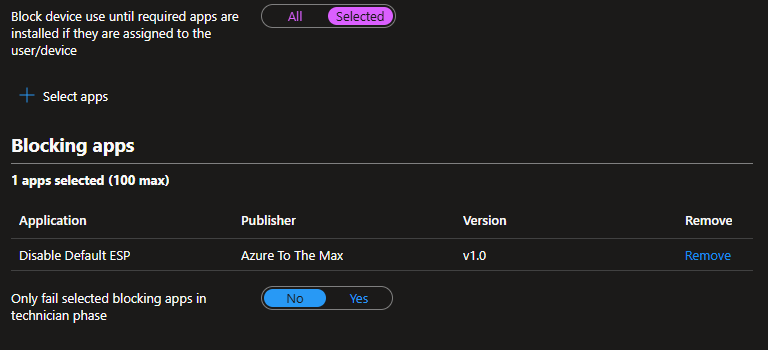
While I’m thinking about it, please configure your ESP setting “Block device use until required apps are installed if they are assigned to the user/device” to selected apps, not all apps, or this solution will not work for you. Anyone using “all apps” scares me.
So now we just disable or unassign the default ESP from all devices… Except no, you cannot do that. It’s forcibly assigned to All Devices, and it cannot be edited.
So how do we kill it? Well, it’s actually pretty simple… we just break it on purpose.
The App That Kills ESP:
Making something that fails on purpose is pretty easy.
Your install script can just be…
Exit 1 #Exit with error
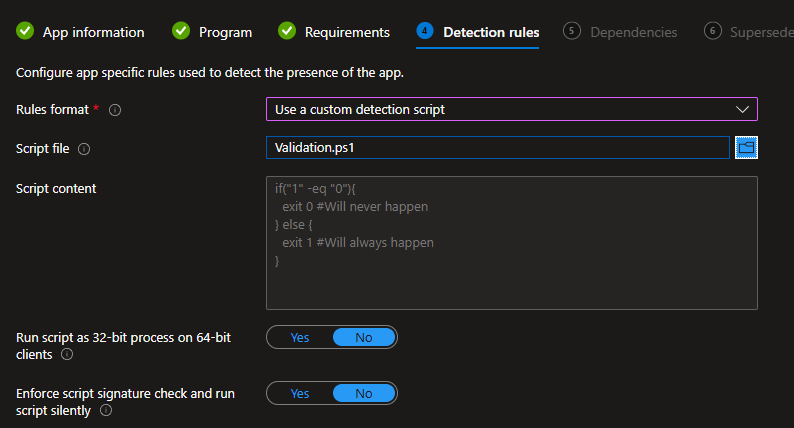
The validation can be any silly concoction of guaranteed failure, such as…
if("1" -eq "0"){ exit 0 #Will never happen} else { exit 1 #Will always happen}
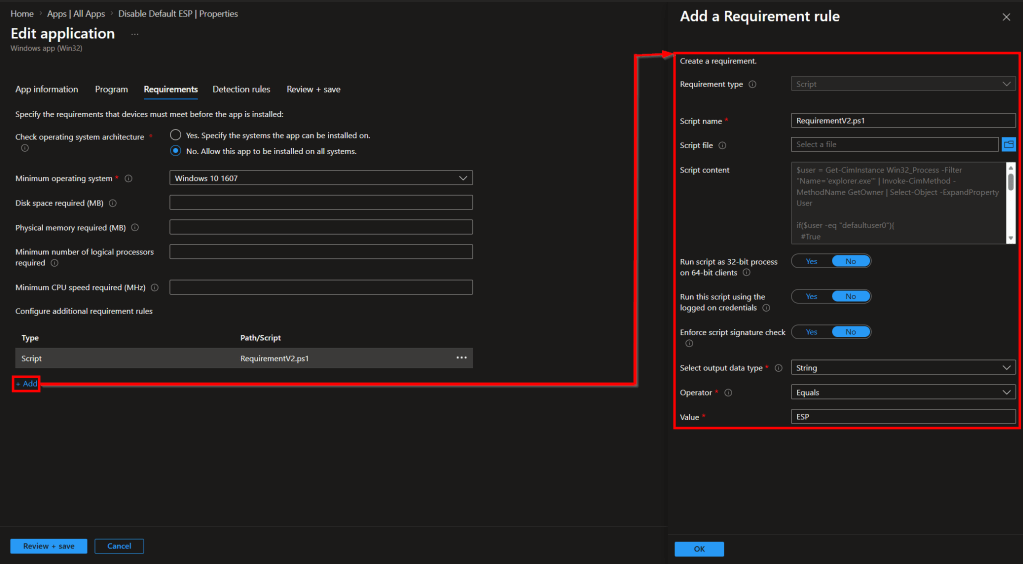
But for the requirement, I do recommend something a little fancier. This tries to guarantee the app only attempts execution on devices in ESP. This is done by identifying the owner of the Explorer.exe process and confirming it is defaultuser0, the user used during the OOBE.
Note: if you are wondering why we don’t just check $ENV:Username and run the requirement script as the current user, apparently, when a machine has nobody logged in, Intune just decides that the requirement rule doesn’t matter and tries to run it anyway. So, by doing it this way, we can run it as System and avoid that issue. I may bother Microsoft about this oddity at MMS.
$user = Get-CimInstance Win32_Process -Filter "Name='explorer.exe'" | Invoke-CimMethod -MethodName GetOwner | Select-Object -ExpandProperty Userif($user -eq "defaultuser0"){ #True Write-Host "ESP" exit 0} else { #False exit 1}
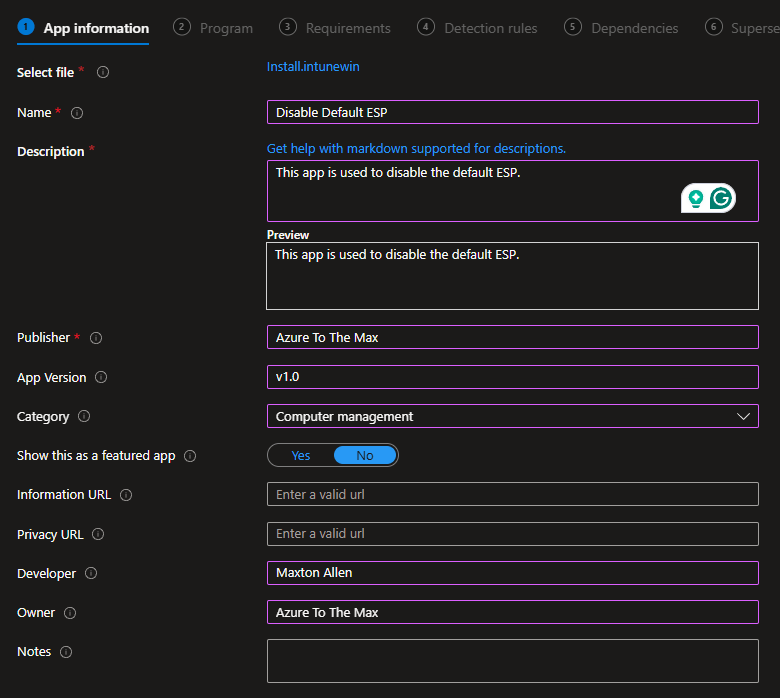
Wrap this app up into an IntuneWin file and upload like shown below…
App information:
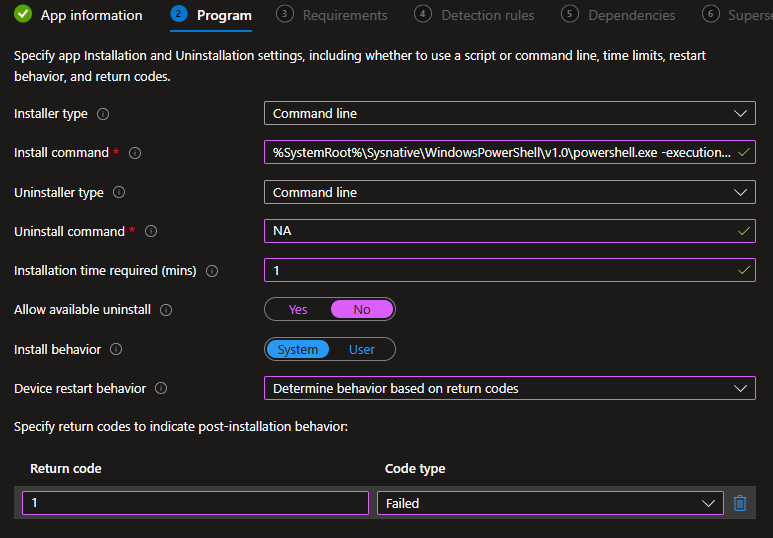
Program:
Install command:
%SystemRoot%\Sysnative\WindowsPowerShell\v1.0\powershell.exe -executionpolicy bypass -windowstyle hidden ".\Install.ps1"
Requirements:
I personally don’t care what OS it actions on, anything should be stopped, so I set it to the oldest Win10, then plug in our requirement script.
Validation:
Then, for now, skip all the way to creation (no assignments).
How to Assign the App, Creating Your Filter:
As I covered earlier, the point of group tags is to allow the system to calculate what apps, policies, etc, the device needs to have on it, all before it ever even turns on, such that the experience can be performed instantly upon unboxing.
In this scenario, we have no group tag… so how can we assign it in such a way that it’s guaranteed to still detect and apply during ESP?
The answer comes in two parts. In order to ensure this evaluates every device instantly during ESP, we will assign it to All Devices. However, we will target our bad devices specifically by creating a filter that avoids all known profiles, and thus will target anything without a profile.
Heading to Intune, Devices, Assignment Filters, we want to create a new filter as follows…
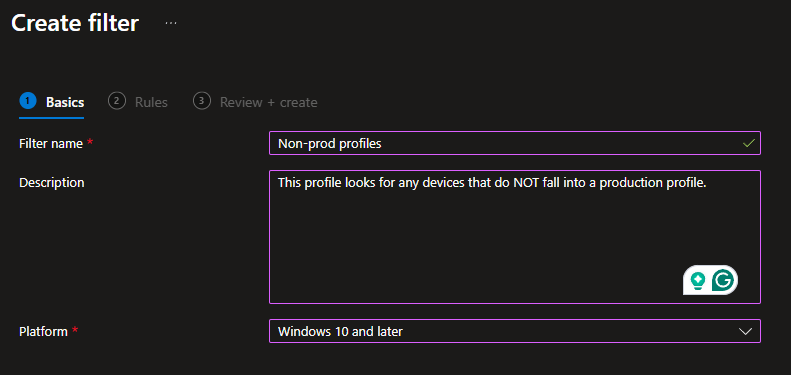
Then give it expressions to cover EnrollmentProfileName NotEquals for every prod profile you have. For example, I just have one profile so mine is rather simple…
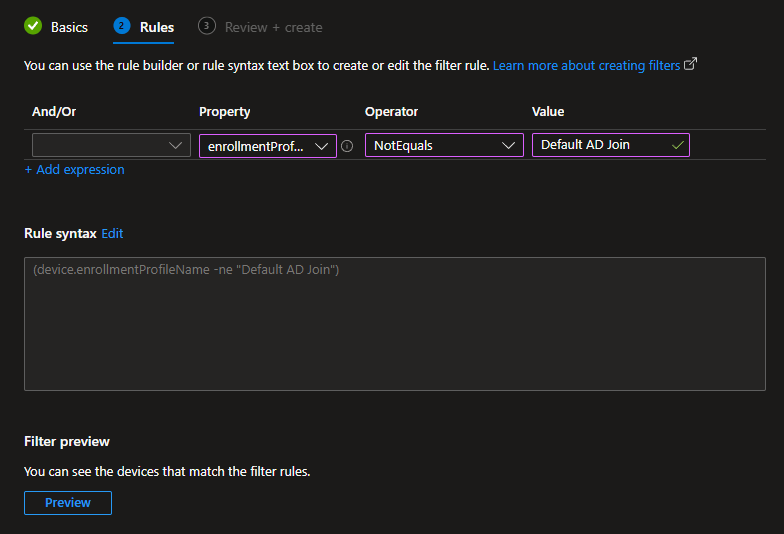
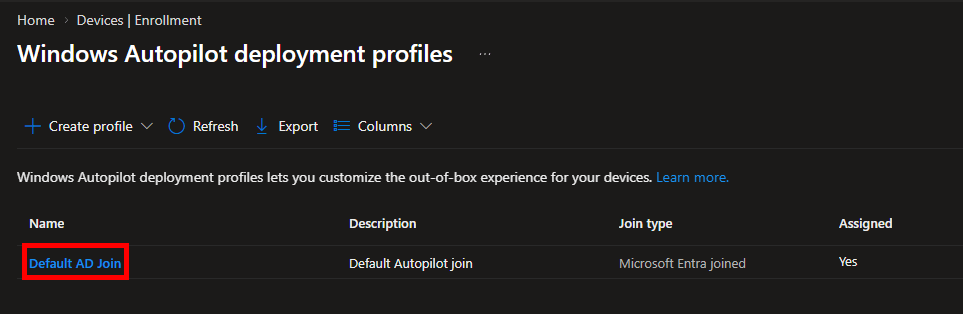
To be clear, profile names are literally just the name listed under Intune, Devices, Enrollment, Deployment Profiles.
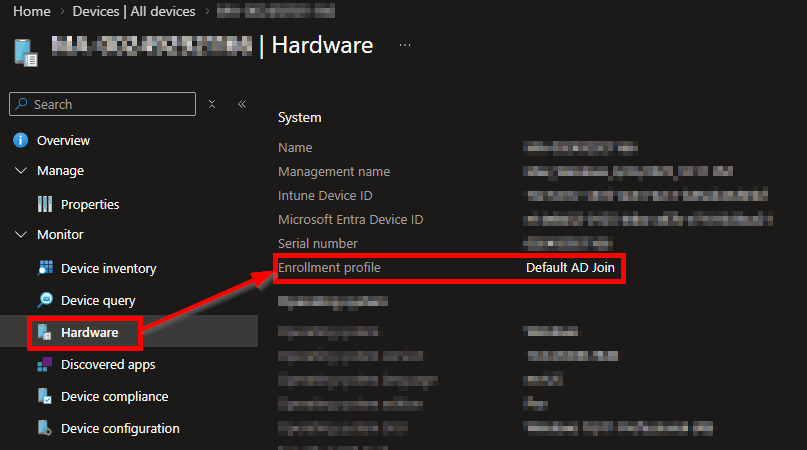
You can also look at an existing device and see the profile it was set up with. Please note that this recorded profile is determined AT BIRTH. Just because a device has a Group Tag and profile assigned now does NOT mean it did at birth.
You can then use the preview function to see what devices meet this filter. Ideally, you won’t see anything. If you do, then either…
A) You have existing bad devices, have fun with that. Remember, devices may have a tag and profile assigned now, but may not have when they walked through Autopilot. Keep in mind, we do have a requirement rule trying to make it such that the app only applies to devices actually in ESP. So, any existing devices that match the filter should still ultimately come back as requirements not met.
B) You’ve got something in your environment, like Amazon Workspaces, that didn’t come in through a profile, and you’ll have to add logic to exclude such devices from the filter.
Once you have a filter set up that meets your needs, we need to assign the app. This is done by scoping the app as silently required to All Devices with your filter set to Include, thus only picking up on devices that match the filter. Note, if you are still somehow worried about this blowing up another ESP, keep in mind that ESP only acts on apps that are BOTH attached to ESP and scoped to the device passing through ESP. As the only ESP we will attach this to is the default one, that’s the only one it can blow up, ASSUMING you have your actual ESP(s) set to specific apps, not all apps. If it’s set to all apps and your filter doesn’t work right, then yes, this could cause issues, but using all apps is insane in my opinion anyway.
Configuring the Default ESP:
Next, we need to configure our default ESP. This is how I have mine set up.
Make sure to configure your selected app to include (and really be the only app) the Disable Default ESP app we created. I would also HIGHLY recommend a custom error message that both informs the user to contact help and provides a clear error for your help desk that the group tag is the culprit.
If you want, you can also inform the user to instead click “Reset this device” now to automatically wipe it, that way they don’t have to wait for someone else to send a wipe and that wipe to arrive. The only concern there is that if they try to log in again before the mistake is fixed, it will just fail again. So, I opt to instead tell them to wait for the Help Desk to give that instruction.
Also, I have had very rare issues where the Reset Device button results in the device running into error 0180014 on the next login attempt during OOBE. This happens because of the existing record in its way. Normally, the device just clears that on its own, but sometimes this seems to go awry. Just retire and delete the ghost record if still present, and the next login attempt should work.
The End result:
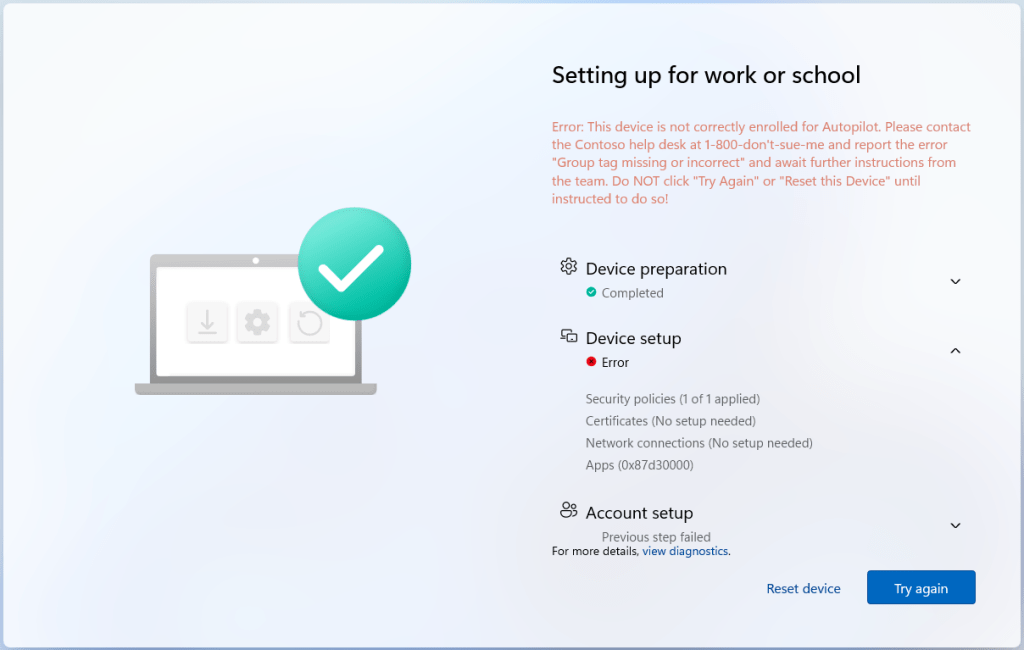
Once all is in place, you can take a test device and typo or delete the tag (you may have to wait for the prior assigned profile to unassign, or just delete and re-add it from Autopilot) and then run it through ESP. You should crash into your configured error screen, as shown below.
Now, rather than setting up a bad device, the employee is stopped and directed to contact help so that the mistake can be caught and fixed before the devices becomes usable, saving everyone time and headaches.
Notes:
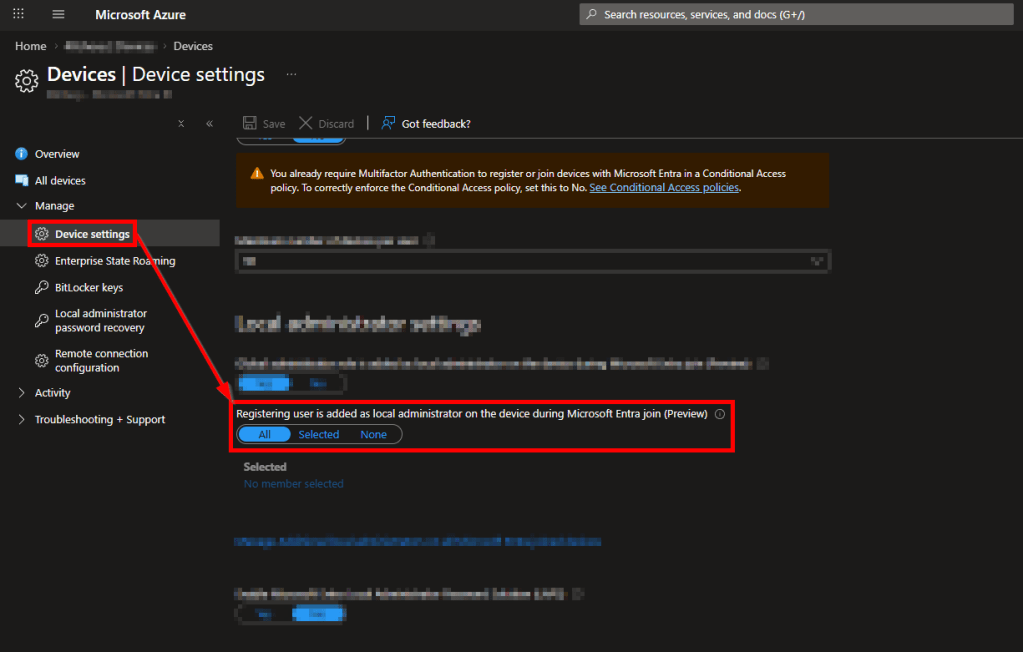
- One of the things I mentioned is how if you don’t go through your enrollment profile, you don’t get settings such as the local user NOT being a local admin, and thus they ARE a local admin. I believe if you go to Entra, Devices, Device Settings, that can also be prevented by changing the “Registering user is added as local administrator…” to None. I’ve yet to do this myself, as this is not a process we want to enable/use, and instead, the above solution to prevent this from even being possible was created.
- Additionally, I also want to again note that there is a period between typing the group tag into a device, and that device truly having a profile assigned. If a device rushes to get set up moments after the group tag was entered, it may run into this failure because the profile, which both determines our ESP and app assignment filter, has yet to apply.
Conclusion:
With this in hand, you should now be able to stop untagged or incorrectly tagged devices from being able to set up and get into your environment. Happy ventures blowing up the Default ESP!
Disclaimer:
The following is the disclaimer that applies to all scripts, functions, one-liners, setup examples, documentation, etc. This disclaimer supersedes any disclaimer included in any script, function, one-liner, article, post, etc.
You running this script/function or following the setup example(s) means you will not blame the author(s) if this breaks your stuff. This script/function/setup-example is provided AS IS without warranty of any kind. Author(s) disclaim all implied warranties including, without limitation, any implied warranties of merchantability or of fitness for a particular purpose. The entire risk arising out of the use or performance of the sample scripts and documentation remains with you. In no event shall author(s) be held liable for any damages whatsoever (including, without limitation, damages for loss of business profits, business interruption, loss of business information, or other pecuniary loss) arising out of the use of or inability to use the script or documentation. Neither this script/function/example/documentation, nor any part of it other than those parts that are explicitly copied from others, may be republished without author(s) express written permission. Author(s) retain the right to alter this disclaimer at any time.
It is entirely up to you and/or your business to understand and evaluate the full direct and indirect consequences of using one of these examples or following this documentation.
The latest version of this disclaimer can be found at: https://azuretothemax.net/disclaimer/
 Azure to the Max