
This is one of those articles that I actually hope nobody gets any use out of, because if you are getting use out of it, you’re not having a good day. This article is to cover the MSI Installer error 1612 and, more specifically, an Intune remediation I created to help understand the scope of the issue and what it will take to fix it, should you run into this. Let’s jump right in.
Outline:
- Overview
- Finding the Issue(s)
- How Do You Fix It
- What Causes This?
- Conclusion
Overview:
As far as covering the basics of error 1612, Patch My PC has a wonderful article on this, which you can check out here: https://patchmypc.com/kb/system-error-1612-installation-source/
To boil it down, when you install an MSI-based piece of software, a copy of the MSI used to install it is dropped into C:\Windows\Installer with a garbled name that is different per machine. That MSI’s correspondence is tracked via some registry keys. If that file goes missing, and is thus not where the registry expects it to be, you can’t uninstall or update that software.
For example, the keys may track that the product Google Chrome of version 138.0.7204.97 should have a local copy of the MSI at C:\Windows\Installer\6785b.MSI. If that file were to be deleted, Chrome can’t be updated or uninstalled. Most of the time, the way this will come to light is that devices will start to get flagged for vulnerabilities, and then you get to go on a goose chase trying to figure out why they are not updating.
As great as the Patch My PC article is, and I really mean that, I’m not much a fan of the “you have direct access to the device” style. I really prefer to do as much as I can in the background, especially when it comes to an issue that can impact hundreds of devices in a worst-case scenario. Addressing that is why I am writing this article.
Finding the Issue(s):
As far as confirming that error 1612 is the root cause of an upgrade failure, for a one-off scenario, you can perform a “collect diagnostics” on the device in Intune, as the application log is gathered as part of that, then filter that log down to the MSI Installer source, and see what errors are coming up. If it’s 1612, it will be very obviously so. That said, this only confirms the error but does not give you the critical information required to fix it.
I’ll also highlight the FixMissingMSI tool highlighted in the Patch My PC article, which is great if you are okay with directly accessing the system (screen share).
For larger scenarios, and to accomplish it silently, I have developed an Intune Remediation, which you can find here.
This works by scanning through all entries in the registry under all users and simply validating that the file is present as expected. If the file is not present, the software name, version, and the file name expected is reported back, as that is the information you will need in the next section to fix this.
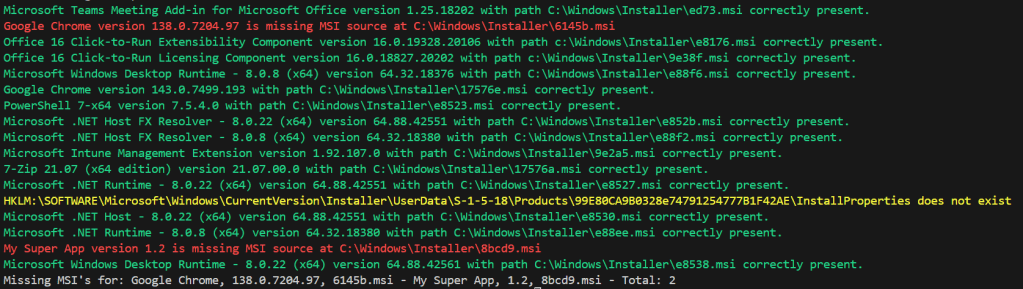
For example, if ran manually on a device with verbose logging enabled, it looks like the above. We can see it cycling through all apps, noting that the file is found correctly, wasn’t found, etc. In this case, I made a fake example of an old Google Chrome version and fake app so that it would flag as missing (red).
At the end of the script, a final output is made containing a complete list of all missing apps, versions, expected file names, and total count.
When deploying via Intune, turn off verbose logging! Beyond that, this is deployed like any other remediation (detection script only, run as System, 64-bit). Devices with no missing MSIs report back a “without issues” status, and those that have one or more missing MSIs report back with a “with issues” status on the remediation overview.
To get the detailed output, go to the remediation, the Device Status page, and export it. The information output in the final line (either a list of missing apps, versions, and files, or confirmation of no missing apps) will be in the PreRemediationDetectionScriptOutput column. This export also has other useful information like the device name, IDs, users, etc, for lining this up to other information.
So, you can deploy this to the world, and from that get back data on both what devices are impacted and in what way.
I do want to say that the output has a limited length. That is why the total count is the last information in the output. That said, as I will explain in the next section, if you have so many missing apps that it’s breaking the output limit (something like 50+), it really doesn’t matter what the full list is anyway, as that device is doomed.
Note: I also want to add that I have seen some software like Git which always seems to be missing it’s MSI. I don’t know why, but take that into account when you get this data back. If you see a piece of software gone from existence that’s a surprise, maybe double check that it’s really not updating.
How Do You Fix It?
Again, the Patch My PC article covers this in detail.
Briefly, you’re going to need the same MSI of the same version to have any ability to fix it. So, going back to my example, if you are missing Google Chrome of version 138.0.7204.97 that should have file C:\Windows\Installer\6785b.MSI, you need to get a Chrome MSI installer of version 138.0.7204.97.
Here lies the problem. The most common software that I have seen this issue happen to is software like Chrome, Firefox, Zoom, etc, which do not make historical MSIs available. That seems to be the norm for most software. In other words, you cannot get the file you need to fix the problem. This is why I say if you have a device with some 50+ missing MSIs, it’s doomed. You’re not going to be able to track those all down, and even if you can, it’s going to take a lot of time to find them and restore the machine to a working condition. In this scenario, you’re going to want to wipe/replace the device.
It doesn’t help that, again, the #1 way I see this issue get revealed is through vulnerabilities. By the time a given software is so old it’s showing on your vulnerability dashboard, it’s probably far too late to go find that MSI on another existing device in the fleet. Also, it really doesn’t help that even if it is one common piece of software like Chrome, it never seems to be one version that went bad; it’s three dozen machines with a dozen different versions, meaning you need a dozen different files.
There are 3rd party sites out there that claim to have all your MSI needs, but I don’t really trust those to be honest. Patch My PC has been able to help me out with providing some MSIs of various versions, so you can certainly ask if they happen to have what you need, assuming the software in question is one they can manage.
That all said, if you do happen to get the right MSI and right version, the simplest solution in my opinion is to copy that MSI file into C:\Windows\installer and give it the name the registry expects it to have. I have had success with this, and find it much easier than other suggestions like dropping the file and then instead editing the registry to look for a new file name, rather than renaming the file itself. I will add that if you are on a common network, utilizing the C$ share can also be a big help and allow you to take this action silently as well.
This could theoretically be coded easily as well into something like an Intune app. If you have 100 machines all missing Chrome 142, and you have that version of Chrome’s MSI, it would be trivial to make a script that restores the file and renames it how the registry expects. I’ve not made such a script simply because I’ve never seen it as just one piece of software / one common version in order for this to be fruitful.
What Causes This?
This is another area I do want to spend a moment talking about.
I’ve obviously had to deal with a number of these. The weird thing to me is that I keep seeing this problem with Chrome, hence I keep picking on them, and I’m seeing it in multiple environments where factors like support staff, AV solutions, etc, don’t overlap, so I’m struggling to see a common factor as simple as something like an AV. Additionally, I’ve seen this happening to a couple of dozen versions over the last six months, so again, not a commonality. I have discussed it several times with Patch My PC, who is not getting reports from other clients of experiencing this issue, so it’s unclear what is happening. If you see this happening, especially with Chrome, leave a comment and/or contact Patch My PC about it so they know (assuming it’s a PMP deployed software and you are a PMP customer)!
That said, AV and stupidity are the two most common answers. Either…
A) Your AV nuked it, and you really need to tell your security team to stop that. If they try to argue, remind them that you can’t patch the software to make it compliant until they stop deleting these files.
If this is the root cause, you’ll likely see a single common software & version deleted across a very high percentage of devices all at the same time.
B) Someone with admin access decided that the C:\Windows\installer folder was looking a bit too big and nuked its contents. This is not just a hidden folder but a system folder, so it takes some knowledge to even get into it, and any Google search will quickly reveal that it’s a critical folder you should not touch, but I’ve seen it happen. This tends to come up around the topic of low disk space as this can be a very large folder as it directly grows in line with how much software you install as it is a cached copy of all those installers.
This is how you get a device missing basically all of its MSIs. And again, in that scenario, wipe it and move on.
Conclusion:
In conclusion, I hope this tool can at least provide some assistance in identifying, if not also remediating, your issue, and I hope this article proved as helpful as possible. I only wish there were some nice MSI repositories from these vendors so something like an automatic fix tool for ALL cases, at least for a given piece of software, could be made.
Disclaimer:
The following is the disclaimer that applies to all scripts, functions, one-liners, setup examples, documentation, etc. This disclaimer supersedes any disclaimer included in any script, function, one-liner, article, post, etc.
You running this script/function or following the setup example(s) means you will not blame the author(s) if this breaks your stuff. This script/function/setup-example is provided AS IS without warranty of any kind. Author(s) disclaim all implied warranties including, without limitation, any implied warranties of merchantability or of fitness for a particular purpose. The entire risk arising out of the use or performance of the sample scripts and documentation remains with you. In no event shall author(s) be held liable for any damages whatsoever (including, without limitation, damages for loss of business profits, business interruption, loss of business information, or other pecuniary loss) arising out of the use of or inability to use the script or documentation. Neither this script/function/example/documentation, nor any part of it other than those parts that are explicitly copied from others, may be republished without author(s) express written permission. Author(s) retain the right to alter this disclaimer at any time.
It is entirely up to you and/or your business to understand and evaluate the full direct and indirect consequences of using one of these examples or following this documentation.
The latest version of this disclaimer can be found at: https://azuretothemax.net/disclaimer/
 Azure to the Max