
Introduction:
This article pairs with my Everything I Know on Subscription Activation article as is to cover the technical deep dive over how I created the Work or School account detection and removal scripts as part of the “Workplace Un-joined” project. I figured this in-depth information likely didn’t need to go right into the master article.
Author’s Note: On an old Microsoft case of mine (September 2024~), they started calling these Work or School accounts “Workplace-Joined” accounts, which was a nicer phrase to me. But, recently I noticed that’s not a term I can find anyone else using online, and that actually seems to refer to something else that is similar but not the same. So, if you see this term, or my entire project name of “Workplace Un-joined” on GitHub and wonder where that came from, well, yeah… It came from someone using the wrong term in an M$ case, and it just caught on.
Overview:
- How Does It Work? Reverse Engineering the Settings Menu:
- Turning That Logic Into Code
- Conclusion
How Does It Work? Reverse Engineering the Settings Menu:
This was moved over from the 3rd part of my original series. Feel free to skip this section if you don’t want a technical explanation on how I went about creating my scripts.
In this section, I’ll go over how I figured out how accounts are removed when done normally (through the Settings Menu) which is very important for understanding what the script does.
Overview:
When I first started work on this in mid-September, I promised myself I would share all the nitty-gritty details of how I figured it out for those who wanted to learn. Unfortunately, now more than a month later, that’s a lot harder to remember. I almost certainly will not be able to exactly retrace my steps in the exact order I went in, but the key points are obviously still memorable so I’m going to do my best to at least recap it in a general overview.
The incredibly short version is that you run Process Monitor, take the action you want to understand while Process Monitor is monitoring, and then devour the Process Monitor log. That will at least give you a lot of hints.
Applying the Method:
In this case, that was achieved by using DSREGCMD to remove the accounts (please don’t look into this, it’s not a good rabbit hole), as well as using the settings menu’s “Work and School Accounts” menu to Disconnect the secondary accounts, then look through the logs to see what happened.
One of the key things to look at is what else those utilities then call (Process Create, Process Start, Process Exit)…
DSREGCMD:

Disconnect from the Settings Menu:

The thing I immediately noticed was that SVCHost and BackgroundTaskHost popped up immediately after starting either method. These are fairly common executable’s though so while my hindsight vision knows at least one of these is important now, I likely didn’t when I first started digging.
At the same time, given we know we are looking for the deletion of something, I would go looking for specific operations like RegDeleteKey and RegDeleteValue…

Take note of how it’s the BackgroundTaskHost again, as well as the RunTimeBroker.
Those results give us a huge hint pointing at some keys down in…
HKU:\Your-SID\Software\Microsoft\Windows\Windows\CurrentVersion\AAD\Storage\Https://Login.MicrosoftOnline.com
HKU:\Your-SID\Software\Microsoft\Windows\Windows NT\Current Version\WorkplaceJoin\JoinInfo
…That are being blown away. Importantly, those keys/values contain things we recognize like the Universal ID (A Universal ID follows the format U:Azure-Account-ID.Tenant-ID) and tenant ID belonging to the secondary account we had added and thus would have been removed during the log capture.
More confusingly, we also see some bizarre key path listed of…
\Registry\A\Some-GUID-Garble\LocalState
…with more keys and values belonging to our tenant, our secondary accounts Universal ID, and our secondary accounts outright UPN.
Well, that begs the question of what on earth this weird registry path is? A little Googling of \Registry\A will let you know this is an Application Hive so, the registry has custom-mounted some hive from somewhere and is taking action on it. So where is it? What is it?
Luckily, the filter “Operation is RegLoadKey” will take you right to that answer… (Or, I’m fairly certain what I did at the time is filter for a path containing .dat knowing that’s the typical extension for a registry hive, just like the NTUSER.DAT at the root of your Windows profile.)

…that BackgroundTaskHost.exe loaded two hives (copied below).
C:\ProgramData\Microsoft\Windows\AppRepository\Packages\Microsoft.AAD.BrokerPlugin_1000.19580.1000.0_neutral_neutral_cw5n1h2txyewy\ActivationStore.dat

C:\Users\USERNAME\AppData\Local\Packages\Microsoft.AAD.BrokerPlugin_cw5n1h2txyewy\.Settings\settings.dat
These are both hives for the AAD Broker Plugin, one of which is simply for the machine overall and the other is for our user. And sure enough, if you copy both of those files out somewhere else (you will have to catch them while not in use, which is easiest immediately after restarting), then load them like any other registry hive, you will find that the Settings.dat file contains the same keys and values that we saw get deleted (granted you would have to re-add the account to see this).
Lastly, I don’t know why but Process Monitor seems to lack a “file delete” type operation, instead categorizing it as “SetDispositionInformationFile” with a detail status that tells you it was deleted. That shows that SVChost (finally coming full circle on this) also deletes out some garble-named Tbacct files in the same token broker location. These are the actual authentication tokens for the account, along with the profile pictures in varying resolutions.

After repeating this test while logging several times in several different ways, we have our puzzle pieces in hand as far as what we need to track down and remove.
Turning That Logic Into Code:
This was moved over from the 3rd part of my original series. Feel free to skip this section if you don’t want a technical explanation on how I went about creating my scripts.
Following the last section, we now have our map plotted with destinations and the question becomes – how do we get there?
Going back up to the filter of RegDeleteKey and RegDeleteValue, we know some of the registry keys it goes after are in the Token Broker’s application registry (Settings.dat going forward), and some are in the normal HKU paths below.
HKU:\Your-SID\Software\Microsoft\Windows\Windows\CurrentVersion\AAD\Storage\Https://Login.MicrosoftOnline.com
HKU:\Your-SID\Software\Microsoft\Windows\Windows NT\Current Version\WorkplaceJoin\JoinInfo
It didn’t take me long to come to the conclusion with how often the settings.dat file was locked that it’s best to not interact with it unless we have to. So, instead, we can use those two standard registry locations to identify if a secondary account is present. Luckily, only secondary accounts make keys here too, so we don’t have to worry about spotting the primary account and/or filtering it out. And also luckily, those keys contain the UPN, Tenant ID, and Universal ID of the accounts, giving us everything we then need to find their corresponding values in the Settings.dat and delete them.
And that alone is honestly how it works in a nutshell.
Give me more detail:
Okay, okay – I can definitely write more on this.
First, some of the things are going to need to do like mounting the registry hive you can really only do as an admin, so given this goes out as an Intune PR, we need to make our script able to run as the System. The hurdle this adds is figuring out who the current user is, or more so their SID, which then determines the path we need to check in the registry for secondary accounts. That’s handled by the scripts Get-CurrentUserSID function. There is also a Get-CurrentUser for just returning the account name which we then need for the path to the Settings.dat file. And yes, this does mean that the account must be active for this to work, I don’t much care for the concept of scanning all the registry paths, although it could be done. I think it’s pretty safe to assume though that the employee who should be using the machine will in fact be using the machine soon enough.
Next, we scan those registry keys mentioned above starting with the \AAD\Storage\Https://login.MicrosoftOnline.com key to see if there are secondary accounts to remove. We can get more details on these accounts by using the values in those keys to find the corresponding keys and values in the WorkplaceJoin\JoinInfo key.
Going up to this step is how the detection locates secondary accounts and reports on what they are. Only the deletion script continues beyond this point.
If there are secondary accounts, then we know it’s time to begin the process of removing them by mounting the Settings.dat and recursively passing through each account we found and locating their values in the Settings.dat and removing them. This is very tricky!
Why is working with the settings.dat difficult? Well, first, as I learned the hard way, you need to stop the Token Broker service to ensure the Settings.dat file is free to touch. On top of that, my script has a function Test-FileLock (Credit to Arno Peters) which double checks the file is ready for us to use. Only once the service is stopped and the file is confirmed to be free, we are ready to mount the registry hive and begin to look inside. Before this is done though, a date and time stamped copy will be made in the same folder as the original Settings.dat file.
The second reason this file is difficult to work with is because nothing is as it seems in here! See below picture. The value in the Type column is garble. I can tell you that the data really is binary data. You wouldn’t think this is too much of a problem, but if you try something normal like Get-Content or Get-ChildItem, it will come back as entirely null (“$Null -eq $content” will be true) because PowerShell barfs when it sees the Type value it doesn’t understand.
This is where I finally circle back to thanking ExpendaBubble and ChrisDent on the WinAdmins Discord. They helped with suggesting using req query which, while older and less preferable, does at least pull some data. That data appears normal but has garble mixed between every character that PowerShell can’t display but you can prove the existence of if you ask for the string length. Tricky! They then helped with some suggestions to clean this out and leave us with nice clean ASCII-friendly data.
Great! We finally have some data!…. What is it and how does it help? Again referencing the below picture, those Name values are complete garble and that’s because this is all incredibly backward. The data of these is the universal ID of the various accounts on the machine, (See how it starts with U: in the edit window). So, we know which of these values(names) to delete based on the data content matching back to the universal ID of the current account we are removing.
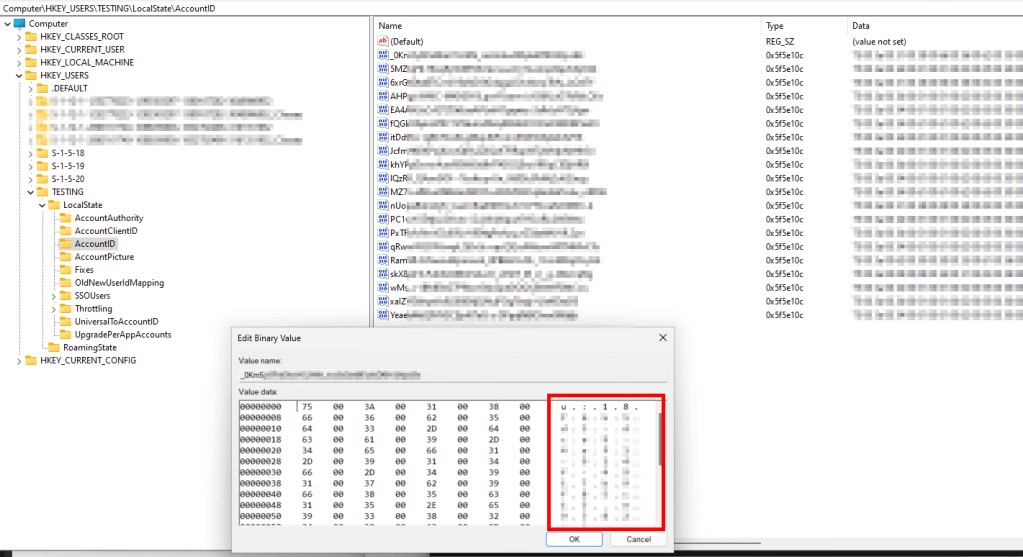
Seemingly many of the components for the Settings Broker work this way where the name of the file or value seems like gibberish, but the content of its data contains values we can recognize and use to identify what needs to be removed.
As another example, the TBACCT files, part of which is our authentication token I believe, contain content including the Universal ID and UPN of the account they belong to. So, we can check each token’s internal content for the Universal ID of whatever account we are on, and thus find tokens matching the secondary account that need to be removed.
This is why the script highlights finding a matching Universal ID to AccountID (AccountID being the name of the parent key in the above screenshot). Similarly, it lists out finding UPNs that match to TBACCT files.

The rest of the values/files/etc it locates are all located the same way using things like the UPN and universal account ID to locate the values that belong to this specific secondary account we wish to delete. These include things like the account’s profile pictures. Everything we are locating was simply determined by looking back to the same paths and keys that were seen in our Process Monitor traces.
At the end of locating everything, we then simply action on deleting said located values/files/etc.
Lastly, we run a garbage-collect to free up any files or values we were touching, unmount the Settings.dat file, and end our logging and script.
And that’s how it works!
Conclusion:
In conclusion, I hope this gave you a good look at how the solution works, and how you can tackle similar challenges in the future!
Disclaimer:
The following is the disclaimer that applies to all scripts, functions, one-liners, setup examples, documentation, etc. This disclaimer supersedes any disclaimer included in any script, function, one-liner, article, post, etc.
You running this script/function or following the setup example(s) means you will not blame the author(s) if this breaks your stuff. This script/function/setup-example is provided AS IS without warranty of any kind. Author(s) disclaim all implied warranties including, without limitation, any implied warranties of merchantability or of fitness for a particular purpose. The entire risk arising out of the use or performance of the sample scripts and documentation remains with you. In no event shall author(s) be held liable for any damages whatsoever (including, without limitation, damages for loss of business profits, business interruption, loss of business information, or other pecuniary loss) arising out of the use of or inability to use the script or documentation. Neither this script/function/example/documentation, nor any part of it other than those parts that are explicitly copied from others, may be republished without author(s) express written permission. Author(s) retain the right to alter this disclaimer at any time.
It is entirely up to you and/or your business to understand and evaluate the full direct and indirect consequences of using one of these examples or following this documentation.
The latest version of this disclaimer can be found at: https://azuretothemax.net/disclaimer/
 Azure to the Max