
Overview:
Over the past few years, I have had to write far too many blogs on or surrounding the topic of Subscription Activation.
Fixed – Enterprise Subscription Activation Broken by KB5036893 & KB5036892
Retired: Detecting & Automatically Removing Secondary “Work Or School” Accounts: Part 1
Retired: Detecting & Automatically Removing Secondary “Work Or School” Accounts: Part 2
Retired: Detecting & Automatically Removing Secondary “Work Or School” Accounts: Part 3
Retired: Detecting & Automatically Removing Secondary “Work Or School” Accounts: Part 4
Enterprise Only Windows Policies
Edge SSO, Workplace Joined Accounts, and Subscription Activation (Enterprise OS)
As time has marched on, and more information has been revealed, those blogs have slowly become less and less up-to-date, and frankly, more and more of the information I was told as gospel has proved flawed. As such, I’m creating this article to bring all of that hindsight together and document the saga this topic has become.
This article will cover the history, when it broke, why, how it may still be broken today, what you can do about it, and what we are all still stuck waiting for Microsoft to help us with.
Please – if you are impacted by this issue, see the section titled “Make Your Voice Heard – Tell Microsoft!” because, as of current, Microsoft doesn’t believe this is a problem worth looking into, as allegedly only very few clients claim to be impacted. Put in a support case, put in a Design Change Request, and make your voice heard!
Outline:
- Why is Subscription Activation Important?
- The First Time Microsoft Broke It (2021, Resolved by Microsoft):
- The Second Time Microsoft Broke (And Fixed) It (2024, Resolved by Microsoft):
- Conditional Access Nightmares (Current, Fixable):
- App ID 45a330b1-b1ec-4cc1-9161-9f03992aa49f Is Missing in New Tenants:
- Work or School Account Accounts (Current, Sort of Workaround-able):
– What Is a Work or School Account? (Entra Registered Account, Workplace-Joined)
– How Do So Many Work or School Accounts Get Added?
– The Problem With Work or School Account Accounts on Windows 10:
– The Problem With Work or School Accounts on Windows 11:
– Microsoft’s Official Recommendation:
– Reporting on Work or School Accounts on Your Endpoints:
– Blocking New Work or School Accounts on Your Endpoints:
– Automatically Removing Existing Work or School Accounts:
– The Expected Results of Blocking New Accounts and Deploying Automatic Removal:
– Troubleshooting the Detection and Remediation Scripts:
– Technical Details: How Were the Scripts Made?
– What Blocking/Removing Work or School Accounts Breaks:
– What are the Problems With Microsoft’s Recommendation? - Make Your Voice Heard – Tell Microsoft!
– Update 9/3/2025
Why is Subscription Activation Important?
If Subscription Activation is how you step up your devices from Pro to Enterprise, then when this breaks, you lose the ability to apply Enterprise-only polices. What are those policies? I’ve got an article for that.
Enterprise Only Windows Policies – Azure to the Max
The First Time Microsoft Broke It (2021, Resolved by Microsoft):
Authors Note: I’ll be honest in saying I’m writing this one down mostly for my own sanity, as keeping track of this over time has gotten harder. This is reaching back YEARS, but I believe I have some accurate (direct from M$), if very old, notes on this. That said, I admit that there was also a CA issue coming into play at the same time (more on that later), so this may have been an Activation issue, with a different Subscription Activation issue happening at the same time due to another cause.
The first time Subscription Activation broke due to Microsoft, that I am aware of, was the summer of 2021 due to bug #37040672 which was not caught until November of 2021, and not resolved until the summer of 2022.
The effects of the bug are that devices activated under OEM, MAK, or KMS activation channels, which are then upgraded to an Enterprise Subscription, do not automatically convert from their existing key to the generic retail key of 3V66T under the retail channel. Things like a KMS key, the default key built into ISO’s downloaded from the Volume Licensing Center, would then remain present, and eventually fail as there was no KMS server. This would cause devices to think activation had failed, start showing water marks, and certain activation-required features like customization would lock out.
Due to the web communication errors seen in the trace of the scheduled task responsible for this action, this was believed to be caused by something external to the devices/OS itself and may be due to some summer changes around the Microsoft Store for Business.
The workarounds for this were to use an ISO image which activates under the OEM channel (and thus firmware key) by default to ensure that freshly imaged devices have some level of Windows Activation in the meantime. Existing devices which have not converted over and are using a key which provides no activation (such as a KMS key included in the ISO from the VLC when used in a non-KMS environment) can either be converted over to the OEM/Firmware key or the 3V66T key manually or via a script.
Existing ISO’s could be changed with the below command, although I don’t believe the /channel switch is documented.
Dism /Image:C:\Images\Offline /Set-Edition:professional /Channel=OEM_DM
The Second Time Microsoft Broke (And Fixed) It (2024, Resolved by Microsoft):
The second time Microsoft directly broke Subscription Activation was in April of 2024 as a result of KB5036893 & KB5036892. A preview fix came out in July as part of KB5040527 and KB5040525.

That fix was then fully released as part of the August update KB5041585, although they didn’t copy over the above noted fix in the documentation from the preview update.
If you want a whole article on this issue, I have one here, but I need to be clear in saying that this information may not be as accurate or up to date as this article is.
Conditional Access Nightmares (Current, Fixable*):
There are a few reasons CA may be breaking this for you currently.
- You have a “Block All Cloud Apps” policy
- You have a “Require MFA for all Cloud Apps” policy
The easy solution is the same either way, you need to exclude a cloud app. That cloud app is ID 45a330b1-b1ec-4cc1-9161-9f03992aa49f which may show as the name “Windows Store for Business” or “Universal Store Service APIs and Web Application.” I believe the name depends on the age of your tenant. If you can not see this App ID, see the next section.
Note: These exclusions only became possible around 2022 or 2023. Previously, blocking All Cloud Apps, or locking it behind MFA, was a death sentence to this process, hence my prior note about a possible CA issue also being in play during the 2021/2022 issues.
If you have issue #2, meaning it’s MFA that’s in your way rather than an outright block (MFA being something an automated scheduled task can’t fulfill), there is another option. Folks in the know may recall waaaaay back in February, and waaay back at the start of this article, I briefly mentioned a prior change to this process when Microsoft released KB5034848 on February 29th. While not documented on the KB page (???) but instead documented elsewhere (see below), what that update did was enable this process to work with MFA in the form of a toast notification users would have to interact with and manually complete to allow the MFA requirement to succeed.
Your options are to either educate your users and ensure they are completing it at least once every 90 days or so (that’s the drop-off period for this activation), or… just do the above and again exclude the cloud app so it can happen on its own. Again, If you can not see this App ID, see the next section.
Rudy has a great article on this topic, granted it pre-dates the February changes: Subscription activation Issues and the Windows Store API (call4cloud.nl)
Or, you can get your info right from Microsoft (copied below), including the February information.

App ID 45a330b1-b1ec-4cc1-9161-9f03992aa49f Is Missing in New Tenants:
While working on a new tenant in June of 2025 with a “require MFA to all resources” policy, the App ID did not return ANY results, preventing me from being able to exclude it. I can confirm that devices in that tenant are indeed incapable of Subscription Activation without passing through the MFA, either by MFA’ing into another app like Teams, or by following the Prompts mentioned as part of the February update (KB5034848) in the above image.
I have opened a case with Microsoft over this, but have no answers yet. I confirmed in several older tenants where this policy was never necessary that the App ID does still exist, so this appears to impact tenants created after some unknown date. I will add more information as soon as I have it.
Update: After several calls where it was demonstrated to Microsoft that multiple GA’s could not get the app to appear in either the CA policy or “What If” menus, on the next call it magically appeared. Unfortunately, nobody is sure how this happened, but it may be worth asking Microsoft if this happens to you. Someone also left an interesting comment on this topic, but I can’t confirm it as we now have the app.
Work or School Accounts (Current, Sort of Workaround-able):
And here we get into the real meat and potatoes of why I had to step back and get all my information up to date in one place.
This really is too much to cover under one header.
What Is a Work or School Account? (Entra Registered, “Workplace-Joined”)
If you take a look in Access Work or School in your settings menu, you may be surprised to find that there are multiple accounts present beyond the one your entra-joined device should have. They might even belong to other tenants. These are Work or School accounts, with the result being that your device has become Entra-Registered into those tenants. As such, you may see either of those terms used to refer to this, and I’ll personally use Work or School for the remainder of the article, assuming I’m not talking the actual Entra-Registration and its effects.
Author’s Note: On an old Microsoft case of mine (September 2024~), they started calling these Work or School accounts “Workplace-Joined” accounts, which was a nicer phrase to me. But, recently I noticed that’s not a term I can find anyone else using online, and that actually seems to refer to something else that is similar but not the same. So, if you see this term, or my entire project name of “Workplace Un-joined” on GitHub and wonder where that came from, well, yeah… It came from someone using the wrong term in an M$ case, and it just caught on.
If you really want to get into the weeds on the purpose of these accounts, I’d recommend just taking a look at the Microsoft documentation. The process of workplace-joining is largely to support…
- BYOD devices, such as using a personal device for work (see the M$ documentation)
- Entra-Registering allows for better evaluation of the device for CA. Yes, this does create a record of your device, its name, OS version, and the account used to Entra-Register the device in the tenant with which you Entra-Registered it to.
- SSO, allegedly, largely relies on being able to workplace-join accounts as that is required to obtain a PRT for that account (more on this later)
To be honest though, Entra-Registering and Workplace-Joining, especially for BYOD, isn’t something I’ve ever needed to support, so my knowledge here is likely incomplete.
How Do So Many Work or School Accounts Get Added?
While you can manually add second accounts through the Work and School menu, that’s not something just anyone is going to go figure out and do. So, how is it that so many seem to wander easily into causing this?
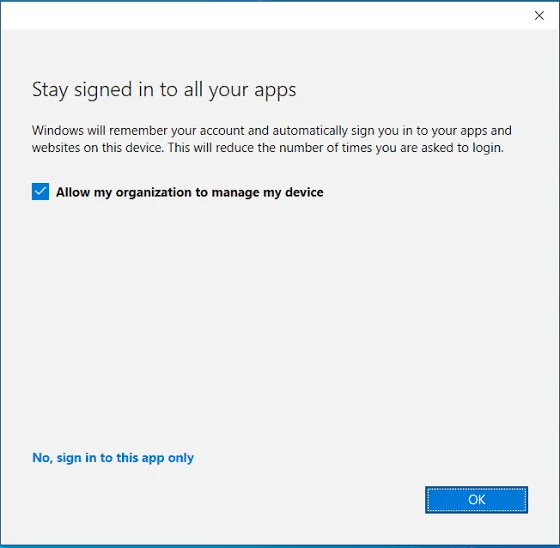
This is the popup that, by default, shows up when you do something like add a second Teams or Outlook account on your machine (think Entra credential sign in on a local app). You’ve probably seen it before as there are plenty of legitimate reasons to want to add an account to a Microsoft app and again. Maybe you have a service account for testing, or a dev tenant, or a sister tenant, etc. This is perfectly normal.
However, this popup is the source of our issues. By default, when such a sign in happens, it shows the popup, that box is checked, and the obvious answer you are guided to is to press OK. What this does is add this second work account as a second Work or School account on the machine as seen below.
For example: if you have a machine in tenant A, then sign into Teams using a credential from tenant B, and press OK on that popup, you now have an account from tenant B in your connected accounts…
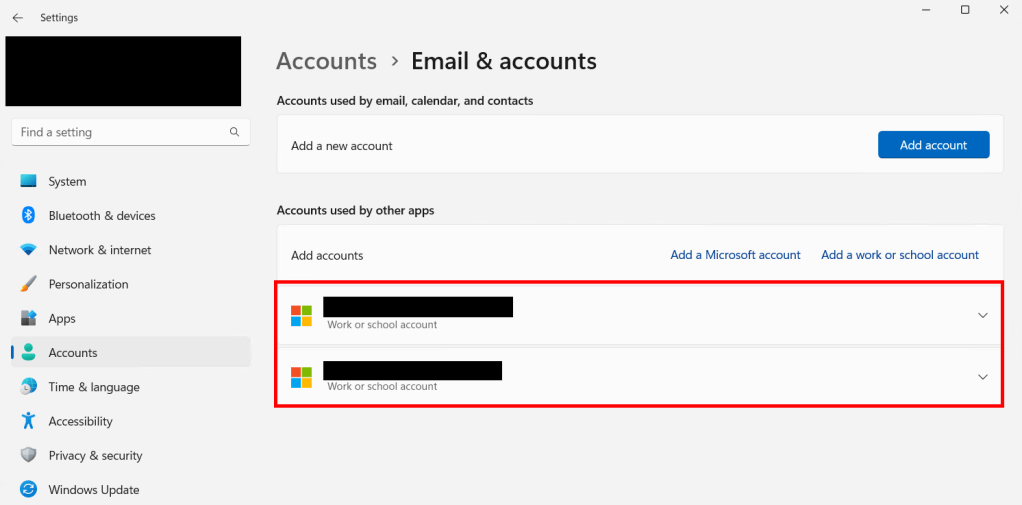
…And you will have caused your device to become Entra-Registered, and show up in tenant B’s Entra.

This is obviously of particular problem when you have several sister organizations/tenants, dev tenants, separate admin accounts, etc (situations where employees are used to using multiple sets of credentials).
This is ugly to me as you start to get devices owned and managed by one tenant showing up in another. Now, depending on your setup, these devices may not be MDM managed (or be able to become MDM managed), but it still makes me cringe a little to see this bleed over. And again, my primary focus here is making sure our enterprise activation functions.
According to the notification itself, and as mentioned in the prior linked Microsoft article, there are ways to start managing Entra Registered devices (“Selecting this option means your administrator can install apps, control settings, and reset your device remotely, etc”) – granted this is something I have zero knowledge over nor interest in for what I manage.
The Problem With Work or School Accounts on Windows 10:
Hang on for a second, because this is going to get confusing. If you start falling down the rabbit hole of Work or School accounts in relation to Enterprise activation, you are going to find a lot of articles from years past telling you either…
- That adding ANY Work or School accounts breaks Enterprise Activation
- That adding Work or School accounts that are in a different tenant than the primary account breaks Enterprise Activation
Microsoft says that as of the current, the second version is the correct version of the story. It’s plausible from online resources that it used to be ANY account, not just accounts from other tenants, but it’s not that way anymore. However, this is only for Windows 10.
With accounts from multiple tenants, the Subscription Activation task will spit out an error like this (0X87E10BF2). This error code will lead you to all sorts of articles.

The Problem With Work or School Accounts on Windows 11:
However, adding to the confusion, this behavior has been changed and “improved” for Windows 11.
On Windows 11, Microsoft says you can add Work or School accounts, including from other tenants, and retain Enterprise Activation, IF there is a valid E3 or E5 license (something with Enterprise Activation) on ALL of those Work or School accounts. Their exact comments are in the next section.
Yes, that means licensing multiple accounts with expensive licenses just to step one singular device from Pro to Enterprise. Yes, I will complain about this in detail later on.
Is this one actually true? Well, I tried to check, but despite adding an entirely unlicensed account from another tenant to break all the possible rules, I have yet to see the subscription scheduled task come back as anything but successful, or for any errors to appear in the Event Log. I know you can cause a problem, because I dealt with that problem for months on hundreds of devices, but it’s seemingly not a problem one can instantly replicate, which makes this all very tricky to test and confirm. I do know that it will take 90 days for the subscription to fall back to Pro if the task continuously fails, but again, I’m not seeing it fail, or at least it’s not indicating that it is, and I don’t want to wait three months to test this. I’m going to continue to look into this as time allows.
Technical context:
The scheduled tasks at play here are the two tasks under Microsoft, Windows, Subscription. Particularly, the LicenseAcquisition task.
The place to look for logs, such as the below error, is in Application and Service Logs, Microsoft, Windows, Store.
Again, despite purposefully adding an unlicensed account, that is also from another tenant for good measure, I’ve yet to see any errors or failures on the task or event logs.
Error <computername> 8003 Microsoft-Windows-Store LM NT AUTHORITY\LOCAL SERVICE
Service Fault: status: 400 code: SingleTenantldExpectedForAadUsers
description: All Aad users provided in the request are expected to be associated to a single Tenant.
Microsoft’s Official Recommendation:
The official recommendation, which I have had the pleasure of receiving several times now, is to…
“Use one single Work or School account (such as the primary account on a Entra Joined device). However, if multiple accounts are needed, the pre-req is that they must all be licenses for E3/E5 (something with an Enterprise Windows component)”
Great!… How do we do make that happen? Well, I’m going to be forward in saying that while this is a cute recommendation, it’s about the equivalent of saying, “People who don’t get enough sleep should just sleep more.” Sure, in thought that’s great, but actually fixing the problem is a whole different story.
A large part of why I say that is that if you already have additional accounts present, and ask how to fix that, they will tell you to individually instruct users to manually remove them. Yikes.
On a more recent support case occurring while this article was being written where I am trying to push for change on this topic, I was told with a straight face to “(Blindly) run an email campaign to every employee educating them on how to properly add accounts (click ‘This app only”), and instruct them on how to remove existing accounts. If they fail to comply, that’s their fault.”
Ignoring the fact this rep didn’t even know about the registry key to block the popup, I provided the obvious “that’s not really how compliance works”, and basically got told that the product is working as designed, go pound sand. Great. I’ll discuss this more in the section “Make Your Voice Heard Make Your Voice Heard – Tell Microsoft!.”
Reporting on Work or School Accounts on Your Endpoints:
Unfortunately, Microsoft has provided no means of viewing where you have workplace joined accounts present. That obviously doesn’t help with their already bad recommendation of telling employees to remove them manually. You can export your Intune devices and infer that a non-enterprise OS means there are probably Work or School accounts, but this is far from perfect or accurate. (Accounts that are licensed may be joined, there could be other activation issues, etc).
Luckily, as part of my Workplace Un-Joined project, this is something I have provided a solution to myself.
DOWNLOAD: GitHub
Note: As of writing, the latest version is 2.4 which includes several fixes and enhancements. I would recommend grabbing whatever edition is the latest. Change notes are in the code.
This remediation, once deployed, will report back into Intune detailing not only that there is some Work or School account on the devices, but it will detail what account or accounts those are. This will let you build a view into exactly what accounts are on what machines. Yes, you will probably find some accounts from domains you won’t even recognize, and yes, that will make your security team’s skin crawl. For example, some lines from the output may read as…
The following workplace joined accounts were detected: Bob@contoso.com, Bob@Contoso-College.EDU
The following workplace joined accounts were detected: Mark@contoso.com
A user could not be determined at this time. (the script can't function without an actively logged in employee)
A workplace account was not detected. (script ran, and determined the currently logged in account is free of workplace-joined accounts)
Deploying the Script:
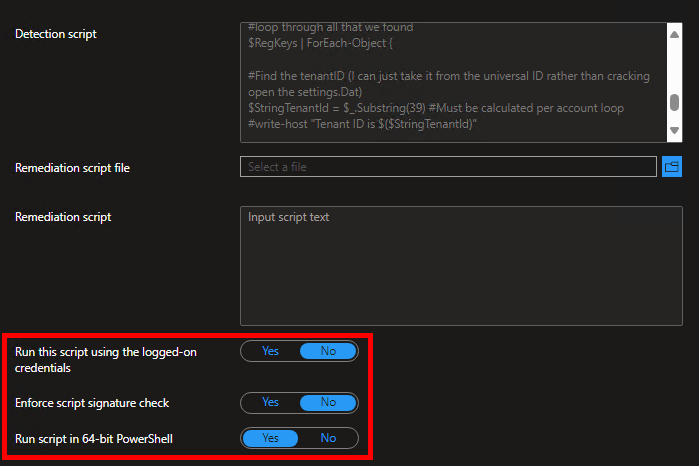
This is an Intune Remediation script, with just a detection and no remediation. Below is a screenshot of the only settings needed to configure it for deployment. No adjustments are necessary to the script itself.
As always, I would recommend doing some initial testing with a limited audience, then rolling this out to your devices in full so you can see which devices have a secondary account and what those secondary accounts are. Understanding your detection results is CRITICAL before attempting any cleanup of such accounts, as this script IS the detection script that determines what devices and accounts will be targeted by the account removal remediation.
Blocking New Work or School Accounts on Your Endpoints:
WARNING: It is CRITICAL that this policy/remediation is deployed to devices to set the BlockAADWorkplaceJoin registry key BEFORE you ever attempt executing the full account removal remediation. Failing to do this will send devices into an extremely ugly sign-in loop where apps will repeatedly prompt for authentication. It’s also very important that you read the section regarding what impact removing/blocking Work or School accounts will have.

To recap, signing into an app causes this prompt by default, and by accepting the default options and choosing “OK”, you connect your machine to the other tenant and allow the account to be added to your machine, thus (possibly) breaking Enterprise Activation.
Microsoft has unfortunately provided no policy to prevent this. Instead, they have provided a registry key that is documented, if hard to find.
Microsoft Entra device management FAQ
HKLM\SOFTWARE\Policies\Microsoft\Windows\WorkplaceJoin, “BlockAADWorkplaceJoin”=dword:00000001
This key will prevent adding secondary accounts entirely, including blocking/skipping this pop-up entirely. Instead, Windows will automatically/invisibly choose the option to sign into that app only. This also prevents manually adding a second account on the device through the Access Work or School or the Email & Accounts menu.
To be clear, this key has ZERO impact on existing accounts. It also has no impact on preventing the use of a given credential entirely. You can still sign into Teams and Outlook as secondary accounts, you just can’t join those accounts to the machine. See the section “Expected Results of Blocking Accounts and Deploying Automatic Removal” for more info.
For deployment, as part of my Workplace Un-Joined project, I have bundled this into a straightforward Intune remediation (detection and remediation script pair) that will check if the key is present and, if not, put it in place. When deploying it, run it as admin/system (not logged-in credentials) and in 64-bit mode. As always, test before you deploy!
DOWNLOAD: GitHub
Credit to MS Endpoint MGR team, I largely took their script and simply reconfigured it as a Proactive Remediation, which probably wasn’t an option when they wrote their script. Deploying it as a remediation helps with continual enforcement, given we can’t enforce via policy.
Automatically Removing Existing Work or School Accounts:
WARNING: It is CRITICAL that the above policy/remediation is deployed to devices to set the BlockAADWorkplaceJoin registry key BEFORE you ever attempt executing the full account removal remediation. Failing to do this will send devices into an extremely ugly sign-in loop where apps will repeatedly prompt for authentication. It’s also very important that you read the section regarding what impact removing/blocking Work or School accounts will have.
Note: This tool was written with specific regard to Windows 11. As it removes all secondary accounts, it may fix Windows 10 devices, but it has never been tested or validated on Windows 10. You’ve got all of four months to migrate anyway.
DOWNLOAD: GitHub
As the crown jewel of Workplace Un-Joined project, I have also created a script that can remove existing secondary Work or School accounts. This will allow Enterprise Activation to once again function. More details can be found in the next section.
Credit:
A huge thanks to Rudy for ultimately being the guiding light to the puzzle piece I had missed, although I’m still quite proud of everything else I did figure out. Additionally, a huge thanks to ExpendaBubble and ChrisDent on the WinAdmins Discord for helping me parse out and correct the undeclared data type inside the Settings.dat registry hive. (I’ll explain what on earth I just said later.)
Configuring the script:
The script has a Variables region near the start to configure some of its basic functions. This is self-contained, rather than passable via switches, because this is meant to be deployed as a remediation script.
- $RemoveSecondaryAccounts – This determines if secondary accounts are only looked up ($False) or looked up AND DELETED ($True). For testing, I would try this as $False a few times just to see what it sees.
- $Load & $UnLoad – Unless you are modifying this code for testing, don’t touch these. They control whether we attempt to load and unload the found settings.dat file (The application registry of the AAD Broker Plugin). The only reason to turn these off would be because you want to manually load, and leave loaded, a copy of a Settings.dat for testing. Do NOT load and leave loaded the real Settings.dat for a significant period of time.
- $LogFileParentFolder, $LogFileFolder, $LogFileName – As explained more in the code, these control where the script stores its logging as well as the log file name.
- $CreateTranscripts – Turn this on if you really want granular transcripts to generate for each execution (files named by date and time). This is primarily for testing, including test deployments to your first few devices.
Deploying the Script:
WARNING: Do NOT skip straight to deploying this out, test it manually first!
While I have deployed this script to over 10k devices, and successfully remediated the 1000~ that had accounts to remove, I still have limited ability to validate it in all the various circumstances that may exist. Do yourself a favor: install Visual Studio Code, run it as an admin (or as System if you feel like being fancy), open this remediation script, install the PowerShell extension (it will prompt for this when you open the PS1 file), and do some testing. Try it with $RemoveSecondaryAccounts set to $False so you can see what it WOULD remove, examine that information for correctness, and then try manually running it with $RemoveSecondaryAccounts on $True so it can truly delete it. See how this affects your device, the apps that were using that account (like Teams or Outlook), and if the account is gone from your Work and School accounts settings menu. Try it on some physical devices, try it on some virtual devices, etc. Be aware of the known issues detailed within the script’s internal description, and the concerns I will detail later on in this article with removing/blocking Work or School accounts.
Once you are ready to test deploying the script…
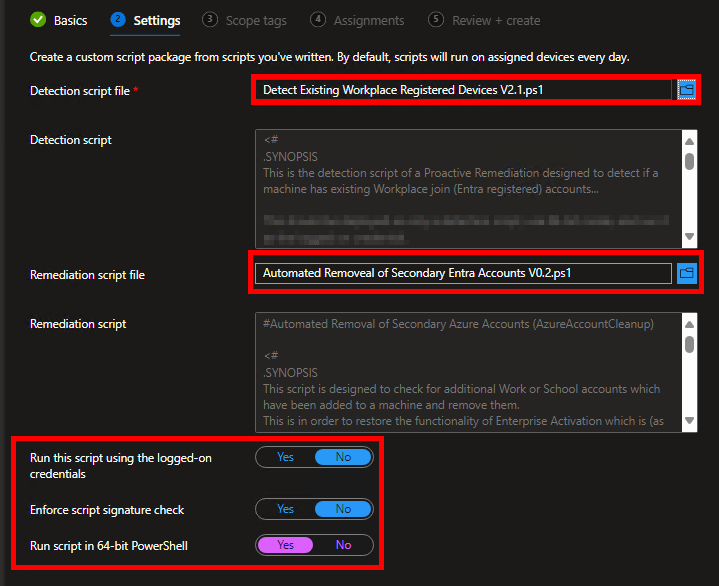
This script is deployed in the same manner as the Detection script detailed above (Proactive Remediation, run as 64-Bit PowerShell, do NOT run as the currently logged-on user.) This is because the detection script above is the detection script that goes with this remediation script. That is why it is so important to understand what the remediation script is seeing first, as it determines the “what” and “where” of the action that will occur. Once filled in, it should look like this.
Note: I would recommend having TWO Proactive Remediation’s in Intune. One that has just the detection script, and one that has both the detection and remediation script. This is so your data collection with the detection script can be handled/scoped independently from the full remediation script.
The Expected Results of Blocking New Accounts and Deploying Automatic Removal:
In this section, I want to review what it looks like to put this all in place.
To recap: The reg key we deployed will prevent adding additional Work or School accounts. Instead, the machine will automatically and silently choose to sign into “This app only.” Again, this does NOT prevent the use of that account. You can still absolutely sign into Teams or Outlook with a second account and use it like normal, you just can’t add it to the machine as a whole and thus get automatically signed into all apps. In other words, that account doesn’t get machine-wide automatic SSO into various Microsoft apps. However, that policy does NOT remove existing accounts. That’s why the remediation exists.
The effect of the remediation is that those secondary accounts will be removed from the Work or School accounts menu, and thus break that effective existing SSO for said accounts. This causes apps to stop working until you sign back into them.
App Prompt Example A: Teams
For example, Teams will gain an exclamation mark both on the taskbar and in the accounts list informing you something is wrong.


Once you swap to the now broken profile, you will see a prompt like this along the top.

Clicking “Sign In” will trigger a sign-in window asking for only the password to the account. When you sign in, the policy from the prior section will invisibly force the “this app only option” thus preventing the account from being rejoined to the machine. Once signed in, this does NOT prevent the app from working like normal and the employee won’t have any idea that something has changed. From their perspective, they just signed in and it worked again.
App Prompt Example B: Outlook
As another example, Outlook will throw a sign-in prompt for the account along with the “Need Password” button at the bottom of the Window.

Again, this is a standard O365 login window with the username already filled in. When you sign in, the policy will invisibly force the “this app only option” thus preventing the account from being rejoined to the machine, and the app will again work like normal.
The Employee Experience in Summary:
The only thing an employee will notice is that each app they have been using via the joined account will individually ask them to sign back in, then work like normal. This will be annoying, but in the grand scheme of things it could be a lot worse.
Enterprise Activation:
Additionally, and very importantly, once the script has run to clean up additional accounts, Enterprise activation should function normally again. However, the scheduled tasks for this run at startup, as well as an infrequent random interval, so it likely will not change back to Enterprise until after the next reboot. As such, it may be several days before devices that have been targeted are both cleaned up and then back to an Enterprise OS.
Troubleshooting the Detection and Remediation Scripts:
Both scripts have a small “known issues” section, but I want to talk about a few relatively common scenarios and what they mean.
In-use accounts:
Let’s say you’ve added Bob@contoso.com to your secondary accounts and have Teams actively running and on that profile. This seems to cause some similar weirdness as to what happened before I stopped the Token Broker service in that it seems Team’s has cached the account and login and thus the deletion might not fully complete. Effectively, you might not see the account vanish, or it might come back.
Solution: At the moment, this is a try, try again type situation. Importantly, it seems other apps like Outlook and Edge don’t suffer from this issue, I’ve only seen it with Teams. I’d like to think employees will be on their primary Teams account some of the time.
Manually added but not used accounts:
If an account is manually added via the Settings menu, such as the Email and Accounts menu, but never actually used to sign into an app, some of the registry keys may not exist. This prevents the script from getting the values it needs to then locate and correlate all the values to each other and delete them.
Solution: The only reason I found this was because of testing. I think in the real world, nobody is adding secondary accounts without using them. In fact, I’d say 99% of people in this situation got into it by signing into an app. So, I really wouldn’t worry about this.
Account not found:
If you have a secondary account the script can’t see, and it’s not because of either of the above – did you just add it? Because that was something else seen in testing. To explain, it takes a moment for the Settings.dat file to get all its values, and for all the registry keys to get added, so make sure you don’t add an account and then immediately try to remove it, even if you do so via signing into an application. Realistically, this is a non-issue as any employee should not have just added an account before the script runs as you should already have the policy deployed to prevent this before you ever attempt remediation.
Logging:
If you are still having issues or getting unexpected results, I would look at the logs. By default, each execution of this script will create a corresponding Log file and a full trace of the PowerShell’s execution. These files are placed in $LogFileFolder, “C:\Windows\AzureToTheMax\AzureAccountCleanup” by default. See the variables section at the top of the script and/or the configuration section of this article for more information.
Technical Details: How Were the Scripts Made?
For that story and all it’s technical details, head on over to this article: Technical Deep-Dive on the Workplace Un-Joined Solution
What Blocking/Removing Work or School Accounts Breaks:
Remember my comment on how Work or School accounts effectively grant us SSO into apps using said account? Well, fun fact, you know what’s really not fun without SSO? Using Edge. Unfortunately, while you can sign into a secondary edge profile with secondary accounts for bookmark and password syncing, SSO won’t work for that account. I’ve got a whole article written on this topic here: Edge SSO, Workplace Joined Accounts, and Subscription Activation (Enterprise OS)
To steal a screenshot from that case on that other article…

Long story short, without Work or School accounts, you can’t get a Primary Refresh Token, so you can’t SSO, so this doesn’t work right.
The question is, what else relies on a PRT, or Work or School account, that may get broken?
The answer is, nobody knows. No, seriously, I asked some of the smartest contacts I have, and the answer basically boiled down to, there’s no central way of knowing what individual functions and components of multitudes of different things require a PRT or Work or School account. So, you have to make a choice to either remove these accounts, know you will succeed in Enterprise Activation and thus get Enterprise Policy, and not know what may break.
Or, you let the accounts in, and as I’m about to explain, that’s its own complete mess.
What are the Problems With Microsoft’s Recommendation?
Again, Microsoft’s recommendation is to, “Use one single Work or School account (such as the primary account on a Entra Joined device). However, if multiple accounts are needed, the pre-req is that they must all be licenses for E3/E5 (something with an Enterprise Windows component)”
And again, I feel this is about the equivalent of saying, “People who don’t get enough sleep should just sleep more.” Sure, in thought, that’s great, but actually doing this is a whole different story. A large part of why I say that is that if you already have additional accounts present, and ask how to fix that, they will tell you to instruct users to manually remove them. Yikes.
Again, on a more recent support case occurring while this article was being written where I am trying to push for change on this topic, I was told with a straight face to “(Blindly) run an email campaign to every employee educating them on how to properly add accounts (click ‘This app only”), and instruct them on how to remove existing accounts. If they fail to comply, that’s their fault.”
Ignoring the fact this rep didn’t even know about the registry key to block the popup, I provided the obvious “that’s not really how compliance works”, and basically got told that the product is working as designed, go pound sand. Great. I’ll discuss this more in the section “Make Your Voice Heard – Tell Microsoft!“
While I have now shown you the community solution to reporting on present accounts, blocking accounts, and removing accounts, I’d really prefer that Microsoft provided supported means of doing this, especially since these actions (and thus their recommendation) have consequences.
Without further ado, my big wish list on this topic is for Microsoft to address at least some of the following…
- Microsoft has provided no means of detecting or reporting on these accounts in a scalable, realistic manner. That makes it impossible to know who needs to take action, or to confirm if they have taken action, so the ask of manually instructing isn’t even realistic.
Yes, I/we/the community solved this, but it’s not supported. - Microsoft has provided no supported, scalable, realistic means of removing such accounts where they already exist. This is an issue that impacts Enterprise Activation, and thus enterprises, and thus a scalable enterprise-level solution is required. Manually instructing employees to do this will not suffice.
Yes, I/we/the community solved this, but it’s not supported. I had a 6-month-long case asking for adjustments to be made to dsregcmd.exe, which can already almost do this, and it made it about as far as a brick trying to slide uphill. - Even if we knew what accounts were where, Microsoft has provided no means of understanding which accounts that are found are licensed or are not licensed in order to then know what accounts are causing an issue. You may be able to answer this for accounts in tenants you control, but not for tenants you do not.
- Microsoft has provided no policy, only a manually dropped registry key, to outright prevent and all Work or School accounts from being added.
- Microsoft has provided no policy to control what accounts can be added, either based on what licenses they have/lack, or by controlling what tenants those accounts belong to, once again making it impossible to realistically control this in any other way other than outright blocking or allowing it, which again is impacting other services either way. (Think tenant whitelist or blacklist. Yes, my tool could be reconfigured to do this).
- The request to license all accounts is simply absurd. It makes zero sense to ask anyone to license two accounts (or more) to upgrade the same singular device, especially when you factor in that secondary accounts often belong to tenants outside of an orgs control. There is no good reason that someone with an online-exchange license should have to be upgraded to E3/E5 simply because they want that as a secondary account on their laptop that needs to be Enterprise Activated.
- It has been shown through Microsoft cases that removing the accounts and preventing Workplace-Joining is a solution that then negatively impacts other services (like Edge), with some unknown additional ones floating out there in the ether.
- Microsoft has provided no means, to our knowledge, to reliably block Entra-Registering accounts from connecting to our own tenant.
- Deleting a registered device from Entra does not, to our knowledge, remove the Work or School account, and thus does not fix activation.
- Even if the above does work, no org will ever reliably have access to other tenants’ portals to do this from that end.
Make Your Voice Heard – Tell Microsoft!
I opened another case to push the above points and try to get change and action on this topic. That case is going nowhere (further updates on this case are below this section).
On that case, I was told with a straight face to “(blindly) run an email campaign to every employee educating them on how to properly add accounts (click ‘This app only”), and instruct them on how to remove existing accounts. If they fail to comply, that’s their fault.”
Ignoring the fact this rep didn’t even know about the registry key to block the popup, I provided the obvious “that’s not really how compliance works”, and basically got told that the product is working as designed, go pound sand. Great.
Here’s the really weird part to me. A little birdy told me that Microsoft is not looking into this simply because nobody is really complaining about it. This doesn’t sit well with me because the case I opened in September of 2024, following the April patch bug case, was opened specifically at Microsoft’s request. To explain, while resolving the April bug, we discovered the issue of workplace-joined accounts impacting some of our devices. We were told by the engineer that multiple companies were pushing for change on that, and that we should open a case to be included in the loop on that topic. For what it’s worth, that case went stagnant and ultimately died. In addition to that, I’ve had several people reach out and thank me for the solutions I’ve created and provided on this topic, so I struggle to believe nobody is impacted by this. I’m more likely to believe that not everyone who is impacted knows they are, as it is a tricky thing to notice and understand.
If this is a problem your company is dealing with, even if you are working around it with these community tools, please open a Microsoft case. Tell them you have this problem, and ask that they provide an achievable and implementable Enterprise-Level solution, as obviously, a feature called “Enterprise Activation” needs an Enterprise-Level solution. Email campaigns where we don’t know who to contact, what accounts are safe to add, what accounts need to be removed, and we can’t confirm who is taking action, is not an Enterprise-level response. Feel free to steal all my arguments, just ask them to answer those questions (How do we know who to contact? Or what accounts can remain? Or who is taking action?) if they tell you something like what they told me.
Update 9/3/2025:
Just to give an update on my Microsoft case mentioned in the prior section, I submitted a design change request (DCR) on July 2nd 2025 for this issue. Again, the problem being that if you kill Entra registering, you break things that rely on joined accounts, like Edge SSO (and anything else reliant on a Primary Refresh Token). If you don’t kill it, you break Enterprise Activation. There needs to be some harmony here between these solutions.
In early August, Microsoft tried to propose a registry key to block the popup and thus entra registering (almost certainly the BlockAADWorkplaceJoin key), which as just explained, only fixes Enterprise Activation at the cost of other Microsoft services breaking, and thus does not solve the problem. The case has gone stagnant since then, although just today are trying to set up another meeting with the same team (the Office team, oddly) to propose a workaround. I”m going to bet it’s a repeat of the same thought. I’ll provide an update when I can, although I’m concerned someone plans to just propose the same thing again. No new updates means nothing important has happened.
Update 10/24/2025:
This is not a happy update.
The above DCR, which we believe went to the Office team (nobody could/would confirm this), was rejected at some unknown time, likely closer to 9/3 than today (they also would not confirm a when). Frankly, the DCR only allegedly went to that team because they own that popup about adding another account, but I never found it likely that team would solve this issue, as the problem is, in my opinion, more so with how Subscription Activation works, than that popup our how other services outside of Subscription Activation function using those connected accounts.
Thus, the ticket was brought to the Subscription Activation folks, and we quickly requested to enter a DCR to them, while they worked to understand exactly what happened to the last DCR and why it was rejected.
Unfortunately, long story short, just as we finally got to a resource who both seemed to care and seemed able to understand and help us, our case got slapped closed without warning at 4:57 PM on a Friday and we got told we have to put in a new one. Cool. Oh, and this comes after the last month was spent with us basically asking what in the world was going on on our case (who are we waiting on, what are we waiting on, what is happening), where the assigned engineers proceeded to basically say “…what’s the problem again?” It was rough.
Lastly, I have noticed this article is getting a lot of attention. I already knew I wasn’t alone from the engagement I get on this topic, but this only furthers it. Please please PLEASE, especially to you big organizations with a DSEs, CSAMs, etc, put in a support case, use the same arguments here about why the current options don’t work, put in a DCR, and make them hold that case open until something happens. As much as I love the tools I built, they aren’t a perfect solution, and Microsoft does not care until someone makes them.
Update 11/13/2025:
Briefly, I’m happy to say that things have been going better since the last update. I’m confident we are now with the right team, and the right personal, to give this topic the best push we can. A new DCR is in the process of being submitted, if not already submitted.
Still, the comment is being made about volume, and again I will ask that if you are experiencing this issue, please make sure to report it, and make sure that report gets to the Windows team, not the Office team or Intune team.
Conclusion:
All in all, there are some ways you can help yourself if you are willing to sacrifice other things, but the current state of this (and frankly the state of this for a long time) has simply not been where it needs to be.
I’m continuing to push for improvement with Microsoft and hope to see that bear fruit one day.
Disclaimer:
The following is the disclaimer that applies to all scripts, functions, one-liners, setup examples, documentation, etc. This disclaimer supersedes any disclaimer included in any script, function, one-liner, article, post, etc.
You running this script/function or following the setup example(s) means you will not blame the author(s) if this breaks your stuff. This script/function/setup-example is provided AS IS without warranty of any kind. Author(s) disclaim all implied warranties including, without limitation, any implied warranties of merchantability or of fitness for a particular purpose. The entire risk arising out of the use or performance of the sample scripts and documentation remains with you. In no event shall author(s) be held liable for any damages whatsoever (including, without limitation, damages for loss of business profits, business interruption, loss of business information, or other pecuniary loss) arising out of the use of or inability to use the script or documentation. Neither this script/function/example/documentation, nor any part of it other than those parts that are explicitly copied from others, may be republished without author(s) express written permission. Author(s) retain the right to alter this disclaimer at any time.
It is entirely up to you and/or your business to understand and evaluate the full direct and indirect consequences of using one of these examples or following this documentation.
The latest version of this disclaimer can be found at: https://azuretothemax.net/disclaimer/
 Azure to the Max
3 responses to “Everything I Know on Subscription Activation”
you might be able to fix the missing service principal with Azure CLI: az ad sp create –id 45a330b1-b1ec-4cc1-9161-9f03992aa49f
LikeLike
Howdy!
I wish I had gotten to try this but the app actually appeared magically on the 3rd call with Microsoft to everyone’s confusion. Apologies for not updating the article to reflect this sooner. Sadly, nobody knows what happened. I wish I could confirm if this would have fixed it but at this point, I have nothing to test on.
LikeLike
3 hours overtime at work today in this rabbit hole. I’ve been here before but that was months ago. I’m going slightly insane and my SO is calling me on the phone to get home – a Microsoft ticket it is, wehoo!
LikeLike