

Intro:
One of the age-old issues we in IT face is a machine running low on disk space. At best, this causes devices to become unstable, struggle to apply patches, and loose overall system (and employee) performance. At worst, it takes the device offline incurring downtime and potentially data loss.
Thanks to ever-larger and cheaper storage, it seemed this concern was going into the rearview mirror for a time. However, in an interesting twist, this problem seems to be becoming prevalent again as we move more into cloud-based, end-user computing with solutions like Windows 365 (Cloud PCs), Amazon Workspaces, AVD, etc, where storage is once again more expensive and limited. Importantly, some virtual device platforms seem very sensitive to running out of disk space, often becoming inaccessible (at least via the normal apps) after such a condition has happened, even if the condition is resolved.
As such, I have been playing around with tackling this issue from several angles. In this article, I will be detailing a Proactive Remediation that can be deployed via Intune to alert employees to a low disk space condition on their device. This popup will provide both self-help resources, along with help desk contact information, such that the issue can be resolved before it’s too late.
Why Not Alert the Help Desk Instead?
Simply put, why would we alert the employee and ask them to voluntarily take action, either on their own or via contacting further assistance, over simply letting the help desk know who has an issue and thus who they should contact? I am sure this question is going to come up quickly in the minds of some readers so I want to address it and some of the other questions that follow. If this is not a concern for you, feel free to skip this section.
– The Unending Battle:
As someone who has dealt with this issue at scale in reality, the answer is to do both (make employees and your help desk aware), as much as possible.
Truth is, especially if you are running large quantities of small-disk, cloud-based, end-user compute devices, it’s shocking how many of them will regularly be at risk of running out of disk space (10 GB or less). For things like 128GB root volume Windows 365 devices, I have found that figure to be in the neighborhood of 1-5% for production devices. So, if you have 10,000 of such units, that’s 100-500 devices. Odds are, your help desk is not equipped to contact 100-500 employees and manually aid them on top of their other work this week, especially when that list is a revolving door, not a one-time hit list. You would need a dedicated team of staff to handle just this issue if you truly wanted them all to be proactively handled in a timely manner.
That said, I would highly recommend doing some investigation on your end over taking this assumption as truth. Maybe the numbers will be much more possible for your end to handle directly, or maybe the source of the issue will be something addressable at a global level. That said, I am sure there are enough folks in this boat with me to move forward.
– Why You SHOULD Tell the Employees:
Picture this, an employee is working on a very critical project and their machine is beginning to run out of space.
- If you do NOT give them this local popup, they likely won’t know of the impending issue and what could happen. They obviously won’t be able to help themselves either if they don’t even know the issue exists, even if they might know what to do about it. Even if you do have alerts to your Help Desk, If nobody has time to proactively contact them as a result of the alerts, the employee has an easy right to be upset when they suddenly go down without warning.
- If you DO give them an alert, it makes them aware that a serious issue is forming so they can either help themselves or get help before it is too late. It also means that if they ignore the popup for days or weeks (which is logged), choosing to instead close it and/or not click the self-help button (also logged), they will have very little room to be reasonably upset.
In addition to that, while there are a million causes and solutions to disk space issues, I think it’s safe to say a large majority of them are fairly routine. There is almost certainly something simple you can guide employees through in an effort to help. This can be things like adjusting the Outlook OST cache retention, running a non-administrative disk cleanup, or learning how to use the “free up space” option in OneDive. So, it makes sense to give them some ability to help themselves.
– Will This Flood My Help Desk?
If 500 employees suddenly get a popup telling them to call the help desk – will they? It’s an obvious question to ask, and if our reason for deploying this popup is because our help desk can’t call 500 employees, well then they obviously can’t handle 500 employees calling them.
In my experience, overwhelmingly, the answer is no. Most employees will hit close and go on like nothing happened, just like any other IT communication. This is sad obviously, but again, it makes a world of difference when employees choose to acknowledge a problem and ignore it, versus getting impacted without ever knowing there was a mounting problem. That said, I would still recommend you do a phased rollout, and make sure to specifically target devices that will get the popup early on in that rollout, so you can find out how true this statement is for your environment.
– How Can I Alert My Help Desk?
If you are looking for information on how to monitor disk space at a global level and produce alerts on it, I would look to Log Analytics such as my Device Inventory solution: https://azuretothemax.net/2023/07/27/powershell-dcr-log-analytics-for-windows-endpoints-part-1-0-device-inventory-overview/
This already has a workbook tab for monitoring low disk space devices. It is very simple to copy that existing query and repurpose it for use in an alert, or to simply provide access to the workbook for appropriate resources to monitor.
The Popup:
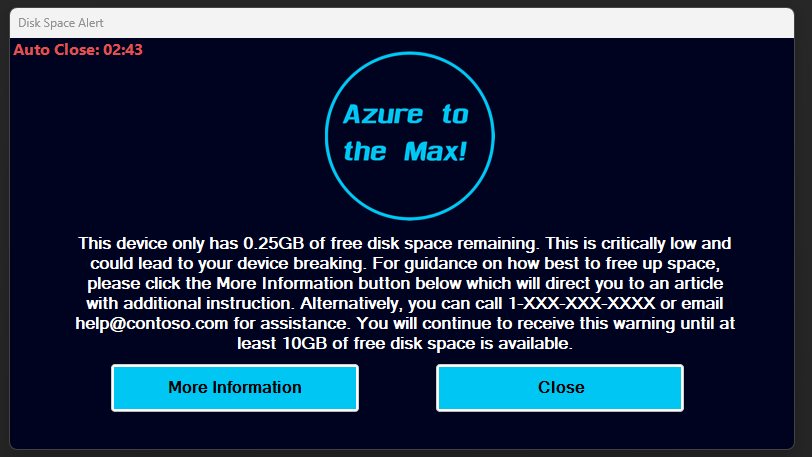
You can download your own copy of the script, such that you can follow along with the below, from my GitHub.
Getting right to the point, here is the popup in its default configuration. When it prompts, it provides a message indicating how much space remains, informs the employee of the seriousness of the situation, and provides instructions on how to access either self-help resources or to contact your help desk. It also lets them know this popup isn’t going to just go away forever if they ignore it once, as well as how much space they need to have to get it to stop.
Options are then provided to either open the More Information (self-help) page that by default opens a web URL with the default browser, and/or to close the popup.
Furthermore, this popup appears over the top of other windows and is centered on the primary screen to make sure it is seen. While it can be dragged around to move it, it cannot be moved behind other windows. Note that the popup cannot be closed using the X in the top right as it is hidden and it will not appear on your taskbar to prevent a right-click style close. This is such that it can only be closed (less task manager by finding PowerShell) using our close button. The reason behind this is explained in the logging section.
Pop-up Customization:
Before I say anything else, this script is around 550~ lines at the time of writing. I certainly tried to make it as friendly as possible, but there is a lot to explain, a lot of which doesn’t want to be explained until I first explain something else, and some things that just didn’t want to be made all that friendly.
The majority of basic customization can be done using the large variables region near the top which is commented in full with explanations of what everything is and how it should be configured. Additionally, some of these elements have enough to say about them that I have broken them out into other sections. So, I will keep this section to a more light overview.
- The first step in customization is to configure a minimum quantity of GB worth of space ($MinimumSpaceGB). By default, this is 10GB. The popup then checks how much space you have and if that is less than the minimum we just set, it will prompt.
- You can also configure whether the auto-close timer is visible on the popup or not ($AutoCloseVisible), but it will always execute and close the script when it runs out. Why this exists is explained in the next section. You can customize the timeout duration ($TimeOutDuration) but, you must be careful with what you set which is again explained in the next section.
- The popup will cache the company logo image, as well as create log files, of which the paths used for this caching and log file names can be adjusted. ($LogFileParentFolder, $LogFileFolder, $LogFileName)
- For branding, easy customization options are provided to change the background color of the overall form, text box (our message), and buttons, as well as controls for the text color on the buttons and text box. ($MainFormBackgroundColor, $ButtonBackgroundColor, etc)
- For customizing the text, you will have to locate where that text is set in the script as those fields rely on variable values, such as how much free space you have, so it’s difficult for me to raise their position in the script to the variables region as those dynamic values have yet to be set.
That said, this whole popup, less the PNG image, is all PowerShell and can thus be truly tweaked however you want if you are willing to put the time into figuring it out. I won’t claim that Windows Forms are the most intuitive thing, but you can likely accomplish whatever you desire. You can change the fonts, background colors, text colors, text content, text formatting, button colors, the shapes of the whole popup or different elements, placement of elements within the window, add additional or remove existing buttons, change what actions the buttons take (open a web page, open a document, etc), and change what image to use (more on this later) and/or create/remove other branding.
You can, and should, go crazy with it.
Image Customization:
This topic has a multitude of things we do need to get rather detailed on. I will say that I had a lot of fun coding some of this just to do it.
What image to use:
By default, the image I use is 175×175 pixels and I would highly recommend using something of that height, with a width up to around 500 or 600 pixels. While this may seem incredibly low resolution, Windows Forms are a pixel-alignment system and do NOT scale elements. By default, the form is only 800×450, hence (unless you change the size of the overall window) you’d want to stay around 500-600 at a max width.
For example, if you wanted to feed it a crisp 1080p image, you would need a Windows Form that is greater than 1080p in size such that the display of the image can be contained within the form. This would cause the popup to entirely cover a 1080p screen – obviously, not ideal.
The image will attempt to auto-center itself given the default form width but, if you need more height for the image (and thus need to increase the form height overall and push other elements down), or plan to change its width, you will have to manually adjust it.
Controlling how we get the image:
Proactive Remediations introduce an interesting challenge when it comes to needing other files as Proactive Remediations are simply uploading a .PS1 script. They aren’t like Win32 apps where we can bundle up all the other PNGs JPGs and secondary scripts we want – it all must fit in a single PS1.
So, that makes getting our image(s) for branding tricky. To that, there are two options I have provided. In either case, the system first checks if the image is already present, then performs the following if it is missing.
- Download the image:
Using $UseImageDownload in the variables section, along with setting the $Imageurl in the same section, we can tell the script that we need it to download the image from an online source if it is not present. This could be your company site, a GitHub repo like I am using in the demo, an Azure storage blob – really anything that will be accessible from the devices. - Just make it Base64!
Alternatively, we can embed our image right in our script by changing it to a base64 string, pasting that string into the script (The value we set for $ImageB64), and letting the script turn that back into an image file when it executes. The giant blob of random chaos in the middle of our script isn’t very pretty, but it works really well for having an all-in-one solution, especially when dealing with small images like mine at all of 16KB
I fully admit writing this option just because I had the idea, thought it was cool, and wanted to make it. That, and I think it will be very useful for some other ideas of mine.
Ensuring Image Enforcement:
There are two problems I foresaw while making this.
- Technically we are placing this image in a location the user could locate and edit it. While deleting it would cause the script to simply recreate it, they could instead alter it with the result now being their favorite clip-art being on the company notification.
- In the event we need to update the image, that could be a real pain. You would either need to add a line to delete the image, then have the script get the new image, then also add something to prevent it from doing this each time it runs… OR – change the image name in the script, upload a new image to wherever, call to download that new image, etc etc etc. It’s just not fun.
So, to solve all of this, I added hash validation to the image file. Adding to the above explanation, the script first checks if the desired image file exists and if not, it then either downloads it or creates it from base64 (depending on which option you enable of the two).
If the image does exist, it performs hash validation on that image to make sure it’s the right file. If not, it will re-download the image or, it will recreate it from Base64, again depending on how you have the script sent. It will then validate that the new image has the correct hash post-re-download/re-creation.
This way, for deploying an updated image, you don’t need to do anything other than update the hash, along with the Base64 code if you are using this option. This is assuming if you are downloading the image that you put the new image at the same exact URL as the old image. If not, you will need to update the URL as well. In either case, the script will spot that the file no longer matches and re-download it or re-create it.
Similarly, should someone modify the image, the script will again spot the difference and reapply the corrected one.
Note: Yes, I accounted for the fact that earlier versions of PowerShell don’t have Get-FileHash. It was a pain, but it’s accounted for and works with a custom function (Get-SuperFileHash) which will attempt to pull it using get-filehash and resort to more manual methods if that fails. Fun!
Auto Close:
The Auto Close (or timeout), which is seen by default in the top left of the popup, exists because Intune will kill proactive remediations after roughly 60 minutes with the assumption that it somehow failed to execute properly. So, we have an auto close which is set to 45 minutes by default such that when that timer runs out, a special log entry is made indicating that it was the timeout that closed the popup. Additionally, the fact it times out is written as an error to the command line. This causes that information to make its way back to Proactive Remediations which can be seen by doing an export of the detailed run status. This will help you differentiate between true execution failures should one occur and simple timeouts.
Again these are controlled by $AutoCloseVisible and $TimeOutDuration.
Logging:
This script includes a lot of logging both to the console for testing/troubleshooting, as well as to a file for future reference. By default, the script creates “C:\ProgramData\AzureToTheMax” then “C:\ProgramData\AzureToTheMax\DiskSpaceAlerts“, setting both to hidden folders. Feel free to change this but know that the folder needs to be in a standard-user accessible location, hence the use of ProgramData over my typical C:\Windows\AzureToTheMax folder.
In that storage directory, a log file is created (DiskSpaceAlerts.Log) which creates entries such as the ones below.
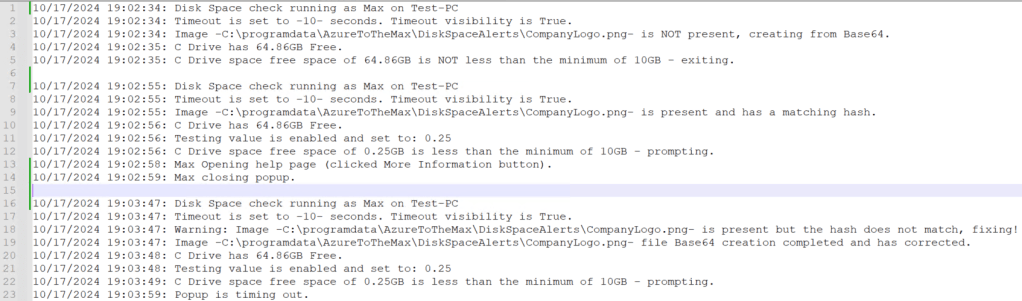
To detail it in full, the script logs… (all log entries include a timestamp)
- Script startup, who the script is running as, and on what machine
- Timeout status (what the timeout is set to, and if its visibility is enabled)
- If the logo PNG file already exists or if it had to be downloaded (includes log of download completion)
- How much free space the C drive has
- If the test value of C Drive space is enabled and if so, what is it set to (see testing section)
- If the drive either has sufficient space over the minimum, or it it is under the minimum and thus we will now send the popup. This includes notation of what the minimum space and current free space is.
- If the user closes the popup, including the account who clicked it. We can’t log if they close it any other way than one of our buttons, hence the other close methods are disabled.
- If the user clicks the more information button
- If the popup times out, including the duration it waited.
As well as several other possible error/warning conditions such as if you tried to configure settings in a problematic way, or if the image had to be downloaded, or the hash didn’t match and it had to be recreated, etc.
Again, this is all for helping you troubleshoot, and helping you check the log to see what actions were being taken (did the person ignore it for two weeks, etc).
Pre-Deployment Testing:
Obviously, needing to fill up a HDD just to test the popup is not ideal. So, a configurable variable named $TestingDiskSpaceValue is provided to aid in this. This value is by default set to equal $Null. When set to $null, it has no effect on the script, and this is how it should be set for deployment.
However, when set to a value such as 1, 3.0, 8.75, and 0.5, (no quotes!) it will override the true value for free disk space, thus allowing you to act like your device only has X GB of free space and thus allowing the popup to be thrown, assuming you go below your threshold. Alternatively, you can turn up the minimum GB to a very high amount.
WARNING: For reasons I truly cannot explain, when testing the code in something like Visual Studio or ISE, even using PowerShell 7.2, the timer does very odd things. It has a tendency to skip around 20-30% of the time set such that a value of 60 might only produce a 40-second timer. Additionally, it will move at an incredibly accelerated and uneven rate, maybe going one digit down at a time but at 2-10x the speed it should (not 1 digit per second), and often moves in chunks of 2-15 seconds down in a single second. Sometimes the timer will just immediately slam to zero and immediately close the popup.
Additionally, the script will often open behind Visual Studio, and may not layer over top of other windows either as it should.
None of this behavior happens when executed manually (start-process powershell.exe .\yourfile.ps1) or when run from Intune, and as such this is how I suggest you test the script instead of using something like F5 to execute it through Visual Studio or ISE.
Deployment:
Once you have done all your configuration and testing, deploying this is as simple as deploying any other Proactive Remediation. Before deployment, I would again recommend understanding your audience (know who all will see this popup) and performing a phased rollout which includes specifically targeting some of those known-issue devices.
If you didn’t get it already, the download link is right under the picture in the “The Popup” section.
Proactive Remediations do have requirements, including licensing requirements, which you can see here.
To deploy the remediation…
- Head into Intune
- This menu is currently located under Devices -> Scripts and Remediations
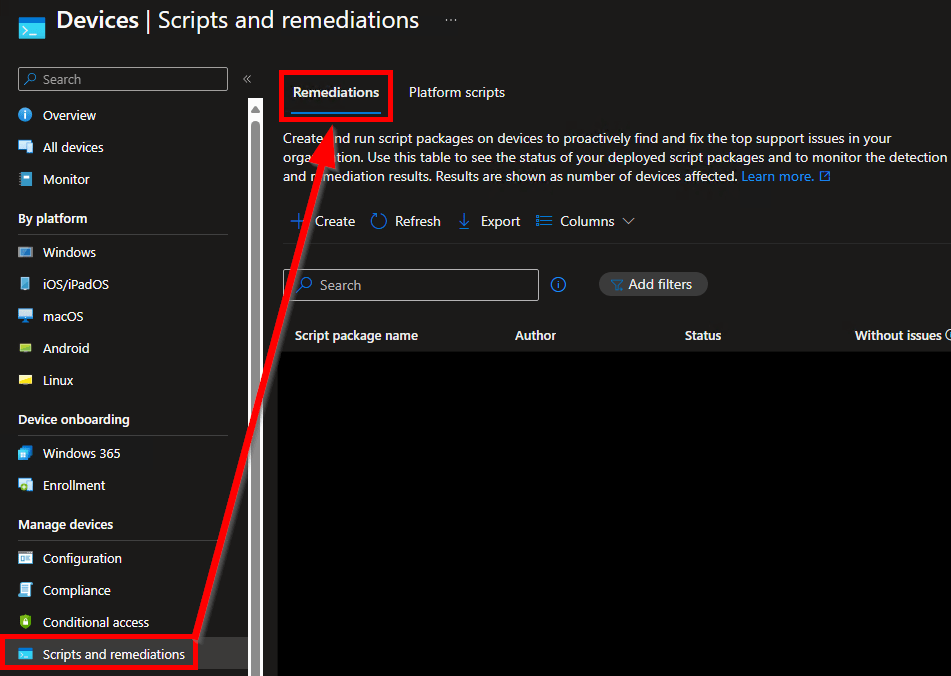
- Choose Create while under the Remediations tab (See the above and below image).

- You will need to give the script a Name and Description. These are just friendly values.
You will then be prompted for a multitude of values. These are the only ones you need to set / change.
- Detection Script File.
This is the data collection script, just browse out to wherever you have saved it. - Run Script in 64-Bit PowerShell
Change this to yes. Without it, you can’t query 64-bit registry locations properly. - Run the script using the logged-on credentials
Change this to yes. Without it, the script runs as system, and thus the prompt is not visible to the employee. This is again why we log to a user-accessible location, it’s actually running as them.
We don’t need a remediation script for this, nor do we want to run as user (we want to run as System). Script Signature Check is something you will have to look into on your own and make your own determination.
When the information has been entered, hit Next.

Filling in Scope Tags, if any, is up to you. When done, hit Next.
For groups, you need to select either a user group or a device group. Know that if you select a user group, it runs on any device that the user logs into, not devices they own and not devices they aren’t logged into actively.
Additionally, if you scope to a user/device group, you can (or should) only exclude a matching group. Don’t scope to devices and try to exclude users, and don’t try to scope to devices and then apply a user-based filter.
I would highly recommend scoping to DEVICES for better control over where it is executing.
You can deploy to all devices using the upper drop-down Selected Groups box or pick individual groups using the Select Groups to Include hyperlink.
All Devices:
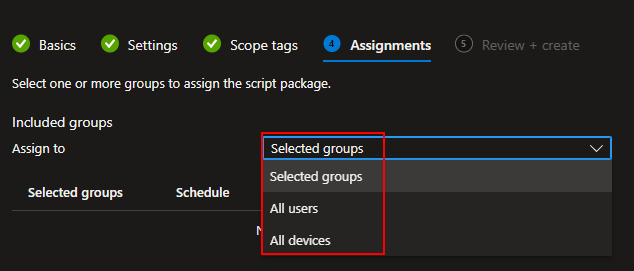
Selected Groups:

Once a group is selected, you can then alter the schedule for that group. You can put different groups on different schedules. Personally, I like to have the popup execute every other hour.

Known Issues:
Of very minor note, if a device has a corrupted WMI database, which can be caused by a full disk event or restoration after one, the command “get-volume” will fail causing the popup to appear with a null current disk space value in the message. You could build in some error checking for a null value and stop the popup but honestly, I rather that person call in and get their WMI database fixed.
This would also break a lot of the values that report into my Log Analytics. If you use my Log Analytics, you could set up an alert for entries where the computer name is null, disk info is “”, network info is “”, etc, to catch it.
I could count the number of times I have seen this on half a hand, so don’t worry too much, but I figured I’d save someone else the annoyance should they run into it.
Conclusion:
All in all, you should now have a robust framework with which to customize and deploy to your environment. Happy scripting and alerting!
Disclaimer:
The following is the disclaimer that applies to all scripts, functions, one-liners, setup examples, documentation, etc. This disclaimer supersedes any disclaimer included in any script, function, one-liner, article, post, etc.
You running this script/function or following the setup example(s) means you will not blame the author(s) if this breaks your stuff. This script/function/setup-example is provided AS IS without warranty of any kind. Author(s) disclaim all implied warranties including, without limitation, any implied warranties of merchantability or of fitness for a particular purpose. The entire risk arising out of the use or performance of the sample scripts and documentation remains with you. In no event shall author(s) be held liable for any damages whatsoever (including, without limitation, damages for loss of business profits, business interruption, loss of business information, or other pecuniary loss) arising out of the use of or inability to use the script or documentation. Neither this script/function/example/documentation, nor any part of it other than those parts that are explicitly copied from others, may be republished without author(s) express written permission. Author(s) retain the right to alter this disclaimer at any time.
It is entirely up to you and/or your business to understand and evaluate the full direct and indirect consequences of using one of these examples or following this documentation.
The latest version of this disclaimer can be found at: https://azuretothemax.net/disclaimer/
 Azure to the Max