
This Article Has Been Retired!
Warning: I have chosen to “retire” this article. As time has marched on, and more information has been revealed, the blogs in this series have slowly become less and less up-to-date, and frankly, more and more of the information I was told as gospel has proved flawed or muddied. As such, I’m creating a new article to bring all of that hindsight together and document the saga this topic has become. To be clear, the tools for automated detection and removal are still up to date, but I am putting out new articles to cover them as well as the history and information surrounding this topic. Once available, I will link it below.
Take a look at my new article on Everything I Know on Subscription Activation.
More on this topic is coming soon!
Good news! I will soon be releasing additional follow-up articles to this one which will bring both better detection and, if all testing continues to go well, automated remediation to this issue.
While this initial article does have valid information in some areas and thus may be helpful, and as such I am leaving it up, I have come to believe some of the information relayed by Microsoft around September 30th may not have been accurate. There are several notes pointing to the 9/30/2024 update on this article regarding that information. Because of this, and the overall complexity of this topic, I have opted to put the latest updates on a part 2.
I would highly advise reviewing both this article and part 2 carefully, and understand that ultimately the amount of substantiated facts from Microsoft over this topic has been disappointing, to say the least.
Once published, part two can be found here.
How I Got Here (Background):
As some may know, I recently fell down a long rabbit hole thanks to KB5036893 & KB5036892 which broke Enterprise Activation back in April. One of the many takeaways of this topic was learning that having multiple Work or School accounts added to a device breaks the Enterprise Activation as well*. This brought about a lot of questions. What exactly is happening to get these second accounts on devices in the first place? How do we stop it from happening? Where has it happened already? How do we undo what has already happened?
It turns out this topic is a giant can of worms, including problems Microsoft themselves doesn’t have answers to, but I’ve learned a few things and figured it was time to share.
I don’t want anyone to get the impression I hate Enterprise Registered devices and see no use for them – it’s just not something we want, and unfortunately, its existence is breaking Enterprise Activation.
*Please see the 9/30/2024 update at the bottom of the article, which better clarifies the exact circumstances the issue does, and does not, occur under.
This subject is not new, but there are new things to be said:
I want to take a moment before I get any further to acknowledge that this is not a new topic. I’ll be referencing several articles from the 2021 era in this article which talk about this subject like…
Are you tired of “Allow my organization to manage my device”? – MSEndpointMgr
Entra Joined vs. Entra registered devices | Azure AD (call4cloud.nl)
And there are plenty of people who have asked about it online…
How do I stop on-premise domain users from joining azure on workstations? – Microsoft Q&A
Windows 10 pop-up message to “allow my organization to manager my device” and “no sign in to this app only” is necessary? – Microsoft Q&A
…As well as plenty of Microsoft articles around the topic I will be linking to.
While there are some great explanations in the above articles about Entra Joined versus Entra Registered, etc, what I haven’t found a whole lot of is answers about how to undo the mess if it already exists, and that’s a large part of what I will be covering. Another thing which only a few articles seem to touch on is stopping this at an enterprise level, which as I will touch on is not easy and is part of why this is a bigger issue than I initially realized.
*I want to clarify the previous title of this section which said this “issue” is not new. This issue is apparently relatively new, it’s simply the subject of these popups which is not. More information can be found in the 9/30/2024 update.
What is an Entra Registered Device:
Again, you can find some great explanations of what this is in the prior blogs. I recommend Rudy’s on Call4Cloud.nl.
You can also take a look at this: What are Microsoft Entra registered devices? – Microsoft Entra ID | Microsoft Learn
Frankly, this is not something my org makes use of, so take what I say with a grain of salt. The short version is, which I’ll explain more in the next section, it’s when you take something like a personal device using a personal Microsoft account to sign in, or a work device even, and add another Microsoft account to it from another tenant. This adds the account to your connected “work or school accounts” (connected to Windows accounts), and makes your device have an “Entra Registered” record in the other company’s tenant.
This is primarily to make better use of evaluating/letting that device/account access your company resources. You can take this a step further and even enroll the device in Intune if you want, as discussed in the above article. This setup is largely to support BYOD model which, as I will say several times, is not a world I am in.
How is this happening so much?
While you can manually add second accounts through the Work and School menu, that’s not something just anyone is going to go figure out and do. So, how is it so many seem to wonder easily into causing this?
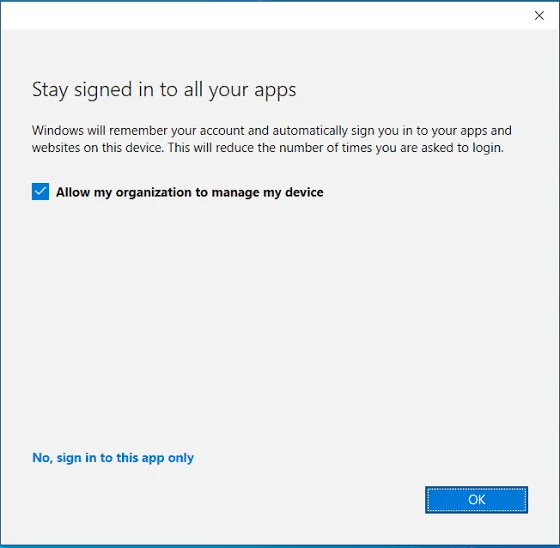
This is the popup that, by default, shows up when you do something like add a second Teams or Outlook account on your machine (think Entra credential sign in on a local app). You’ve probably seen it before as there are plenty of legitimate reasons to want to add an account to a Microsoft app and again. Maybe you have a service account for testing, or a dev tenant, or a sister tenant, etc. This is perfectly normal.
However, this popup is the source of our issues. By default, when such a sign in happens, it shows the popup, that box is checked, and the obvious answer you are guided to is to press OK. What this does is add this second work account as a second Work Or School account on the machine as seen below. This is designed to make it easier to then use that same account to sign into other applications on the machine.
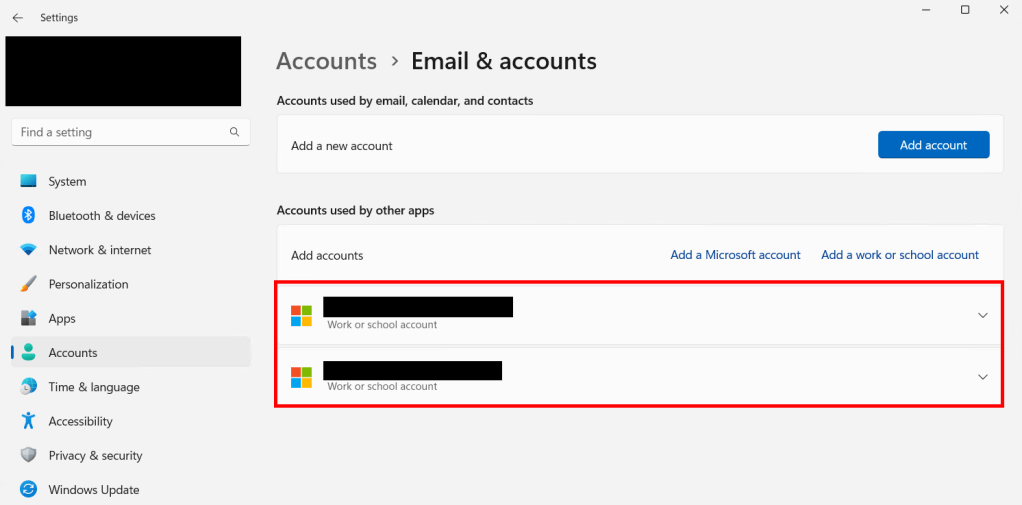
This seems fairly benign at first, it just makes it easier to then sign into the other apps on your machine using that account. However, what this also does, in addition to breaking enterprise activation, is make your device an Entra Registered device in that other tenant that owns that account… see below.
For example: if you have a machine in tenant A using credentials from tenant A to log in, then sign into Teams using a credential from tenant B, and press OK on that popup, you now have an account from tenant B in your connected accounts, AND your device now has a record in tenant Bs Entra.

This is ugly to me as you start to get devices owned and managed by one tenant showing up in another. Now, depending on your setup, these devices may not be MDM managed or anything, but it still makes me cringe a little to see this bleed over. And again, my primary focus here is making sure our enterprise activation functions.
According to the notification itself, and as mentioned in the prior linked Microsoft article, there are ways to start managing Entra Registered devices (“Selecting this option means your administrator can install apps, control settings, and reset your device remotely, etc”) – granted this is something I have zero knowledge over nor interest in for what I manage.
What other options are there on the popup?
As far as the “allow my organization to manage this device” check-box, at least in my testing, this has no change to the behavior. If you sill press OK, the second account is added, and the entry for the device still created in Entra of the other tenant. Interestingly, Microsoft told me unchecking this would prevent this, but that doesn’t seem to be what I am seeing. I would hazard to guess this has more to do with the MDM enrollment which again, MDM management of personal devices through this means is not something I have experience with.
The best thing you can do is hit “No, sign in to this app only” – this will, as it says, sign you only into the app you are touching. To explain this confusing wording, pressing OK on the popup adds the Microsoft account to the machine, thus enabling easy sign in to all apps. Choosing the “No, sign in to this app only” option does not add the account to the machine and thus only signs you into this app.
However, educating your users how to handle this popup is simply not a reliable option, especially when the popups layout is so heavily leaning in favor of simply pressing OK.
What is the point of this popup?
Again, there are very legitimate reasons, primarily for BYOD where the primary account on the machine is a personal account of some sort, to have Entra Registered devices. It lets the employee seamlessly access what they need to, and it lets you keep an eye on what devices are used to access your resources, and process basic conditional access on them like minimal OS version.
What are Microsoft Entra registered devices? – Microsoft Entra ID | Microsoft Learn
That said, my world, and I think most large enterprises, don’t want to support a BYOD or otherwise Entra Registered Windows device scenario. So, I really do not understand why supporting this is the default option and, as I will explain shortly, why it’s such a pain to stop.
How does this break Enterprise Activation?
When multiple accounts are attached*, the task that runs for Subscription Activation will spit out an error like this (0X87E10BF2). This is very well and long documented on the internet, and something I myself had to have some of my testers fix when testing out the July preview patch for Enterprise Activation.

This is even plainly documented on Microsoft’s end as being caused by having more than one connected account. Specifically, their documentation mentions said X accounts belonging to multiple/other tenants.
*Please see the 9/30/2024 update at the bottom of the article, which better clarifies the exact circumstances the issue does, and does not, occur under.
What is Microsoft doing about this and Enterprise Activation in the future?
I’ll get into what Microsoft has out there currently in just a moment, but I want to talk about Microsoft and the future. This is the part where I really wish I could say something about how Microsoft’s plan is to fix multi-account and its relation to Enterprise Activation. Especially so as I am sure that are some organizations that do want multiple connected accounts (meaning they are okay with Entra Registered devices) and want Enterprise Activation to work.
Unfortunately, from what I am being told, the direction PG is currently going in is to instead evaluate possibly creating a scripted method of removing secondary accounts which tells me they don’t plan to make Enterprise Action work if two are present. I honestly see some sense in this, if you are paying for Enterprise Activation, you probably don’t use a BYOD model.
However, I think there are much more valid arguments to be made for someone who wants multiple accounts on company owned devices such as an organization with a DEV tenant. That is to say, a second account on a Non-BYOD device, and that’s what I myself plan to comment on the topic in response.
That said, I wanted to poke around and see what I could figure out in the meantime, and obviously I’m writing this because I’ve found some things.
What I want to accomplish:
I have four goals.
- On our managed devices, prevent our devices from being able to join other tenants as Entra Registered
- On our managed devices, detect where this has already happened and remediate it
- At the enterprise level, prevent external devices from being able to join our tenant as Entra Registered
- Within our Enterprise, safely remove devices that have already joined in this fashion
Sadly, things are not as simple as one would hope.
1: Tell Your Devices No
This is the only part of this that is going to be simple… ish.
This is well documented by Microsoft, if not very easy to find, and was provided to me through my prior case over activation issues caused by the April update.
Microsoft Entra device management FAQ
Their recommendation is to deploy the following key which will prevent devices from showing that popup at all. Instead, they will automatically/invisibly choose the option to sign into that app only. This also prevents manually adding a second account on the device through the Access Work or School or the Email & Accounts menu.
HKLM\SOFTWARE\Policies\Microsoft\Windows\WorkplaceJoin, “BlockAADWorkplaceJoin”=dword:00000001
I really wish I could tell you the name of a policy that you can go configure in Intune, deploy, and all will be well…. but I can’t because for some reason Microsoft seems to have chosen to not actually make this a deployable policy. Instead, you need something like a script, or in my case a Proactive Remediation. The good news is I have put this together and you can just go deploy it. This is a fairly straightforward remediation, run it as admin in 64-bit mode. As always, test before you deploy!
GitHub Link to Proactive Remediation: Workplace-Un-Joined/Block AAD Workplace Join at main · AzureToTheMax/Workplace-Un-Joined (github.com)
Credit to MS Endpoint MGR team and their article I linked above and on my prior article, I largely took their script and simply reconfigured it as a Proactive Remediation, which probably wasn’t an option when they wrote their script.
2: Detect and Remove Existing Secondary Accounts
This is where things rapidly go downhill.
As of mid-September, the quality resources who helped out at the tail end of the April update ticket fiasco (see this article, if you really want to) have informed me, allegedly, that there is no means of removing secondary accounts from devices outside of doing it manually via the GUI. Hence as mentioned earlier, PG is “evaluating” creating something to achieve this.
To this resources credit, that same Microsoft article from the last section has a section directly above the Registry key titled “How do I remove a Microsoft Entra registered state for a device locally?” which explains exactly that, how to manually and locally undo this. It has an interesting blurb about how there was a tool to automate this on Windows 10 2004 and earlier… but no such tool exists for modern devices. See below.
Try as you might, there is no section in this article about not doing it locally. Nor am I finding anything mentioned on how to do this on any other article, blog, post, etc.

How do we even detect this automatically?
And this is where my journey really began, and why I find myself writing this article.
First, detection.
In order to detect this, we need to sink our teeth into a tool mentioned in the same Microsoft article, dsregcmd.exe. As explained in its overview article, you can detect a Entra Registered account on the machine, specifically attached to the account currently logged in, by looking at the “WorkplaceJoined” section of the User State.
This is set to NO when no workplace joined account, and thus Entra Registered account, is attached. (Pic is from the article)
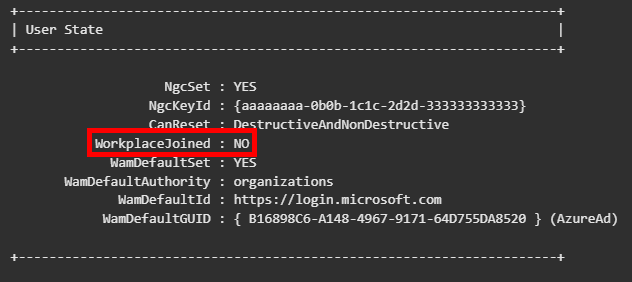
So, when we see this, we know we have a problem.
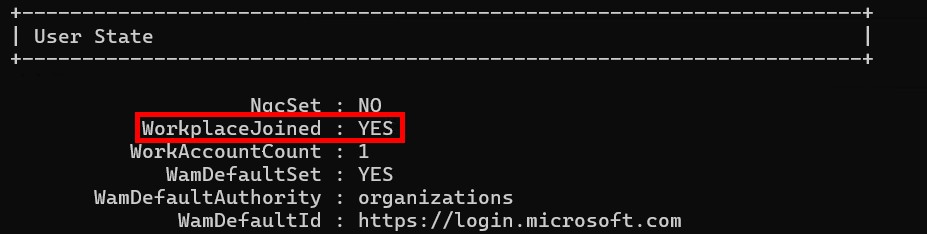
As not clearly shown in the documentation, there will also be a new “Work Account” section that shows up under the User State and SSO section with information about the account, what company it belongs to, when it was added (inferred from the cert validity start time), and so on.

Getting back on track, while DSREGCMDs output is not PowerShell friendly, the good news is that we can still fairly easily create a detection using the key words of “WorkplaceJoined : YES” existing in the output. And, by using Proactive Remediations, we can get back some basic data easily with a yes/no answer from our audience to quickly understand who has added a second account.
GitHub Link to DETECTION Proactive Remediation: Workplace-Un-Joined/Detect Existing Workplace joined accounts/Detect Existing Workplace Registered devices.ps1 at main · AzureToTheMax/Workplace-Un-Joined (github.com)
This proactive remediation is a little different than normal. You will only be selecting a detection script (this script is only meant to detect, not remediate, after all), and you want to flip both the 64-bit and Run as Logged-on credentials to yes. To explain the latter, dsregcmd.exe can only detect the accounts tied to the context of the user it’s running as, so running as System would not be helpful.

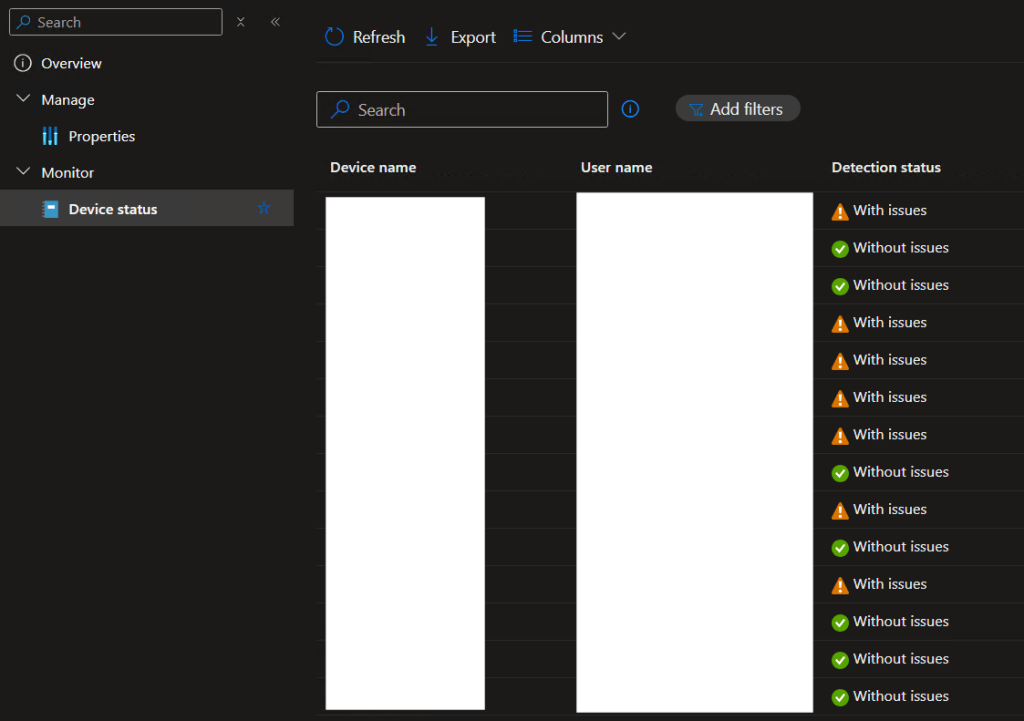
Once it has had time to run out into devices in the org and check them, you should start to see data returning with information about the status. This will report back with data regarding what devices have secondary accounts (“With issues”) or not (“Without issues”). Further information and sorting can be seen in the export although, I don’t yet have a way of identifying what accounts were seen as dsregcmd is again very unfriendly to PowerShell.
Automatic Detection, 9/30/2024 Update:
As mentioned briefly in other sections, one thing I hope to create soon is a new detection that includes resolution to the names of the accounts on the machine, as to better aid in understanding the situation you face.
How do we remediate this automatically?
Original article:
The good news: I already have a seemingly functional way to do this despite the claim none such thing existed.
The bad news: I am both interested in finding a cleaner way to do it, and concerned about the unclean things the current method could do. So far, I’ve not noticed any negative impact on my AAD joined Windows 365 or physical devices, but I strongly believe the script would absolutely nuke a hybrid device if it executed on that in its current state. Luckily I don’t have to deal with such devices anymore, but I want to make a viable solution for others to use.
Hence, this is a “living” article for now I will update with new information when possible. I still think the detection and other information will at least prove useful to any early readers.
Automatic Remedation, 9/30/2024 Update:
Given it’s direct impact on this section, I wanted to separate this out from the main 9/30/2024 update at the bottom of the article. Unfortunately, I find myself once again playing the good news and bad news game.
The good news is, I made some really solid progress on the above hope of writing a script. At the least, this information was great practice for myself, advanced my own knowledge on the topic, and most importantly, will help me write a better detection script so that it can even report what accounts have been added.
Below is a heavily redacted version of the output in a “what if” mode, rather than letting it truly delete things. Figuring out how to do all of this was an incredible learning experience, one I am still considering documenting for the sake of education on how you do something like this. However, I will say now that part of the reason I am so heavily redacting this is that I don’t want anyone to fall into the rabbit hole I did. As I will explain in a moment, unless you have expert knowledge of the AAD Broker Plugin and how to interact with it safely, and/or knowledge of how the BackgroundTaskHost.exe does just that, fixing this code may not be possible.
While on this topic, I want to thank ExpendaBubble and ChrisDent on the WinAdmins Discord for helping with the insanity that is dealing with Registry keys from an application registry hive. Specifically, the data type in said registry was not declared, which lead to interesting issues.

The bad news is… In short, as best I can tell, removing the account this way causes the AAD broker to get very confused as an account just vanished without it understanding why that happened or understanding that it should have just happened. The best analogy I have for this, which again is just my belief, is much like how going into your program files and deleting the folder of an app is a very unclean way of uninstalling an application, reverse engineering the actions of how Microsoft removes an account and then manually doing it yourself is, for lack of better words, not a clean way of removing accounts.
That said, I mentioned above there was a Microsoft tool that technically works but goes after all accounts on a machine, including the primary account of an AAD machine, which is scary even if it seems to cause no harm. I made the proposal that this tool be updated to be able to target a specific account, perhaps through it’s universal ID which is what the tool itself lists as it progresses the account. If the tool could do that, I could write the automation for everything else as far as detection, identification, filtering for only certain accounts, etc.
This idea was well received and I am hopeful for it, especially as it gives a much more concrete direction than before of the initial “someone try to write some script” idea. I hope to have more positive news to share on this in the not too distant future.
3: Prevent external devices from becoming Entra Registered in your Tenant
This section is by far the worst.
Something weird to me is that of the few blogs and bits of information out there, several point at some basic options to prevent this which don’t really seem to work, at least not anymore.
For example, I saw some mention that you need to configure your Enrollment Restrictions to block personal devices… except Intune Enrollment Restrictions are for MDM enrollment and have no impact on a devices ability to Entra Register. Yes, this may help stop them from Entra Registering and becoming managed by Intune, but it again doesn’t prevent Entra Registering and/or adding the Microsoft account to Windows For that same reason, the MDM enrollment settings for the “MDM user scope” that controls what users can enroll a device have no effect on this.
Rudy made great mention of the Entra setting to control what users may register their devices to Entra, and as he mentioned, this setting is forcibly flipped to all if you use Intune, which is… odd… I really don’t understand why this can’t be controlled on a “some” bases just like MDM enrollment and Entra joining and registration settings can be. I’ve heard some explanations that this is to make sure Intune works… but if I’m controlling who can MDM enroll through the “some” option, why can’t this also be tied to that same group? I’m sure it would break non-user driven autopilot, but I’m willing to accept that.
Lastly, there is the setting I just mentioned, (Entra, devices, device settings, Microsoft Entra Join and registration settings) – you can configure this over to “some” but it does not stop this. I have been sitting here with that setting, as well as the MDM enrollment setting, locked down to a single group and yet I have no issues taking a device and using credentials not in that allowed group to add my device which is not in that tenant as Entra Registered.
Yes, you can also try to make efforts to use conditional access to block devices from being able to sign in at all, but again this is really a poor answer in my opinion. I want people to be able to sign in to their other accounts for things like dev environments, I just don’t want the devices that belong in one place or another to Entra register back and forth. Sign in to individual apps please and thank you. I get why this might be annoying, but it’s breaking Enterprise Activation and that’s a problem.
Frankly, I don’t understand why there isn’t a tenant level “no entra registered devices” button. This is something I have posed to Microsoft several times in the past several weeks and, so far, nobody has been willing to attempt replying to the question.
Again, part of me feels like you almost don’t want to turn this off, it seems like it can be more beneficial than not to have insight into where devices are signed in, and provide additional abilities to evaluate them as possibly safe and okay to be used… but it breaks Enterprise Activation, it’s not something my org wants, and again, the news I am getting isn’t that they plan to fix it when there is more than one account.
4: Remove existing external devices from your tenant
Luckily this section is better than the last, there’s at least a way to get this done, although I can’t claim that it functions exactly as I wish it did.
Yes, you can go to these records and simply hit delete on them. What this will cause is the apps which had been signed into with that Entra registered account to barf up an error like this.
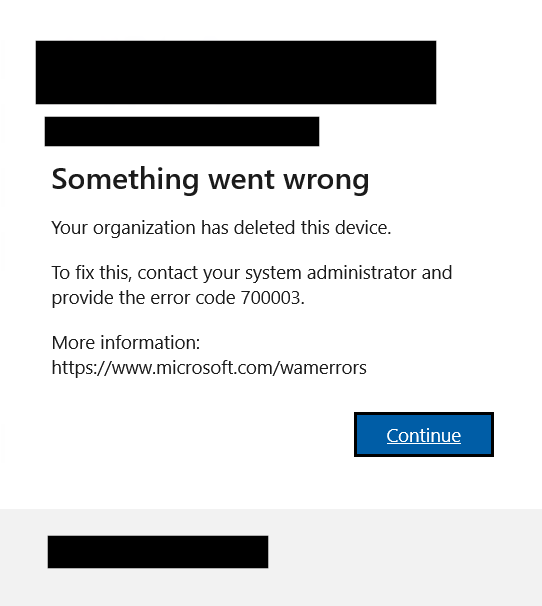
The employee will then be prompted to sign back in, and that will get the specific app working again (assuming CA and all that jazz is still passed). This sign in seemingly does not cause a new Entra Registered record to appear.
Curiously, some apps like Edge that produce an option to sign in with either the primary or secondary connected account seem to know the secondary account is no longer working and will no longer provide it as a “connected to Windows” option.
However, the account is still listed in “Access work or School” as a connected account which is annoying from a user of the device perspective. This is apparently by design as detailed in the section “I disabled or deleted my device, but the local state on the device says it’s still registered. What should I do?” – Its instructions detail how to reconnect the account, which basically explains you need to manually disconnect the account, then reconnect like normal.
And with that said, this is why section 3 feels so important and so lacking. If that’s all it takes to get it back in, and these are devices we don’t manage and thus can’t deploy the key to in order to stop them from re-adding a workplace account, then what are we to do?
Conclusion:
All in all, I think the thing Microsoft should possibly focus on is better controls around Entra Registered devices and, more importantly, making it such that secondary work or school accounts don’t brick Enterprise Activation. I would think it would be a fairly trivial change to make it explicitly use the primary account on the machine, especially for fully Azure joined devices. Given it took five months to fix this service when it, something we pay for, was entirely broken on a global level, I am not holding my breath for any of this.
Important Update 9/30/2024:
Today I was given some more information on the background.
What I am being told is that the problem is not simply having multiple accounts on the machine, but rather any of the multiple accounts not being licensed for enterprise Windows. The follow up to this is that this being a problem is relatively new, with the implied start date being sometime between April and now, thus possibly tied to the February update to Subscription activation or possibly the April one. I’m seeking clarification on the exact timeline, but it’s my new understanding from this conversation that prior to this somewhat recent change, if any account was licensed, then activation to enterprise worked.
Because of this, Microsoft’s current advertised solutions are to either manually remove secondary accounts or, to license all of the accounts. Obviously, licensing all accounts is a very strange take. Why are we paying multiple times for the same enterprise license across multiple tenants to license one single device? And, what do we do when we do want people to be able to add the account, but we do not control the other tenant and thus couldn’t purchase licensing even if we wanted to.
That said, I remember while writing this update that there are articles detailing this error and activation failures dating back to 2021 such as this one. So, I need to seek further clarification myself regarding the above claims of this being a new problem, as well as it being linked to accounts not being licensed as opposed to it not simply being multiple accounts. Perhaps they fixed multiple accounts working, however it only works if all accounts are licensed, that could be the explanation I’m missing.
Updates were also made to the “How do we remediate this automatically?” section.
Disclaimer:
The following is the disclaimer that applies to all scripts, functions, one-liners, setup examples, documentation, etc. This disclaimer supersedes any disclaimer included in any script, function, one-liner, article, post, etc.
You running this script/function or following the setup example(s) means you will not blame the author(s) if this breaks your stuff. This script/function/setup-example is provided AS IS without warranty of any kind. Author(s) disclaim all implied warranties including, without limitation, any implied warranties of merchantability or of fitness for a particular purpose. The entire risk arising out of the use or performance of the sample scripts and documentation remains with you. In no event shall author(s) be held liable for any damages whatsoever (including, without limitation, damages for loss of business profits, business interruption, loss of business information, or other pecuniary loss) arising out of the use of or inability to use the script or documentation. Neither this script/function/example/documentation, nor any part of it other than those parts that are explicitly copied from others, may be republished without author(s) express written permission. Author(s) retain the right to alter this disclaimer at any time.
It is entirely up to you and/or your business to understand and evaluate the full direct and indirect consequences of using one of these examples or following this documentation.
The latest version of this disclaimer can be found at: https://azuretothemax.net/disclaimer/
 Azure to the Max