
As explained in prior articles, the Application Usage Monitoring makes use of Windows Event logs for data gathering. While the Event Log has a ton of useful information by default, the logs we need to capture for this tool to function are not logged by default and instead must be enabled via policy This article will cover enabling those additional auditing items as well as expanding the limited default size of the security log to assist with the vastly increased volume of logs which will be generated as a result.
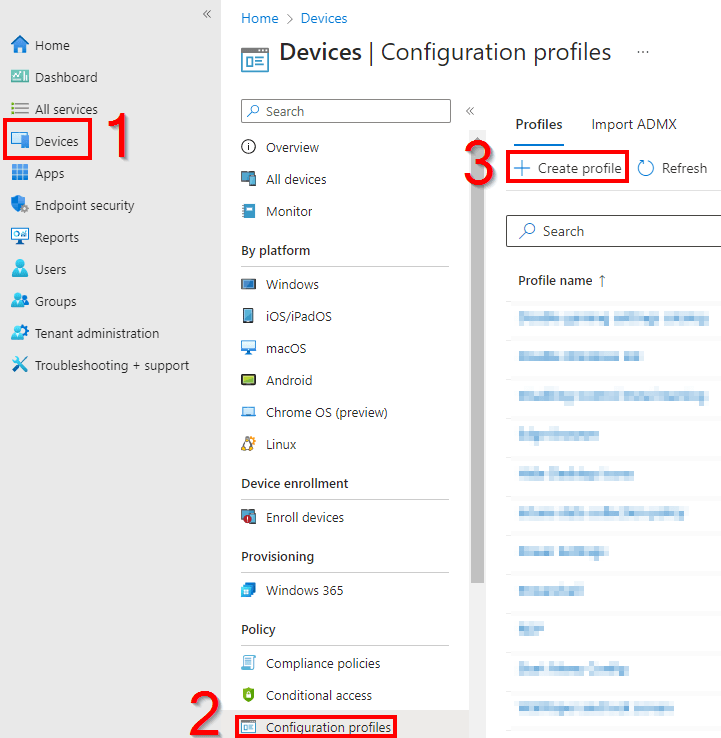
- Head to the Intune Home
- Go to Devices, Configuration Profiles, and hit Create Profile
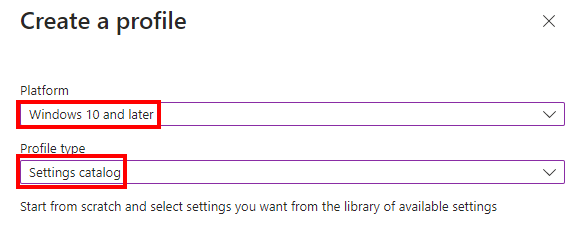
- Chose a platform of Windows 10 and Later and a profile type of Settings Catalog
- Name it and describe it as you see fit, this doesn’t affect the policy itself.

- Choose Add Settings
- Search for “Detailed Tracking Audit Process Creation” and select the Auditing result
- Select Detailed Tracking Audit Process Creation
- Configure it for Success

- Again, choose Add Settings
- Search for “Detailed Tracking Audit Process Termination” and select the Auditing result
- Select Detailed Tracking Audit Process Termination
- Configure it for Success

Updating the Maximum Log Size:
Before we start this, it’s worth entertaining the idea of having this next item as its own policy, especially if you plan to setup other Log Analytics collectors through this solution.
- Again, hit Add Setting
- Search for Specify the maximum log file size
- Choose the \Security result
- Check the box for the Specify the Maximum Logfile Size option and Maximum Log Size if it does not auto select.
- Turn the policy to Enabled
- Enter a maximum size of 204800 which is 200 MB
Note: For those concerned about the size of 200MB, as explained in the information bubble next to the enable/disable toggle (and pasted below), this log can easily handle MUCH larger sizes (2TB). 200MB in my experience will give you roughly two+ weeks of events on an average device with these auditing settings enabled. If directly viewing events, Event Viewer is slow to load that full 200MB, but that is easily fixed by limiting the range of your search with a filter. Since the script only ever queries a very small time range (less the initial ingestion), this has no effect on its speed.
Policy Description: This policy setting specifies the maximum size of the log file in kilobytes. If you enable this policy setting, you can configure the maximum log file size to be between 20 megabytes (20480 kilobytes) and 2 terabytes (2147483647 kilobytes), in kilobyte increments. If you disable or do not configure this policy setting, the maximum size of the log file will be set to the locally configured value. This value can be changed by the local administrator using the Log Properties dialog, and it defaults to 20 megabytes.

Lastly, you will want to scope your new policy(s) to the devices you plan to setup and test the ingestion on in the next article. This policy must be in place before you take that next step. Reason being that your device will not generate events without it, and we need events to gather in order to make our way through the next steps. Note that it will take a reboot for these policies to apply. Once you see the aforementioned event IDs generating in your security log, you are good to move on to the next article.
Conclusion:
You should now have your event logging properly configured to continue with this series. Again, keep in mind the policy will take time to sync to devices and will likely require a reboot to apply. Once events are generating, and only once events are generating, you can move on to the next step.
The Next Steps:
See the index page for all new updates!
Log Analytics Index – Getting the Most Out of Azure (azuretothemax.net)
I will be putting the Application Usage guides on the Log Analytics Index page under the System Usage series.
Disclaimer:
The following is the disclaimer that applies to all scripts, functions, one-liners, setup examples, documentation, etc. This disclaimer supersedes any disclaimer included in any script, function, one-liner, article, post, etc.
You running this script/function or following the setup example(s) means you will not blame the author(s) if this breaks your stuff. This script/function/setup-example is provided AS IS without warranty of any kind. Author(s) disclaim all implied warranties including, without limitation, any implied warranties of merchantability or of fitness for a particular purpose. The entire risk arising out of the use or performance of the sample scripts and documentation remains with you. In no event shall author(s) be held liable for any damages whatsoever (including, without limitation, damages for loss of business profits, business interruption, loss of business information, or other pecuniary loss) arising out of the use of or inability to use the script or documentation. Neither this script/function/example/documentation, nor any part of it other than those parts that are explicitly copied from others, may be republished without author(s) express written permission. Author(s) retain the right to alter this disclaimer at any time.
It is entirely up to you and/or your business to understand and evaluate the full direct and indirect consequences of using one of these examples or following this documentation.
The latest version of this disclaimer can be found at: https://azuretothemax.net/disclaimer/
 Azure to the Max