
Introduction:
In my initial article of this series, I mentioned that there are several asterisks, footnotes, limitations, and caveats to understand with this solution. To elaborate a bit further, this article explains more about how this works, the details of the events we capture, what we don’t/can’t capture for one reason or another, and what expectations to have with this solution overall. By the end of this, you should understand why this data is still beneficiary to have but, should not be the sole monitoring solution you have.
This will be very detailed and possibly quite technical.
In this section, we will cover…
- Time Tracking – Avoiding Duplicates
- Filtrations
- Formatting
- Event Deep Dive (Further breakdown in this section)
- How Real-Time is the Data?
- Conclusion
Time Tracking – Avoiding Duplicates:
First, let’s talk about how this thing works, mainly what I mean when I say “Time Tracking.”
Generally speaking, and obviously glossing over even more technical information, we are using PowerShell to query the specific event IDs we want to find and upload. That begs a very central question – “How do we know what events have and have not been already uploaded?” We have no way to mark events, nor to query Log Analytics to see if it’s already there.
The answer is quite simple. If we know what time we last ran the query, then we only need to pull the new events that have happened since then. Easier said than done, and there are some unexpected issues with this solution I ran into.
Breaking “Anything newer than X” logic:
Let’s say we start a computer up at midnight.
- Proactive Remediations soon kicks off our collector at 12:10:00 AM
- Our script notes it’s running at 12:10:00 AM
- Our collector pulls everything since it last ran up until right now as it’s running.
- It then marks its last run time as 12:10:00 AM.
- An hour later, the collector runs again. It checks the current time and sees 1:10:00 AM and, it checks when it last ran a capture which was 12:10:00 AM.
- Thus, it then runs a capture from 12:10:00 AM until now and marks the new last run time as 1:10:00 AM.
Here’s the problem – it takes a few seconds to run the query itself, one or two more to parse through the data, a few seconds to run the smaller 2nd and 3rd queries, and a few more seconds to upload it. What happens if an event is generated during those few seconds? The answer is one of two things. It either generated after the time was checked but before the query was run, and thus gets found and uploaded. Or it is generated after the query runs and does not get captured and uploaded until the next time.
In the case of the former, it will be found again (because it was generated after the time check) and uploaded again the next time the script runs. This is how we get duplicates.
While this requires some specific timing, it most certainly can and will happen when you have 10’s of thousands of endpoints going.
The solution:
The solution is just as simple. Don’t capture everything newer than the previous run time. Instead, only capture from the previous run time to the start of the current run time. Thus, if an event generates after the run time is checked but before our query is run, it won’t fall in that range and thus won’t get uploaded. Instead, it falls into the range of the next run and gets uploaded then. Ta-da!
Now, the real deal is using UTC and captures down to the thousandths of a milliseconds to avoid any weirdness due to same-second events. If there is a situation where an event is generated in the same thousandth of a millisecond that the script pulled the current time – well, that I do think is rare enough to ignore.
Filtration:
That said, when we talk about events like Logon and Logoff events, there is a lot of noise. You will find events of the machine account name itself authenticating, events from the SYSTEM account, service accounts like the “Network Service” account, built-in accounts, the Font Driver Host, etc. You probably don’t want to pay to collect this noise.
Luckily, the PowerShell commandlets I use (Get-WinEvent) either can directly tell fields like the user or, we can pull it from the events extended properties. This allows us to easily filter out events that come from accounts we don’t like or are of specific sub-event types we dislike, etc.
This methodology of querying, tearing it apart, checking the various values to make sure we want it, and uploading, is something that will be central to the rest of this article.
Formatting:
I also want to touch on the formatting of how all the events get stored in Log Analytics. These are all the columns/fields I use and what gets stored in them. For instance, when an event makes mention of a user who caused that event, you will find that data pulled out of the main message and stored on its own in the User field.
- TimeGenerated:
This is the UTC time the log was ingested into Log Analytics. - TimeOfLogUTC:
This is the time stamp of the log itself in UTC. - EventID:
This is the ID of the event such as 4634, 4624, 4800, 12, etc. - EventType:
This is the type of event in a human-friendly value such as Logoff, Logon, Lock, unlock, Logon Failure, RDP-Disconnect, shutdown, etc. - User:
This is the username associated with the event, if any. The formatting of this username can vary from event to event. - LogonType:
This is only applicable to logon, logoff, and logon failure events. It’s the type of logon that occurred such as RemoteInteractive, Network, CachedInteractive, etc. - ExtendedInformation:
This is a very important field. While making this collector, I found myself wanting to add more and more fields for things like the Remote IP, remote machine name, and failure reason, similar to how LogonType has its own field. This is not sustainable.
That is mainly because it is not very fun to add new fields when using DCR Log Analytics as it requires a modification to the Table as well as a difficult modification of the DCR. While certainly doable, it’s something I would prefer to avoid ever having to guide anyone though.
So, instead, I have a dynamic ExtendedInformation field where I create a dynamic array as needed and upload it. So, for instance, a remote logon might have a remote IP in its extended information. A login failure might have a remote IP, a remote machine name, and a failure reason. A shutdown event won’t have anything here.
Dynamic fields can be blown up into their individual additional fields so, this in effect allows me to add whatever fields as needed whenever without having to touch the DCR. - Message:
This is the full untouched message of the event, minus stripping off unneeded bloat explanations as will be explained below. While this does mean repeating lots of information like the account, logon type, and the information found in the extended properties, it makes sense to go ahead and collect this. - ComputerName:
The name of the machine where the event was gathered from. - ManagedDeviceName:
The Intune device Management Name. Think User_Windows_X/XX/XXX_7:10PM - ManagedDeviceID:
The Intune Managed Device ID. - TenantId:
The ID of your tenant. - ScriptVersion:
The version of the collector used to gather the event.
Event Deep Dive:
Now we will dive into the specifics of these events, what they are, what we filter out, and what issues they have.
- Security Event ID 4624 – Logon
- Security Event ID 4625 – Logon Failure
- Security Event ID 4634 – Logoff
- Security Event ID 4779 – RDP Disconnect
- Security Event ID 4802 – Screensaver Invoked
- Security Event ID 4803 – Screensaver Dismissed
- Security Event ID 4800 – Lock
- Security Event ID 4801 – Unlock
- System Event ID 1074 – Shutdown/Restart
- System Event ID 12 – Startup
4624 – Logon:
Overview: Click here to learn more about this event ID.
This log comes from the Security log and is an indication of an account authenticating to a device. This could be anything from someone physically sitting down and logging into Windows, someone answering a UAC prompt for elevation, or someone accessing the C$ share from a remote machine.
We do pull out the remote machine IP and Name from these events when possible/present.
For example, here is me RDP’ing into a box.

Filtering Event ID 4624 – Logon:
This is how we filter these events.
By default, this section ignores events where…
- The user is “System”
- The user is “NETWORK SERVICE”
- The user is “defaultuser0” – the account used during ESP.
- The user is “$PC-Name” (obviously via variable for the machine name)
- The logon type is “Service”
- The message field contains the phrase “*Window Manager*”
- The message field contains the phrase “*Font Driver Host*”
- The logon type is “Unlock” (we collect these events separately)
Sometimes events have a username with an unsightly leading “.\AzureAD\” or “AzureAD\” username. This is trimmed off.
Additionally, every single logon event comes with this gigantic wall of text explanation and obviously, we don’t want to pay for it either, so it’s stripped off.

Known issues with Event ID 4624 – Logon:
- These events do have a line for “Workstation Name” but, unlike logon failures, it always notes the local machine and not the remote machine despite the remote machine IP being on the next line. We do gather the remote machine IP for easy sorting although, this field is a best effort on the part of Windows
4625 – Logon Failure:
Overview: Click here to learn more about this event ID.
This log comes from the Security log and is an indication of an account failing to authenticate to a device. This could be anything from someone physically sitting down and attempting to log into Windows, someone failing a UAC prompt for elevation, or someone trying to access the C$ share from a remote machine.
We do pull out the remote machine IP and Name from these events when possible/present.
For example, here is me failing a network logon to my device.

Filtering Event ID 4625 – Logon Failure:
This is how we filter these events.
By default, this section ignores events where…
- The user is “System”
- The user is “NETWORK SERVICE”
- The user is “defaultuser0” – the account used during ESP.
- The user is “-“
- The user is “$PC-Name” (obviously via variable for the machine name)
- The logon type is “Service”
- The message field contains the phrase “*Window Manager*”
- The message field contains the phrase “*Font Driver Host*”
- The logon type is “Unlock” (we collect these events separately)
Sometimes events have a username with an unsightly leading “.\AzureAD\” or “AzureAD\” username. This is trimmed off.
Additionally, every single logon failure event comes with this gigantic wall of text explanation and obviously, we don’t want to pay for it either, so it’s stripped off.
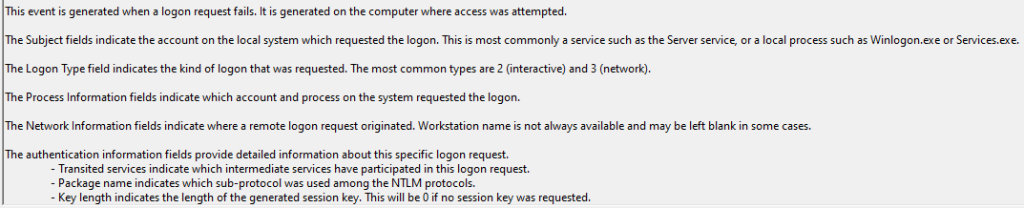
Known issues with Event ID 4625 – Logon Failure:
If you thought the 4624 known issues weren’t so bad, they make up for it here.
- Specifically, for AAD devices, failures from the Logon Process “User32” (think interactive GUI on the device itself) such as physical logons to Windows or, RDP without NLA and thus via the in-system GUI, do NOT record the attempted username. Because of this, they contain effectively no useful information and are thus not gathered.
This means someone sitting at your Desktop could mash keys for hours and the only telling sign on the device logs is a bunch of 4625 events with no recorded attempted username. This makes them very difficult to understand and distinguish from baseline noise. And again, with so little value other than to serve as noise, we ignore these.
I asked Microsoft about this in late 2022 when I originally played with collecting these logs and discovered this issue. After much debugging, the conclusion was that this was “by design” however they had no explanation as to why this would have been purposefully done. They agreed it seemed wrong, but again could find no answer.
Thankfully, this issue does not affect most network logons (RDP with NLA, C$ share access, etc.) which as you can see above runs through the Ntlmssp logon process and notates the username, remote IP, and remote machine name and thus makes this event still worth gathering under some use cases. Given that, and that all the other events including this events sister 4624 success event collect the username just fine, I have to believe it could be changed. - Failure to gather remote machine IP and/or name.
As best I can tell this typically occurs via the advapi logon process. Sometimes the events do notate a username and show it as a network logon but fail to gather the remote machine IP and/or name. This can happen even when other similar logs did successfully show these values. Often it seems to instead log the local machine as the source.
I know that sometimes this is due to a weird network self-authentication event however, I have confirmed it sometimes happens for truly over-the-network logons. - Failure to gather remote machine names.
This process is reliant on DNS or NetBios. If your environment doesn’t have these working, this value will never gather. - These events contain a “Failure Reason” code which is supposed to translate to why the attempt failed. For example, “Unknown username or bad password” and “Account currently disabled.”
Much to my annoyance, the event stores these as a Hex value that must then be converted to a decimal value that then needs to be looked up against a table of values to human-readable reasons. Unfortunately, there does not seem to be a complete table of these.
Microsoft has a list at the bottom of this section, and other sites have a list like this one. But, the Microsoft list makes no mention of C000006E which is for a disabled account – a pretty obvious and important one in my opinion. That other site also doesn’t have that code, nor even the extremely common 0xc000006d (Unknown user name or bad password) they list in their example event… ouch.
I have found it online and added, as well as tested as many of these as I can. However, it would not surprise me at all to eventually have someone ingest a raw C0000XXX failure reason because the table I made doesn’t know it.
4634 – Logoff:
Overview: Click here to learn more about this event ID.
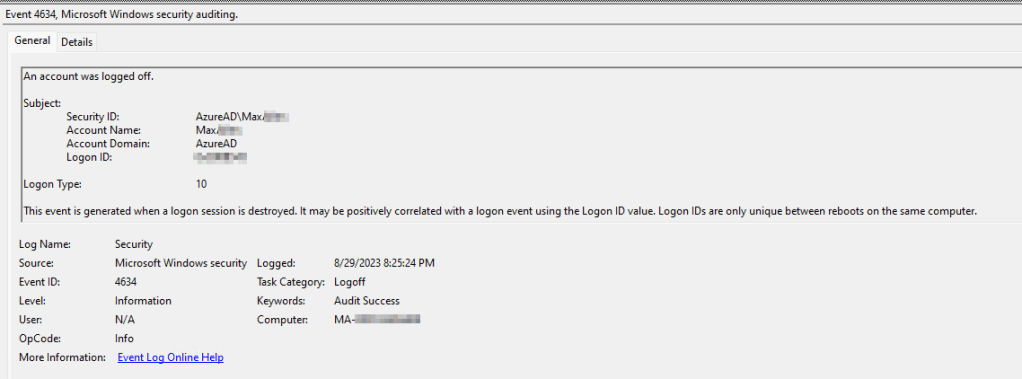
This log comes from the Security log and is an indication of an account simply signing out of Windows entirely.
For example, here is me logging off my device.
Filtering Event ID 4634 – Logoff:
This is how we filter these events.
By default, this section ignores events where…
- The user is “System”
- The user is “NETWORK SERVICE”
- The user is “$PC-Name” (obviously via variable for the machine name)
- The logon type is “Service”
- The message field contains the phrase “*Window Manager*”
- The message field contains the phrase “*Font Driver Host*”
Additionally, we strip off the tailing explanation fully visible in the above picture – “This event is generated when a logon… etc.”
Known issues with Event ID 4634 – Logoff:
None.
4779 – RDP Disconnect:
Overview: Click here to learn more about this event ID.
This log comes from the Security log and is an indication of an account disconnecting from a remote session (typically RDP). This could be the employee hitting the X on the connection bar, choosing to disconnect from the start menu, getting kicked off the device by an admin, or simply losing connection to the unit.
We do pull out the remote machine IP and Name from these events for easier searching.
For example…

Filtering Event ID 4779 – RDP Disconnect:
No filtering is done on these events however, we do strip off the tailing explanation once again.
Known issues with Event ID 4779 – RDP Disconnect:
The only caveat is again that a RDP disconnect isn’t necessarily an unintentional or negative thing which can be confusing.
4802 – Screensaver Invoked:
Overview: Click here to learn more about this event ID.
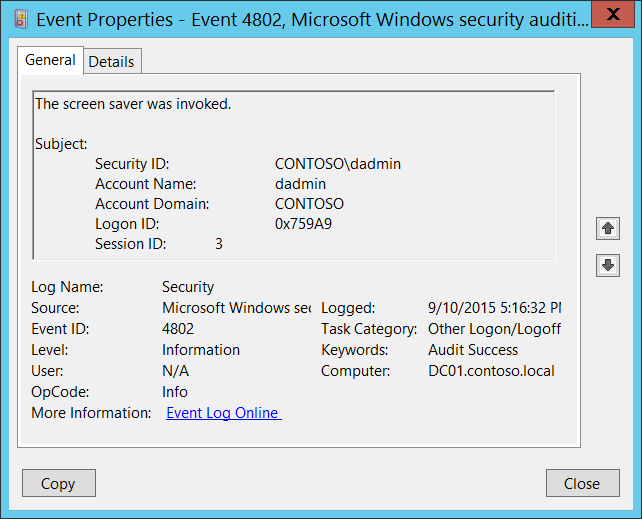
This log comes from the Security log and is an indication of the screensaver getting invoked. In other words, depending on your screensaver setup or lack thereof, it’s likely the device has gone idle.
For example… (Using Microsoft’s example)
Filtering Event ID 4802 – Screensaver Invoked:
The only filtering performed is verifying the Account Name is not System – which should never happen anyways.
Known issues with Event ID 4802 – Screensaver Invoked:
None.
4803 – Screensaver Dismissed:
Overview: Click here to learn more about this event ID.
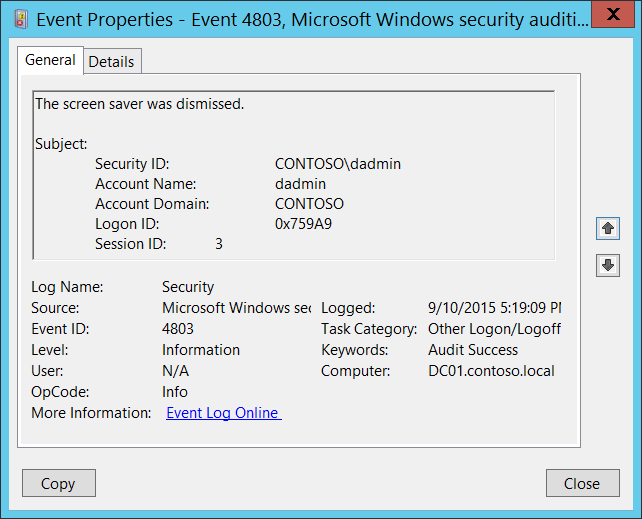
This log comes from the Security log and is an indication of the screensaver getting dismissed. In other words, depending on your screensaver setup or lack thereof, the screensaver that was invoked has now been dismissed. In the average setup, this is going to be followed by a logon event as most organizations force a re-auth after dismissing the screensaver.
Again, I am just going to borrow Microsoft’s example image…
Filtering Event ID 4803 – Screensaver Dismissed:
Again, the only filtering performed is verifying the Account Name is not System – which should never happen anyways.
Known issues with Event ID 4803 – Screensaver Dismissed:
None.
4800 – Lock:
Overview: Click here to learn more about this event ID.
This log comes from the Security log and is an indication of the station locking. This could be a timeout or a purposeful action by the user.
Again, I am just going to borrow Microsoft’s example image…
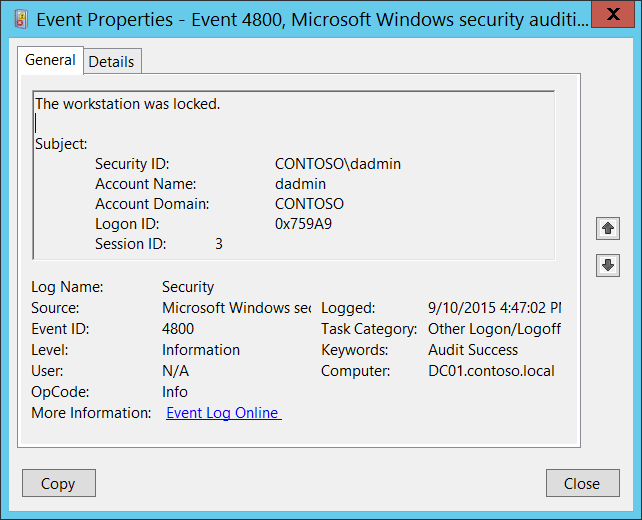
Filtering Event ID 4800 – Lock:
No filtering is performed on lock events.
Known issues with Event ID 4800 – Lock:
None.
4801 – Unlock:
Overview: Click here to learn more about this event ID.
This log comes from the Security log and is an indication of the station unlocking. This would be associated with a logon event as the account unlocks the session.
Again, I am just going to borrow Microsoft’s example image…
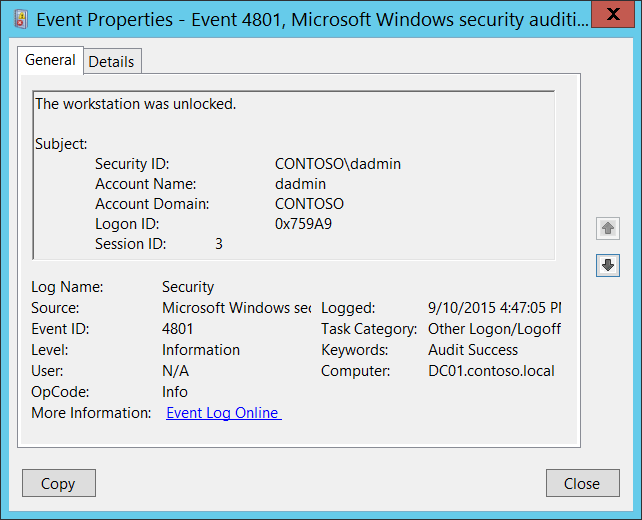
Filtering Event ID 4801 – Unlock:
No filtering is performed on unlock events.
Known issues with Event ID 4801 – Unlock:
None.
1074 – Shutdown/Restart:
Overview:
Somehow Microsoft seems to have no documentation on this event.
This log comes from the System log and is an indication of a shutdown or restart. The event does notate which kind of event it was however, I dislike the default wording so I reword it for the “Event type” field as a Shutdown or Restart.
For example…
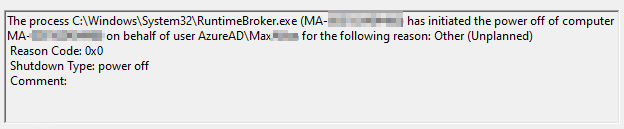
These can also be generated by the SYSTEM account such as for forced update reboots. We do want to collect those.

Filtering 1074 – Shutdown/Restart:
No filtering is performed on shutdown/restart events. However, again, we do translate the type of shutdown (restart or power off) into a more human-friendly data point. Additionally, these events do often capture the leading AzureAD\ or domain\ and you could easily at a trimstart to remove that if you wanted to.
Known issues with 1074 – Shutdown/Restart:
- By default, modern Windows doesn’t tend to shut down, even when you hit “shutdown.” Instead, it goes into a special form of sleep. Because of this, by default, most stations hardly ever log this event and instead often log event ID 42 for “The system is entering sleep.” To prevent this, part of deploying this collector is to create an app (there is no policy) to disable fast startup such that when someone hits shutdown, the machine truly shuts down.
- Shutdowns don’t always complete! We have all seen the screen “these apps are preventing system shutdown” where that Word document you were using as a notepad is preventing the machine from shutting down. If you hit cancel, you abort the shutdown you just requested. Other actions like having a device configured to go to sleep when the lid is closed, requesting a shutdown, then immediately slapping the lid closed can also cause the device to not complete the shutdown. This results in a scenario where we ingest a shutdown log, but no corresponding startup log follows. This can be validated by looking into the devices uptime as logged in device inventory.
- This section/scenario was likely the result of fast startup not being entirely disabled and can likely be ignored. However, it could prove useful for troubleshooting to others and as such I will leave it here.
In writing the setup portion of this series, I witnessed some truly bizarre behavior on a Windows 11 unit. While the policy mentioned above is in place, and the unit has logged 1074 plenty of times since the policy was put in place, something was different about this reboot. The machine stopped the event log, started it back up again, logged an 18-second uptime, stopped all services again, and logged event 507 “The system is exiting modern standby” followed by 109 “The kernel power manager has initiated a shutdown transition.” It ultimately logged an event ID 13 noting that the system is shutting down at X time. So, it did not go into a standby state, but it rebooted in a highly unusual way which lead to our event not being logged.
507 seems to be a normal sleep-wake event I see as I wake my device, and 109 seems to normally log around a normal restart. Why 1074 was not logged in this event, what exactly caused this, or whether this is a frequent occurrence, I cannot say.
On startup from that reboot it logged event ID 12 (startup) as it should have like normal further confirming it didn’t ultimately end in a sleep state. A subsequent reboot logged as expected, and so have all others I have done during testing to generate events.
12 – Startup:
Overview:
Somehow Microsoft seems to have no documentation on this event.
This log comes from the System log and we actually have to further narrow it to events with the source provider of Microsoft-Windows-Kernel-General as other events share ID 12. This is an indication of the system starting. This will never have an associated account as the OS has no idea what account/human triggered it to start. That’s like asking for an OS level log of who pushed the power button.
For example…
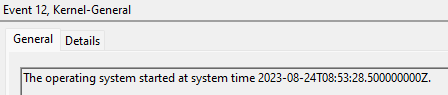
Filtering Event ID 12 – Startup:
No filtering is performed on startup events.
Known issues with Event ID 12 – Startup:
As mentioned above, modern devices by default tend to not actually shutdown but rather enter a special sleep state. Because of this, devices by default tend to never log this event and instead log event ID 107 for “The system has resumed from sleep.” Again, a policy will be created as part of deployment which prevents this behavior.
How Real-Time is the Data?
Obviously, we ideally want our data to be live. Unfortunately, while we will deploy this via Proactive Remediations to run as often as possible, the fastest you can run a collector currently via Intune Proactive Remediations is hourly. So, depending on timing, the data could be ingested an hour after it occurred. However, the reality is that you should run your collectors with the random delay function enabled meaning that they will be up to 110 minutes delayed instead of 60. Again, that is an up-to, not an always. If an event happens and the collector happens to run 5 seconds later, and the random delay is another 5 seconds, your data will reach you in 10 seconds.
That said if an event is generated and I shut down my machine, you’re not going to get that data until I turn it back on and the collector runs. If I don’t have internet, you won’t get it until I am back online, etc.
Conclusion:
Hopefully, it is now clear why I say this solution does not replace a real-time solution, nor should what it is able to collect be considered absolute and complete due to the limitations of the data in the events themselves as dictated by Microsoft.
That said, in my next article I will discuss the cost, which will further solidify why it is still worth collecting all the data that we can reach. Spoiler – The answer is it’s cheap!
The Next Steps:
See the index page for all new updates!
Log Analytics Index – Getting the Most Out of Azure (azuretothemax.net)
I will be putting the System Usage guides on the Log Analytics Index page under the Windows Endpoint series.
Disclaimer:
The following is the disclaimer that applies to all scripts, functions, one-liners, setup examples, documentation, etc. This disclaimer supersedes any disclaimer included in any script, function, one-liner, article, post, etc.
You running this script/function or following the setup example(s) means you will not blame the author(s) if this breaks your stuff. This script/function/setup-example is provided AS IS without warranty of any kind. Author(s) disclaim all implied warranties including, without limitation, any implied warranties of merchantability or of fitness for a particular purpose. The entire risk arising out of the use or performance of the sample scripts and documentation remains with you. In no event shall author(s) be held liable for any damages whatsoever (including, without limitation, damages for loss of business profits, business interruption, loss of business information, or other pecuniary loss) arising out of the use of or inability to use the script or documentation. Neither this script/function/example/documentation, nor any part of it other than those parts that are explicitly copied from others, may be republished without author(s) express written permission. Author(s) retain the right to alter this disclaimer at any time.
It is entirely up to you and/or your business to understand and evaluate the full direct and indirect consequences of using one of these examples or following this documentation.
The latest version of this disclaimer can be found at: https://azuretothemax.net/disclaimer/
 Azure to the Max