
Introduction:
This is the start of something big.
Those familiar with my work on Log Analytics probably have realized I seem to know a lot but haven’t put out a ton of useable items yet. Those familiar with the work my work is based on, that being Jan Ketil Skanke of MSEndpointMGR team and his Intune Enhanced Inventory project, probably know they have some workbooks/collectors to do cool things like collect hardware inventory information, application inventory, etc. This series is to finally release my updated/upgraded version of those, starting with this overview of the new Device Inventory. As such, what will be presented in this series is upgraded versions based on their work. Once I get these out there, my next series will be over fancy Windows Event Ingestion.
In this section we will cover…
- Prior Knowledge Requirement
- Credit where Credit is Due
- What does this tool provide? (Further breakdown in this section)
- Conclusion
- The Next Steps
Prior Knowledge Requirement:
For those familiar already with my Windows 365 series, this is exactly the same.
This series of guides builds on the information provided in my Log Analytics learning series V2. While that series used a generic and basic collection script for the sake of learning how this all works, this series will provide you with a fully-fledged collection script and workbook to go along with it.
Much of the concepts, ideas, terminology, and components carry over entirely from the learning series. For this reason, I will not be covering those items in depth as part of this series. Instead, I will expect readers to already have that knowledge and/or I will link back to the learning series as needed. Linking back will be primarily for the shared setup components rather than pure knowledge sections. Expect those links to be mainly in the future articles in this series which cover actual setup.
That said, while you don’t need in depth knowledge of how this works under the hood to understand this initial article and the powerful data this tool provides, I would highly recommend entirely following the learning series before attempting to deploy this. That way, you will have 80% of the item’s setup already and, you will better understand what is actually happening and the costs behind what is being done, rather than just clicking the buttons I say to.
Credit where Credit is Due:
What I am about to present is an updated version of the Intune Enhanced Inventory solution put forth by Jan Ketil Skanke (@JankeSkanke) of the MSEndpointMGR team. While I am working with Nickolaj of that team on the updated HTTP(s) Function App authentication, I haven’t worked with that team directly on Log Analytics – yet 🙂
I think they may have created some more updated versions of their Device Inventory solution since I originally got and began playing with a copy but, to my knowledge it’s not been updated to the DCR API, let alone the new authentication or the many improvements I added myself in terms of what it collects and how that data is displayed.
I now know that from the time I got my copy of the project in June of 2022, work continued on the Intune Enhanced Inventory project until roughly October 16th 2022 looking at the commit history in GitHub. Apparently, a few items like fixing Cloud PCs (really just getting the user SID on RDP sessions) were things I reinvented. However, it was indeed not updated to use the Logs Ingestion API nor the new HTTP(s) authentication in the AADDeviceTrust project. It’s possible some new additions they made between June and October (possibly January / May as that’s more likely when my copy is from) did not make their way into this project.
Believe it or not this is not an exhaust list, but here is an idea of all the stuff I have done to the client-side script alone if anyone is curious.
- Added PrimaryUserUPN field.
– Value is very difficult to locate sometimes depending on how/when the machine is fully/partially Azure Joined. - Corrected Windows 365s ability to determine current user SID
- Added Drive Remaining Space Values
- Added Script Version field
- Corrected Output Message Creation
- $ComputerInstalledDate – this value was being collected by the script however the actual XML building used the variable named $ComputerInstallDate (install versus installed) and thus no data was being uploaded to this field.
- Corrected gathering AppInstallDate. Data was not being collected nor converted.
– Corrected app install date issue where Null values inherited the date of the previous app - Removed AUmetered entirely – that is gathered as part of patch compliance and should not be in this table. It was non-functional anyways.
- Corrected TPM info
– Added TPMEnabled - Corrected Bitlocker Info
– Remove “-property *” - Fixed fuction Get-AzureADDeviceID – the fact I did something is in my notes but a year after inception I don’t remember what I did.
- Fixed the output message determination. Original code made little sense. The status code is returned in the output message so why they defaulted to success and then re-determined from the status code was very odd.
- Added SMBv1 detection
- Compacted HDD space into an array for better query compatibility
- Changed App Inventory to use a GUID for query comparisons – more on this much later.
- Added SecureBoot
– Added Null check for Secure Boot - Updated to a DCR Function App
- Major script changes to updated to use the latest HTTP(s) auth method as part of the AADDeviceTrust project by Nickolaj Andersen of the MSEndpointMgr team.
What does this tool provide?
Let’s get right to the meat and potatoes. What does this achieve?
In short, Intune has a lot of reporting shortcomings, and this tool aims to fill in those gaps. This Log Analytics collector will pull a variety of device information from your Windows Endpoint machines. It will then compile it into Log Analytics in a human friendly manner for both viewing and exporting. If you want, you can take it to the next level and forward that data to other solutions like Sumo or Snowflake.
Below is a brief summary of the primary data points it both collects and displays. There is additional collected data which is not currently displayed in the workbook. We will do a bit of a deep dive on each of these.
NOTE: All of the following screenshots are previews and subject to change! The content will remain the same, but presentation may be altered.
This article only covers Device Inventory, not admin and software!
- Hardware Model Breakdown
- Uptime Monitoring
- Dynamic Disk Space Monitoring
- Queries for…
– Checking devices owned by a given user
– Looking devices up by name to view current owner
– Looking devices up for current IP information
– Looking devices up to pull the full granular ingested information - Device OS Install Date
- BitLocker Information
- Secure Boot Information
- SMB v1 Status (Updated 6/12/24)
- BIOS Version / Date
- Ingestion information
Hardware Model Breakdown:
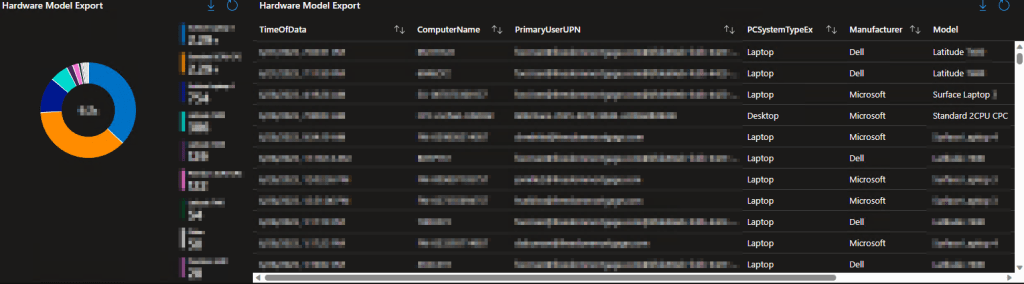
Here is a scenario. Right now, if your leadership asked how they can view the breakdown of devices by model, what would you do?
You would probably run out to Intune, pull a device Inventory report, run a pivot table on the model column, hand it to them, and tell them that sadly has to be pulled on demand. No more of that!
This will give you both a cute pie chart breakdown by the count of model, which can be exported, as well as a more granular and exportable list.

A more fleshed out environment might look like…
Uptime Monitoring:
Don’t you love it when the help desk gets a call about a slow machine, only to realize it’s not been rebooted in 6 months?
Hopefully you have some automatic reboot maintenance in place, or at least patches are making them reboot, but every now and then a weird device just… stops rebooting. How do you even know about it?
Here is how. The tool will provide a chart which displays the count of devices which last rebooted on a given day, as well as exportable and granular list of each device, when the data was received, and when it last booted. This lets you quickly identify devices which clearly are having some issue given they are actively checking in yet haven’t rebooted in weeks or months.
Note: Uptime is effected by fast startup. If fast startup is enabled, a shutdown will NOT reset uptime as it doesn’t actually perform a true shutdown. More details can be found under the section “Update Regarding Fast Startup:” in this article. In short, for proper uptime monitoring, one should disable fast start OR make sure they understand the complexities it brings.

A more fleshed out environment might look like…

Dynamic Disk Space Monitoring:
How many help desk tickets are created because a device has run out of disk space? Or Windows updates fall behind because there isn’t enough room to process them? Wouldn’t it be nice if you knew about it before it hit zero? Sure, Intune has this metric buried inside the device, but it’s not exactly easy to lookup let alone create alerts on.
With this, you can mointor it easily! You can even pipe these queries into alerts if you want.
I am especially proud of this one as it’s dynamic. Devices report in all “real” disks (not CD-ROM, not removable, etc) and this query allows you to pick and choose what you want to show. Just type a drive letter and the minimum amount of space you want to have, and it takes care of the rest. It will display a count of devices meeting your criteria, a graph by day to track trends, and detailed information about each device and its remaining space which is color-coded.
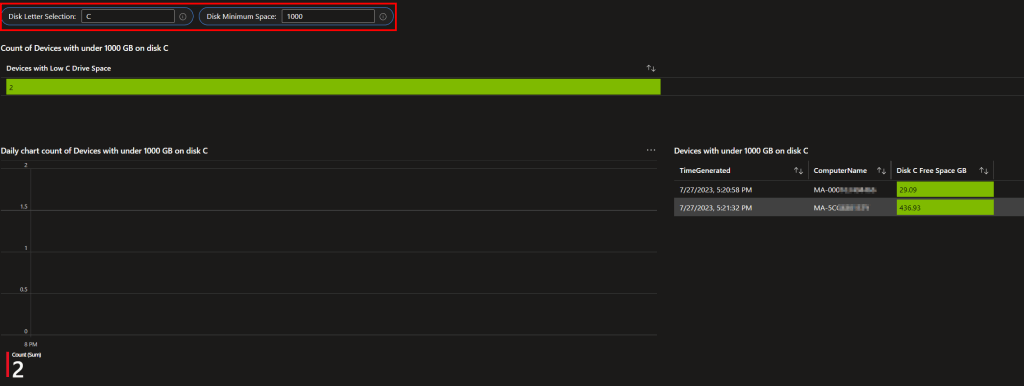
A more fleshed out environment might look like…

Queries!
Need to know what devices belong to a given username? Or vise versa?
Want to know the IPs and network names of a device (great for getting to C$)? Or what NIC that network is running through?
Just want a dump of all the information Device Inventory has on that unit?
Look no further than the queries tab!
While admittedly a more powerful tab when it comes to the other workbooks in this collection, I think there is still clear value here.

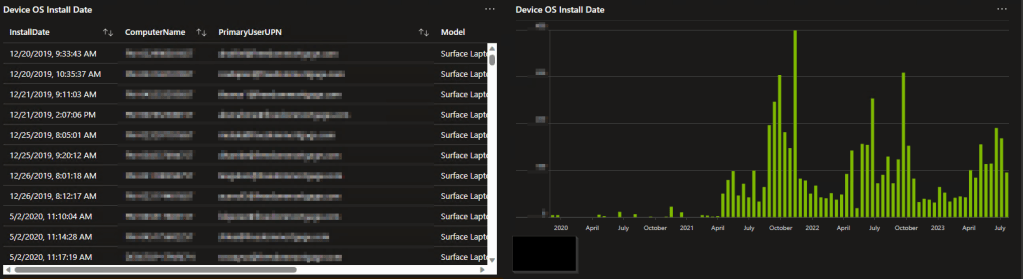
Device OS Install Date:
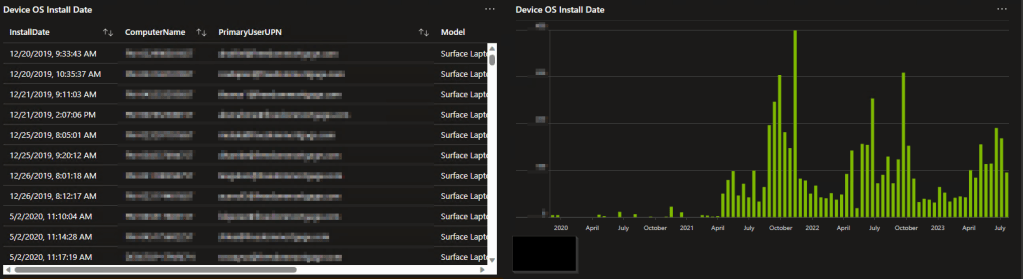
Here is an interesting topic. While not a way to determine hardware age, sadly that information isn’t stored on devices by most any manufacturer, do you know when the OS was installed on a given device? It can still certainly be a helpful and insightful view. While a device with an OS install date of yesterday isn’t necessarily 1 day old, a device with an OS install date of 5 years ago likely is at least that old unless someone is playing hop potato with the hard drives.

In a more fleshed out environment this might look like…
BitLocker Information:
Here is a topic every organization needs to be concerned about. Where is BitLocker working and not working? Again, you can derive this via compliance in Intune but that can also be affected by other factors, including others less serious than this one. Here is how you get right to it.
This will tell you where BitLocker is on or off, what the actual volume status is, what Cipher is in use, and provide a detailed exportable list that covers each device and its exact details.

Secure Boot Information:
Here is another big one, especially as organizations look more and more to Windows 11. Where is Secure Boot on? What’s the breakdown? What devices have an issue?
Once again, we have a chart for glancing at and an exportable list for when the details matter.

SMB v1 Status:
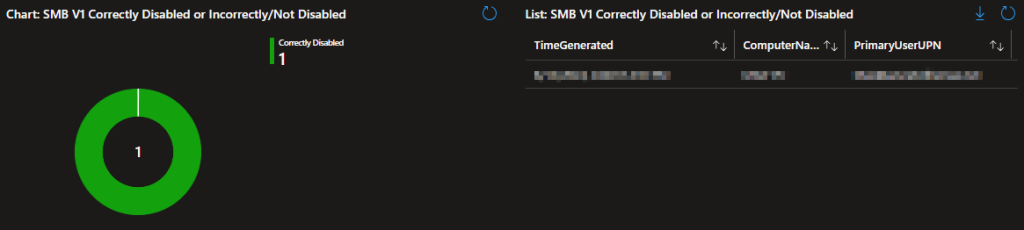
I pray nobody still has SMB v1 on, but I am sure there is someone out there who does and probably doesn’t even know it. So, once again, here is a pie chart for glancing at and a detailed exportable list.
Update 6/12/24:
For more information see: PowerShell DCR Log Analytics Updates: SMBv1 Monitoring & WMI Update
I pray that nobody has SMBv1 actually enabled as of June 2024 however, I have an update to share on this subject.
Previously, the Windows Endpoint Monitoring script was simply checking whether or not the Windows Feature for SMBv1 was installed. If you don’t have it installed it won’t be in use, so this was a good indicator. However, what you really want (and what your auditors will want) is for SMBv1 to be disabled, that way even if the feature gets installed, it can’t be used.
To that end, there is a new V1.2* of the Collector Script which instead checks the three keys responsible for correctly disabling the SMBv1 client and server features. Keep in mind even client devices (Windows Desktop OS) can act as an SMB server so both items need to be disabled. This is done via two policies which ultimately configure three keys which are detailed later on.
That data is then fed into a new V1.2* of the Device Inventory Workbook which has a reworked SMBv1 section to match. You can either upload this new workbook and delete your old copy or, if you had some customization you had done, just open up the new queries and text, then copy them in.
Know that the possible statuses are either “Correctly disabled” or “Incompletely/Not Disabled.” Please understand that devices reporting as “Incompletely/Not Disabled” do NOT necessarily indicate SMBv1 is enabled or in use, it just means it’s not fully disabled which again will likely get you flagged on an audit. The script will output in red to help you determine what is wrong. Additionally, even if you are showing as Correctly Disabled, you should ensure you actually have a policy pushing and enforcing the disablement keys.
*If you are just now going through this series, worry not. The collector script and workbooks linked to later on are the new V1.2 versions and everything is still deployed the same way.
BIOS Version / Date:
Here is another interesting one. When is the last time your BIOS updated? How up to date is the fleet? Are you patched against the many vulnerabilities which ultimately get fixed at the BIOS level? If Intune even has this information, I don’t know where. But Log Analytics does!
Like usual, we have a chart for glancing at and an exportable list for all those juicy details.

A more fleshed out environment might look like…
Ingestion information:
And no workbook of mine is complete without some ingestion information. This one primary focuses on how many devices are talking with what version of the script, how many total data points have come in under what script version, when those data points came in, and what devices are sending data points by time/count. This is all for the sake of monitoring that devices are talking as well as monitoring when updates go out (the script version changes).
Cost tracking information will be part of another workbook.


Conclusion:
You should now have an idea of what this collector can give you, and the value it provides. In the next part we will be looking at the App Inventory component to this puzzle.
The Next Steps:
See the index page for all new updates!
Log Analytics Index – Getting the Most Out of Azure (azuretothemax.net)
I will be putting the Windows Endpoint guides on the Log Analytics Index page under the Win365 series.
Disclaimer:
The following is the disclaimer that applies to all scripts, functions, one-liners, setup examples, documentation, etc. This disclaimer supersedes any disclaimer included in any script, function, one-liner, article, post, etc.
You running this script/function or following the setup example(s) means you will not blame the author(s) if this breaks your stuff. This script/function/setup-example is provided AS IS without warranty of any kind. Author(s) disclaim all implied warranties including, without limitation, any implied warranties of merchantability or of fitness for a particular purpose. The entire risk arising out of the use or performance of the sample scripts and documentation remains with you. In no event shall author(s) be held liable for any damages whatsoever (including, without limitation, damages for loss of business profits, business interruption, loss of business information, or other pecuniary loss) arising out of the use of or inability to use the script or documentation. Neither this script/function/example/documentation, nor any part of it other than those parts that are explicitly copied from others, may be republished without author(s) express written permission. Author(s) retain the right to alter this disclaimer at any time.
It is entirely up to you and/or your business to understand and evaluate the full direct and indirect consequences of using one of these examples or following this documentation.
The latest version of this disclaimer can be found at: https://azuretothemax.net/disclaimer/
 Azure to the Max