
Now that your data is in Log Analytics, and you have queries and workbooks helping you to confirm the data is good, this section will cover how you can then ship this custom data to an Event Hub! Here I have some good news and some bad news.
The good news is that the actual process of “Send this table to this Event Hub” is REALLY simple.
The bad news is that I can’t help you much with the specifics of the Event Hub. You will have to determine which plan and pricing you want on your own. You will also have to refer to your vendor to then configure your product (and whatever permissions it needs) in order to hook into that Event Hub. It’s possible your vendor may even have specific needs as to how the Event Hub is setup and how the access to it is configured.
What I can tell you is that here is the pricing information and, here is some additional information on the creation.
In this section we will cover…
- Making an Event Hub
- Sending Data to The Event Hub
- Getting Data Out of the Event Hub
- Conclusion
Making an Event Hub:
In order to ship data to an Event Hub, you obviously need an Event Hub. Again, I can only cover this in a very generic sense, and I would refer to the pricing info and creation info linked at the tail end of the above section.
We will actually create an “Event Hubs Namespace” and then you make a singular Hub(s) inside that for each table you have.
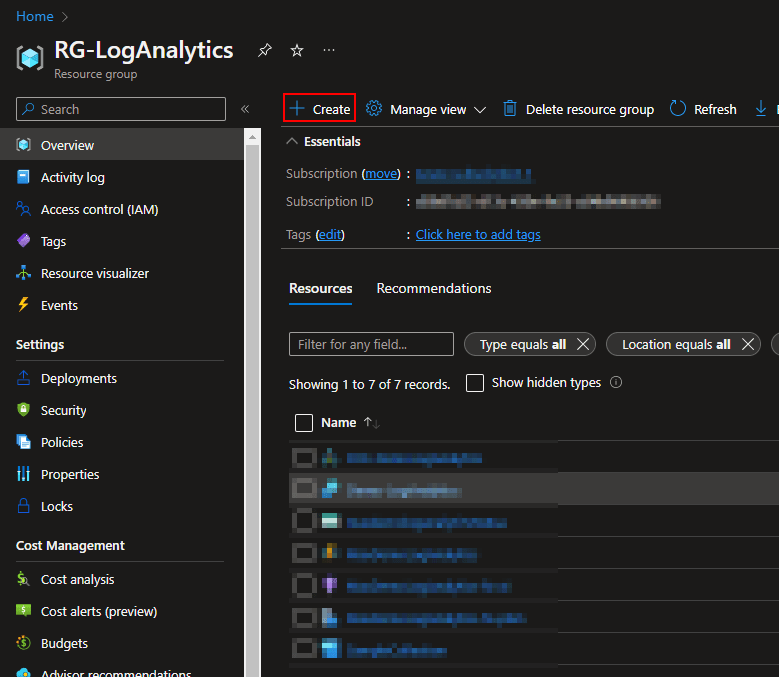
- Head to Azure and open up your Resource Group you have used to house the other elements of this guide.
- Choose Create at the top.
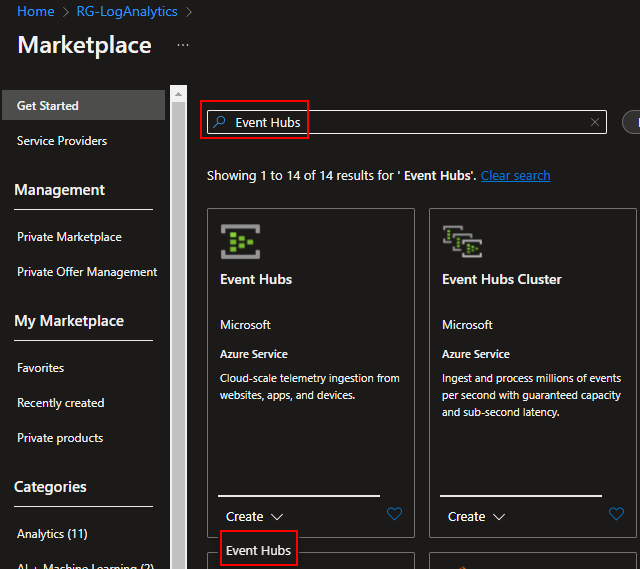
- Search for Event Hubs (note the S)
- At the bottom you can choose to Create the Event Hubs
- You will need to provide a Subscription and Resource Group, these will likely be automatically filled out.
- You will need to provide a unique Name for the Event Hubs.
Here is where we run into some trouble. You also need to provide a Location which effects Availability Zones as well as pricing. You then need to actually chose a Pricing tier as well as a count of ThroughPut Units.
I can’t help much with these decisions and what works best for you. You will need to consult with Microsoft or your internal Azure representatives as this all has to do with a multitude of factors including how much data you plan to move around (potentially both in data point count and data size). I can tell you that the pricing information can be found here.
- Beyond that, you will see the Advanced options where again, I can only speak generically. I will be leaving Local Authentication enabled with a TLS 1.2 minimum.
- For Networking, I will be leaving Public Access Enabled.
- I will then go ahead and create my Event Hubs Namespace using Create at the bottom.
Sending Data to The Event Hub:
You should be able to look in your resource group and see that your Event Hub (or Event Hubs Namespace rather) has been created. This could take a few minutes to appear. Once it’s ready, head into your Log Analytics Workspace.
From there, head to Data Export on the left, then choose New Export Rule at the top.

A Tangent on Cost:
As listed here and mentioned in the original post, you will pay for the data to be moved. Specifically, Microsoft states “You’ll pay for the volume of JSON exported to destination.” They then reference to this article which at first glance covers the ingestion fees of Log Analytics.
No, you don’t need to pay $2.30/GB (or whatever it is for your region) a second time to move this data from Log Analytics to an Event Hub. Scroll way, way down to Log Data Export. For the US East Region, it’s a whopping $0.10/GB. Given the expected cost of the full $2.30 is relatively cheap, this is likely more than acceptable to any organization. For more information see here.
Back to the Export Rule:
- You will need to give the rule a Name.
- You will need to choose the source of your data. Aka, your CustomLog_CL (whatever you named it).
I highly recommend doing just one table per rule. Again, better to make them individual and screw up one than put them all together and light them all on fire with one miss-step. - You then need to tell it that you want to send this to an Event Hub (instead of a Storage Account) and point it to the Subscription and subsequent Event Hub Namespace you just created.
- I recommend you leave the Event Hub Name on Create in Selected NameSpace so it will make a new Event Hub (inside the Event Hubs Namespace) for this Table. Again, I prefer keeping things separate so I make one Hub per Table.
- Lastly, hit Next and Create.
Getting Data Out of the Event Hub:
Again, this is where I can’t be super helpful as different products require different configurations. The best resource I can point you in the direction of is here. Or more so the subsequent articles it links to in that section for various partner products.
That said, generically speaking…
You should be able to open up the Event Hubs Namespace within a few minutes and see that data is already starting to move (the graphs on the overview), assuming you have data coming in.
However, much like all the other menus when creating something new in Log Analytics (or related to it anyways), it’s going to be a second before you actually see an Event Hub appear under Event Hubs on the left.
Give it 10 minutes, maybe open it in a new tab, and you will see it.

Now, from both the Event Hubs NameSpace as well as from within that Event Hub(s) itself, you will find a menu named “Shared Access Policies” with a key logo.
What you will likely end up doing is creating a new SAS policy via that menu either on the Namespace (so you can read all Event Hubs it holds) or individually on the Event Hubs themselves. When you create the policy, it will come with a set of keys and connection strings. You typically then plug those keys/strings into the receiving service where it can then pick up on and receive messages from those Event Hub(s).
How/where you plug that into the software is something you will have to look for information from the vendor on.
Conclusion:
You should now have a rule to forward data to an Event Hub as well as marching orders and a likely direction to follow to then hook your software into that Event Hub.
The Next Steps:
See the index page for all new updates! There is (as of writing) only one more planned part for this.
Log Analytics Index – Getting the Most Out of Azure (azuretothemax.net)
Disclaimer
The following is the disclaimer that applies to all scripts, functions, one-liners, setup examples, documentation, etc. This disclaimer supersedes any disclaimer included in any script, function, one-liner, article, post, etc.
You running this script/function or following the setup example(s) means you will not blame the author(s) if this breaks your stuff. This script/function/setup-example is provided AS IS without warranty of any kind. Author(s) disclaim all implied warranties including, without limitation, any implied warranties of merchantability or of fitness for a particular purpose. The entire risk arising out of the use or performance of the sample scripts and documentation remains with you. In no event shall author(s) be held liable for any damages whatsoever (including, without limitation, damages for loss of business profits, business interruption, loss of business information, or other pecuniary loss) arising out of the use of or inability to use the script or documentation. Neither this script/function/example/documentation, nor any part of it other than those parts that are explicitly copied from others, may be republished without author(s) express written permission. Author(s) retain the right to alter this disclaimer at any time.
It is entirely up to you and/or your business to understand and evaluate the full direct and indirect consequences of using one of these examples or following this documentation.
The latest version of this disclaimer can be found at: https://azuretothemax.net/disclaimer/
 Azure to the Max