
Following my last post, this part will cover the deployment of the Function App as well as gathering of the values from the Function App we will need for the next part.
Update:
Following my recent post on Security Updates for HTTP(s) Function Apps, I have started off by updating the Windows 11 Group Tag Conversion (GTC) Function App and client-side script. This means that the security concerns discussed in the prior versions of these articles no longer apply! However, as this is a major change, I decided it best to redact the previous articles and put out updated ones so folks would better see said updates. This header will be at the top of each of the new articles. The overall process is largely the same with only the authentication concerning portions and items like setup links changing.
Warning – Security Concerns:
The good news is that what was previously under this section in the old versions of the article can be drop kicked out a window. Credit where credit is due, I do want to note that the concepts of this Function App and client-side script are based on the Intune Enhanced Inventory project by @JankeSkanke with the MSEndpointMgr team. I have upgraded these for my own purposes as well as added in the more advanced authentication methods discussed in my article announcing the new authentication methods.
I am a contributor to the AADDeviceTrust GitHub project now but, the only changes merged in from my fork at this time were very basic updates to the ReadMe. When my full ReadMe along with the coding changes discussed in the other article and present currently in my GitHub fork will be (hopefully) added is not something I can know with certainty – this is a sort of free time project after all. As such, rather than wait and eventually add a requirement.ps1 to the Function and Install-Module command to the client script, the new updated functions of mine are all directly in the scripts. The upside to this is that I can get it out the door now. The downside is that, should there somehow be a mistake in those functions, it’s not something we can easily fix by updating the packages these scripts call to as again, they are built directly into the scripts. That said, I wouldn’t be writing this if I wasn’t rock solid confident in the answer and hadn’t tested it six ways to Sunday.
Deploying the Function App:
In previous guides I have explained the process of manually deploying a Function App in depth. If you really want to do this manually, you could follow that guide and simply pop in the different Function name and Code (run.ps1) but, I think everyone will appreciate this complicated setup being made a little bit easier.
To make this nice and easy, just click this link.

This will deploy the following:
- A Storage Account for the Function App with a name based off the supplied Function App name.
- An Application Insights workspace based off the supplied Function App name. You can save money by turning this off, and only back on when needed for troubleshooting.
- An App Service Plan with the licensing you selected, and a name based off the supplied Function App name.
- A pre-configured Function App named as you chose with Managed Identity enabled. It will automatically pull its Function code from the Github.
In order to use it you must supply the following:
- The Subscription to create all items in
- The Resource Group to place all items in – I recommend making a new one just for this Function and the other items it creates.
- The Region these resources will be created in
- A globally unique name for the Function App* – NEVER SHARE THIS NAME!
- The SKU of the plan you want the Function App to run on. Default (Consumption) is Y1.
- Any tags you wish to tag all the new content with
*The name of the Function App must be GLOBALLY unique (unique between all tenants) and will be used in the URL you use to call the app. So, don’t name your Function App “BETA-Win11GroupTagChanger” with the plan to one day put it into production. You’re going to be stuck with the name you choose. Again, the name of the Function App will also appear in your URL’s that you use to call it. Since this is publicly reachable, never share the name of your Function App!
It should look something like this one filled out.

When ready, choose Review + Create at the bottom, wait for review to complete, review the terms, and then hit Create.
All components will take a few minutes to complete but you should eventually come to a screen like this. You may need to expand the deployment details to see the full information.

Deployment Failures:
Unfortunately, while deploying a Function App manually does check to make sure the Function App name is available, a template does not. It will only tell you if the name meets the naming requirements for a Function App, not if the name is actually available. As such, you may get a failure when you try to create it due to the name you choose. If this happens, I recommend cleaning up whatever it did create prior to re-running it. To confirm the name is the problem or find a different available name, refer to this article to deploy a Function App manually. You can choose to simply cancel out of the creation once you have found a suitable and available name.
When completed, you can click Go to Resource Group to open up the Resource Group containing your newly created items. You should see something similar to the following. This is the Function App, Function App Application Insights (FA-AI), Function App Plan (FA-plan), and storage account for the Function app.

Validating the Function App Deployment:
You don’t really need to worry that something somehow magically went wrong, but if you want to check that it’s all there, this is how. Otherwise, skip to the next header.
First, click into the Function App by clicking on the lightning icon from the previous picture.
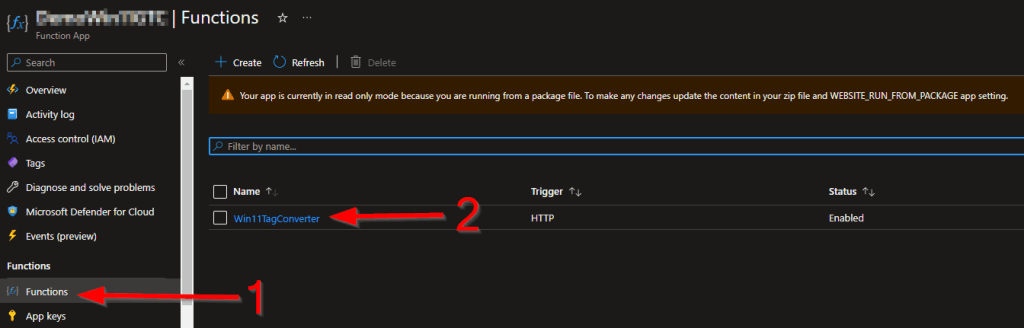
Inside you should be able to go into Functions and see the Win11TagConverter Function.
Under Application Insights, you should see that the app is connected to a resource.

Under Identity, you should see that the System Assigned Identity is on.

Assigning the Function App Permissions:
Next, we need to grant our Function App the permissions for Device.Read.All and DeviceManagementServiceConfig.ReadWrite.All such that it can make calls on its own to graph without any sort of App Registration or anything like that. This has to be done via a PowerShell script which can be downloaded here. You will need to be an admin on your machine to install the Graph module, and you may need to be a Global Admin to grant these permissions.
- You will need to install the graph module as admin using the command Install-Module Microsoft.Graph if you don’t already have it.
- You will then need to fill in your Tenant ID on line 6. This can be found right on the Azure Active Directory overview page, see here for more help.
- Lastly, you need to enter the name of your Function app on line 7. This is just the friendly name like “BobsWin11GTCFunction” – It’s exactly what you typed into the auto deploy setup page for the name.
You then need to run the script; I suggest using Visual Studio Code with the PowerShell extension. You may be prompted to authenticate to graph in any number of ways depending on your organization’s requirements. Note, if you do get forced to do interactive auth, the auth window loves to popup behind Visual which is very annoying.
Assuming you have the module installed, right permissions, and correct information filled in, you should see something like this. I chose to blur most of the information out but all it’s really saying is X function app was granted Y permissions.

Folks familiar with my prior versions of the permission granter may recall previously commenting out one line then re-running it. That is no longer needed as I was finally bothered to go figure out the syntax for doing multiple permissions at once and, simply put, it was about as easy as it could have been. Should have done that sooner!
Now, head to Azure Active Directory.
On the left, locate Enterprise Applications.

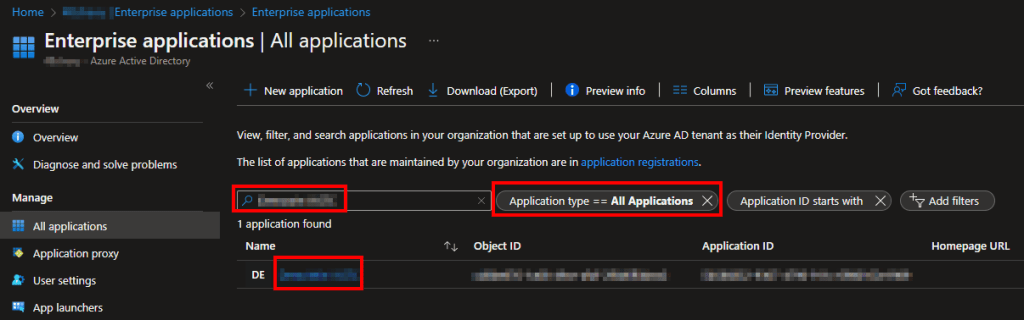
Then, change the filter to All Applications, search the name of your Function App just like we put into the script, and click on the result.
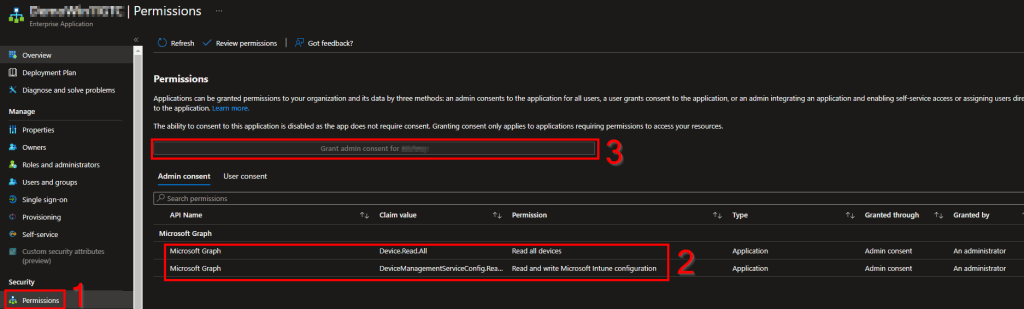
Under Permissions, you should see the two permissions have now been granted to the Function App. Additionally, should your Grant Admin Consent button ever be clickable, you will need to hit it likely as a GA. I have never ever seen this be required on a Function App when granted permission this way, but you never know how someone else may have their tenant set.
Gathering the Function App Connection URL:
Lastly, we need to gather the URL used to talk to our Function App. This URL will be needed for the next part.
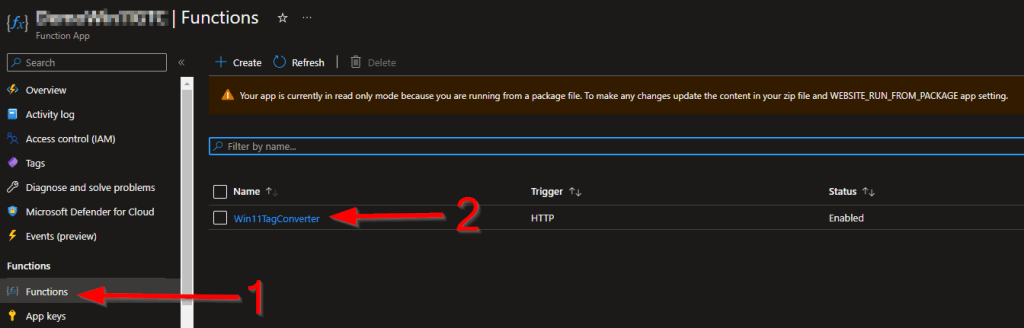
Head into your Function App and locate Functions on the left-hand side. This menu may take a moment to fully load. Then, click on the Win11TagConverter Function.
Once the Function is opened, and this menu also may take a moment to load, look for a button at the top to Get Function URL.
Click on it and copy down the Default (Function Key) URL. If you are curious about the permissions this has, read here.

This is again the string used to talk to our Function App from our PowerShell script and it will be needed in the next part. The tail end of it is a key as mentioned above, so don’t go sharing it any more than you have to. While the Function Apps are public, nobody will be able to even attempt to talk to this function without one of these keys. Again though, this will be going into the scripts in plain text.
Bonus Material: Local Testing
If for some reason you want to change this Function, it’s based off the same code as my Log Analytics Function meaning that all the same elements apply when it comes to the use of a Registered Application to locally test via Visual Studio Code. You just need to swap up the permissions with those assigned to this Function. More info for those who are curious can be found under the – “Bonus Material: But What About the Local Testing Support That Was Promised?” – section here.
Suggested Material:
This Function App has Application Insights which is invaluable when it comes to troubleshooting a misbehaving function app. However, I have found that Application Insights can easily rack up 10x the cost of the Function itself and it’s really not that valuable from a troubleshooting perspective when everything is working. It can be toggled on and off, and once you know your function is working fully after completing the next part, you can shut it off to save money.
Conclusion:
At this point you should have a Function App up and ready to use as well as your Function URL written down and ready to be punched in as part of the next section of this guide.
The Next Steps:
Disclaimer
The following is the disclaimer that applies to all scripts, functions, one-liners, setup examples, documentation, etc. This disclaimer supersedes any disclaimer included in any script, function, one-liner, article, post, etc.
You running this script/function or following the setup example(s) means you will not blame the author(s) if this breaks your stuff. This script/function/setup-example is provided AS IS without warranty of any kind. Author(s) disclaim all implied warranties including, without limitation, any implied warranties of merchantability or of fitness for a particular purpose. The entire risk arising out of the use or performance of the sample scripts and documentation remains with you. In no event shall author(s) be held liable for any damages whatsoever (including, without limitation, damages for loss of business profits, business interruption, loss of business information, or other pecuniary loss) arising out of the use of or inability to use the script or documentation. Neither this script/function/example/documentation, nor any part of it other than those parts that are explicitly copied from others, may be republished without author(s) express written permission. Author(s) retain the right to alter this disclaimer at any time.
It is entirely up to you and/or your business to understand and evaluate the full direct and indirect consequences of using one of these examples or following this documentation.
The latest version of this disclaimer can be found at: https://azuretothemax.net/disclaimer/
 Azure to the Max