
The title here says a lot. Through no short amount of pain, I have uncovered an unfortunate ESP bug related to the Teams Machine-Wide Installer specifically when deployed through Intune using the Microsoft 365 Apps (Windows 10 and later) app type.
This article makes for a direct follow up to my ESP App Failure Troubleshooting article as well as my busy MSI article. I will reference to these a multitude of times throughout this article.
What is the end result?
These are the scenarios this bug will cause. If you are worried you have run into this bug, then you should be intermittently seeing these scenarios almost at random on your machines. You should be seeing a mix of them, not just one situation always.
- If you have ESP set to require all apps be installed before the machine can be used, you will periodically see some devices fail ESP citing a provisioned app failed to install. Upon inspection, you should find it’s an app you know goes through a significant portion of the time without issue. And, it will likely be rather consistently the same one or two apps seemingly at fault.
If you do NOT have ESP set to require all apps be installed before the machine can be used, you will periodically see some devices succeed in ESP yet be missing an app that they should have installed. Again, likely an app that can install without issue a decent portion of the time and you will likely find its often the same one or two apps. The impacted machines will likely then pull the app down at a later time and install it without issue. - A machine will succeed in ESP, all required apps will install as expected, but the Teams Machine-Wide Installer will be missing. While part of the Office Install, Teams is its own Install so even an ESP set to require apps will not fail as a result of a missing Teams.
- Everything will happen as it should, the machine will succeed in ESP, and all apps will be present.
What is required to make this bug happen?
Again, this happens when you use a Microsoft 365 Apps (Windows 10 and later) type app in Intune to deploy Office and Teams to devices during ESP.
You can recognize these apps quickly by the Type category.
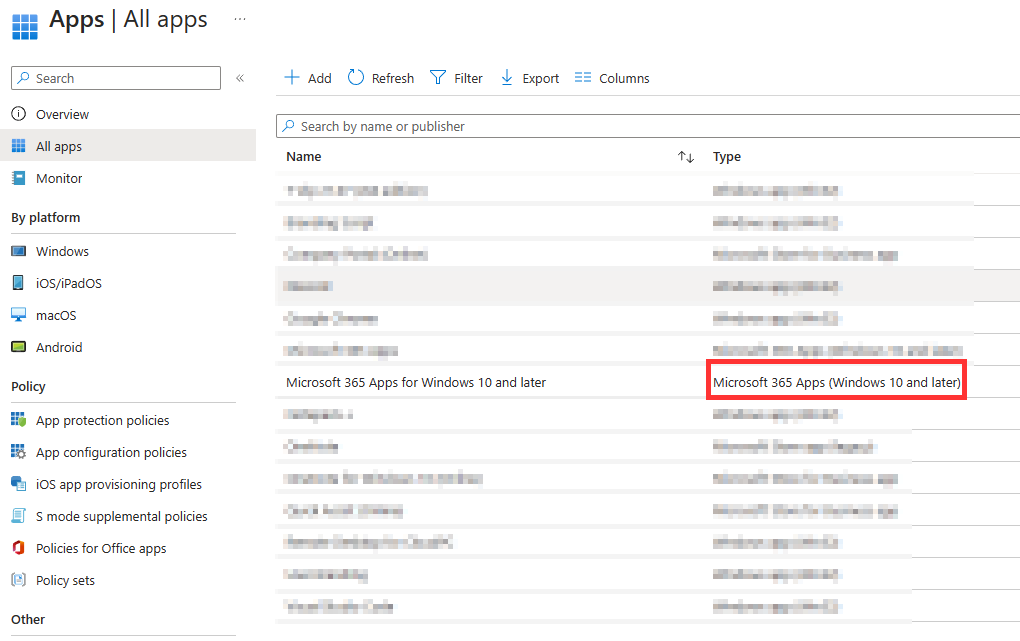
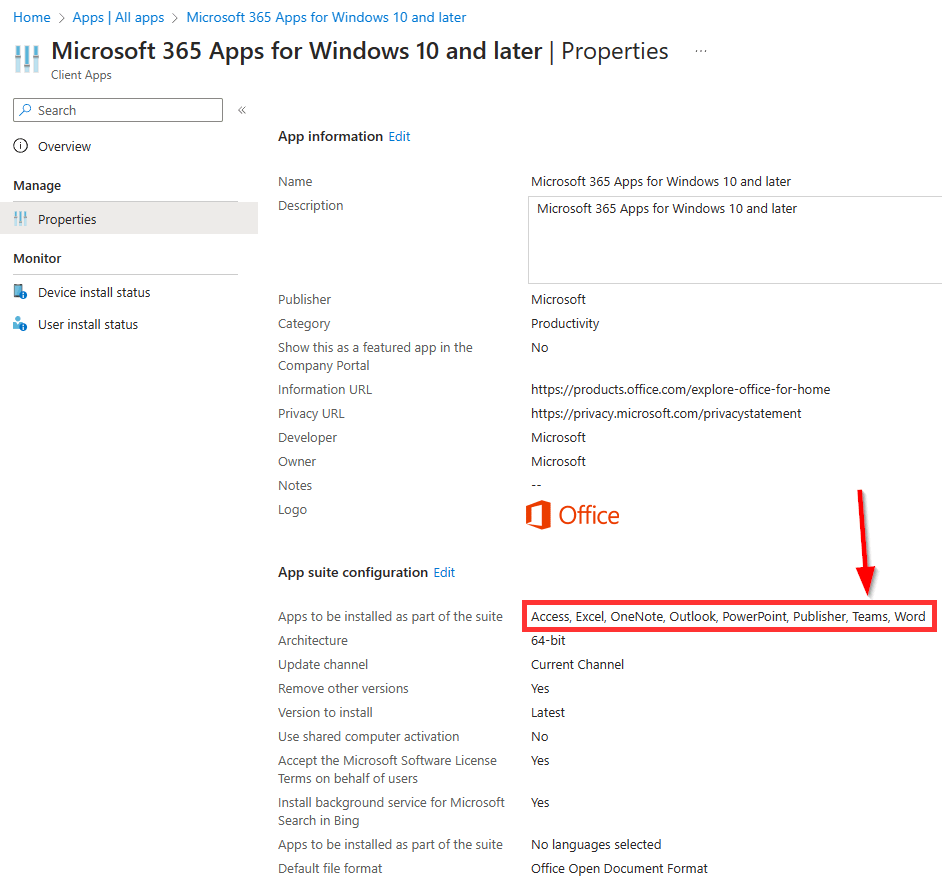
And inside the app you can see the products it is set to deploy. Here we can see the Teams install is part of this. What this actually installs is the Teams Machine-Wide Installer.
But why is this happening?
This is not an easy thing to answer. After reading this, imagine how hard it was to figure out. First, we need to understand the Teams machine-wide installer. Next, we need to understand MSIexec. Lastly, we need to talk about the office install itself and how all these things come together.
Teams Machine-Wide Installer:
First, we need to talk about what the Teams Machine-Wide Installer is. It is not what you and I know as Teams. If you go look in your programs list you may be surprised to find two entries for Teams. There is a Microsoft Teams and a Teams Machine-Wide Installer. Odds are, the Microsoft Teams is much more up to date and has a much newer install date than the Machine-Wide Installer.

You can read in depth about the Machine-Wide installer here, but for the purposes of just this article, here is what it is and does. Teams (the app you see) is a user-level install. This is done so it can automatically update on its own without the need for admin privileges. However, that makes Teams a pain because each user who logs in has to install it independently, regardless of how many other people have installed it on the machine.
So, the Teams Machine-Wide installer was built to solve this problem. It is a machine-wide install (as the name suggests) and not per-user. It is NOT Teams. Rather, it stages an automatic install of the actual Teams every time a new user logs in. This is why Teams is never present the moment you first login to a new machine and instead shows up shortly after logging in. That’s the machine-wide installer doing its job to then install Teams for you when you log in.
This is also why Teams is never up to date on older devices when a new user logs in. The Teams Machine-Wide installer installs whatever version of Teams was up to date when it was installed. Hence the older install date and version of the Machine-Wide installer which will likely be closer to the Teams that was available on the enrollment date of the device. But again, Teams automatically updates so this isn’t as much of a concern.
Please note: The Teams user level install is an EXE, not an MSI. So, when you logon, you don’t need to worry about an MSI conflict preventing the Teams Machine-Wide installer from kicking off a Teams install. What I just said will make more sense after reading this next section.
MSIExec:
MSIs utilize MSIexec.exe to install and uninstall apps, as well as alter installs. MSIexec is a more modern Microsoft way to uninstall and install software. It is particularly good at doing custom and silent installs making it very Intune friendly.
MSIexec has one major downfall though, it can only do one thing at a time and it can’t queue things. If an MSI event is already happening, you can’t start another and attempting to do so will simply cause the second one started to fail out.
The Office C2R install:
The Office click to run (C2R) install isn’t actually our concern here. It’s the process of the Office install overall that is a problem.
You see, the C2R install installs all your main Office components (think word, Excel, Outlook, etc) and then completes. It does not install Teams or the Teams Machine-Wide Installer. What it does do, right as it ends, is kick off the Teams Machine-Wide installer to go. There is a brief down period between the two and then the MSI for the Machine-Wide installer runs.
How this all comes together and explodes.
If you have read my ESP App Troubleshooting article, you know that the way Intune knows an app is done installing and that it can run detection and move on is via when the process it created exits.
So, we get into ESP, we are to the apps portion, and the C2R office Install begins. It installs your Word, Outloook, Excel, PowerPoint, etc. That install then exits. As far as Intune is concerned, it has now completed, and Intune will move onto the next app.* More on this later.
But wait… here is the problem. The very last thing the C2R install does, right as it exits, is kick off the Teams Machine-Wide Installer MSI. Intune isn’t monitoring that process, it doesn’t know it’s there, and Intune just keeps going.
So, circling back to our scenarios…
- If the Teams Machine-Wide installer kicks off and thus has control of MSIExec, then Intune tries to start another install, say Google Chrome which uses an MSI. That app will bomb out due to MSIExec being busy. Boom, either a missing app or a provisioning failure depending on if you require all apps to install or not.
- The Teams-Machine Wide installer seems to have some sort of delay from the C2R process. I don’t know what mechanism controls this delay but, if that delay is long enough to allow Intune to go first, your required app will succeed and the Teams Machine-Wide installer will instead fail. Boom, all apps but no Teams.
- You get lucky and the apps manage to do a wonderful ballet, no MSIs try to go at the same time, and thus nothing runs anything over. Boom, provisioned like normal.
Prove it.
Well, I didn’t arrive to this conclusion through guessing.
Scenario One: An app fails, and ESP may fail too if it’s set to require all apps.
A quick tangent:
I had two main examples I planned to show the logs for here. One of them was Intune executing a PowerShell script too soon and that PowerShell failing to install an MSI because Teams machine-wide was mid install. That scenario is what lead to this post about how to avoid a busy MSI exec. I have a multitude of log files to show this off.
The other scenario I planned to show was Intune trying to execute a PMP Exe that launched into a Chrome Enterprise MSI install that also failed as MSIexec was busy. Unfortunately, the one single log file I had showing this sequence of events has up and vanished on me. I don’t think I am crazy as I notated seeing the same thing in my busy MSI exec post, but again, I can’t find this log file anywhere. Bummer.
Back on track:
The idea behind both of the above sequences is the same and I can certainly show you how to identify this issue in the logs.
First, we will start off much like the ESP troubleshooting post. You’re going to want a copy of the device Intune Management Extension log and the application event log. Both of these can be acquired via the device diagnostics option. Again, details on gathering that zip in my ESP troubleshooting post.
Assuming we are dealing with an outright ESP failure, Inside the Intune Management Extension log, look for the “Updating ESP tracked install status from InProgress to Error” error. This will tell us what app failed to install.

For those who can’t see the image, here is the text.
[Win32App][EspManager] Updating ESP tracked install status from InProgress to Error for application 2d29429c-XXXXXXXXXXXXXXX with name: APP-NAME.

Time: 4/24/23 5:15:34 AM.
The three things to care about are the App ID as it is referenced throughout Intune logs, the apps name, and the time this happened.
You can then scroll up above this error and should find an event with some familiar text. There should be a line that is identical to the apps install command in Intune. Obviously that changes from app to app so I won’t paste that here.
If you don’t see that, another common element you will find in the log is Intune changing working directories to the apps cache location which will have the same ID in it. There might be an _# following it. Example…
[Win32App] SetCurrentDirectory: C:\Windows\IMECache\2d29429c-XXXXXXXXXXXXXXX_2

4/24/2023 5:15:09 AM
And most importantly, just under that we should have several events notating the exact time the installer was kicked off and the exact time it finished. Again, Intune monitors the creation/exiting of this process to determine when the app install completed, what its exit code was (which can affect reboots), and to know when to run detection.
[Win32App] Create installer process successfully. 4/24/2023 5:15:09 AM
[Win32App] process id = 1032	4/24/2023 5:15:09 AM

Several lines later...

[Win32App] Installation is done, collecting result	4/24/2023 5:15:19 AM
This gives us a start and end time to then look for in the MSI logs. You will then need to open the application log, which again can be gathered via the diagnostics report.
Right click the log and choose Filter Current Log…

Then filter the log file to just the event source of MSiInstaller.

Now lets go looking for our app that should have called an MSI during that time range. Please know, the scripted app that ran during that time attempted to call 3 MSI’s. For the sake of ease and anonymity, I will refer to these as MSI-Number-1, MSI-Number-2, and MSI-Number-3. The order is important.
Note: The Event Log may contain time zone information and thus the time zone it displays information in may be relative to yours rather than the machine it generated the events on. During ESP the machine is always in PST, so I know to look for +3 hours (EST) in the app log compared to the Intune Management extension. That means the 5:15:09-5:15:19 AM becomes 8:15:09-8:15:19 AM.
Here is my MSI log. For the sake of example, lets back up a little bit to see what it was doing prior to that time and get a feel for the proper order of things. I will highlight the important bits.
4/24/2023 8:14:11 AM
Beginning a Windows Installer transaction: C:\Windows\IMECache\1fcffa71-XXXXXXXXXXX_1\GoogleChromeStandaloneEnterprise64.msi. Client Process Id: 1556.

4/24/2023 8:14:41 AM
Product: Google Chrome -- Installation completed successfully.

4/24/2023 8:14:41 AM
Windows Installer installed the product. Product Name: Google Chrome. Product Version: 69.123.49290. Product Language: 1033. Manufacturer: Google LLC. Installation success or error status: 0.

4/24/2023 8:14:41 AM
Ending a Windows Installer transaction: C:\Windows\IMECache\1fcffa71-XXXXXXXXXXX_1\GoogleChromeStandaloneEnterprise64.msi. Client Process Id: 1556.

Here is Office starting, it has a few parts.

4/24/2023 8:14:49 AM
Beginning a Windows Installer transaction: C:\Program Files\Microsoft Office\root\Integration\C2RInt.16.msi. Client Process Id: 3952.

4/24/2023 8:14:58 AM
Product: Office 16 Click-to-Run Extensibility Component -- Installation completed successfully.

4/24/2023 8:14:58 AM
Windows Installer installed the product. Product Name: Office 16 Click-to-Run Extensibility Component. Product Version: 16.0.15726.20202. Product Language: 0. Manufacturer: Microsoft Corporation. Installation success or error status: 0.

4/24/2023 8:14:58 AM
Ending a Windows Installer transaction: C:\Program Files\Microsoft Office\root\Integration\C2RInt.16.msi. Client Process Id: 3952.

4/24/2023 8:14:59 AM
Beginning a Windows Installer transaction: c:\program files\microsoft office\root\integration\c2rint.16.msi. Client Process Id: 3952.

4/24/2023 8:15:02 AM
Product: Office 16 Click-to-Run Extensibility Component -- Configuration completed successfully.

4/24/2023 8:15:02 AM
Windows Installer reconfigured the product. Product Name: Office 16 Click-to-Run Extensibility Component. Product Version: 16.0.15726.20202. Product Language: 0. Manufacturer: Microsoft Corporation. Reconfiguration success or error status: 0.

4/24/2023 8:15:02 AM
Ending a Windows Installer transaction: c:\program files\microsoft office\root\integration\c2rint.16.msi. Client Process Id: 3952.

Office (C2R) has now completed entirely.

Moments before this next log, the scripted app started but it has yet to call any MSI as it first must copy files around.

Notice the 9 second delay between C2R completion and Teams starting.

4/24/2023 8:15:11 AM
Beginning a Windows Installer transaction: C:\Program Files\Microsoft Office\root\integration\Addons\Teams.msi. Client Process Id: 9580.

4/24/2023 8:15:16 AM
Product: Teams Machine-Wide Installer -- Installation completed successfully.

4/24/2023 8:15:16 AM
Windows Installer installed the product. Product Name: Teams Machine-Wide Installer. Product Version: 1.5.0.30767. Product Language: 1033. Manufacturer: Microsoft Corporation. Installation success or error status: 0.

4/24/2023 8:15:16 AM
Ending a Windows Installer transaction: C:\Program Files\Microsoft Office\root\integration\Addons\Teams.msi. Client Process Id: 9580.

4/24/2023 8:15:16 AM
Beginning a Windows Installer transaction: C:\Windows\IMECache\2d29429c-xxxxxxxxxxxx_2\MSI-Number-2.msi. Client Process Id: 5552.

Note: MSI-Number-1 NEVER showed up in the MSI logs. This is because the MSI installer was busy. Eventually this will cause MSI-Number-3 to fail since it was dependent on MSI-Number-1.

4/24/2023 8:15:17 AM
Beginning a Windows Installer transaction: C:\Windows\IMECache\2d29429c-xxxxxxxxxxxx_2\MSI-Number-2.msi. Client Process Id: 5552.

4/24/2023 8:15:17 AM
Product: MSi-Number-2 -- Installation completed successfully.

4/24/2023 8:15:17 AM
Windows Installer installed the product. Product Name: MSi-Number-2. Product Version: etc-etc-etc Installation success or error status: 0.

4/24/2023 8:15:17 AM
Ending a Windows Installer transaction: C:\Windows\IMECache\2d29429c-xxxxxxxxxx_2\MSI-Number-2.msi. Client Process Id: 5552.

4/24/2023 8:15:18 AM
Beginning a Windows Installer transaction: C:\Windows\IMECache\2d29429c-xxxxxxxxxx_2\MSI-Number-3.msi. Client Process Id: 6040.

4/24/2023 8:15:18 AM Error
Product: MSI-Number-3 -- The product-number-3 requires version XXXXXXX of the product-number-1.

4/24/2023 8:15:18 AM
Product: MSI-Number-3 -- Installation failed.

4/24/2023 8:15:18 AM
Windows Installer installed the product. Product Name: MSI-Number-3 etc-etc-etc... Installation success or error status: 1603.

4/24/2023 8:15:18 AM
Ending a Windows Installer transaction: C:\Windows\IMECache\2d29429c-xxxxxxxxxxx_2\MSi-Number-3.msi. Client Process Id: 6040.
As you can see, when the C2R installer finished, there was a small window before Teams itself began to install. Teams then continued to run well past the time our script started, and thus MSIexec was busy when the first MSI tried to go. While MSI-2 got to run, the failure of MSI-1 caused MSI-3 which was depending on MSI-1 to fail.
Again, I wanted to show one where that PMP-based Chrome you see at the top collided with Teams instead, but I can’t seem to find that log anymore sadly 😦
Scenario two: No Teams Machine-Wide Installer
This is the exact same in all steps as scenario one. However, what you will find is that the C2R process completes, some other MSI quickly starts (not Teams, instead another ESP app) and Teams NEVER shows up in the MSI log. Keep in mind, the variance between that ESP scripted app starting and Teams starting is within seconds of each other in my case. With the 9 second gap, my app could have easily managed to run first and thus caused Teams to run into a wall.
I don’t think you need a long export and picture of an MSIinstaller log that lacks Teams going.
Even if Autopilot is set to require Office, and Office includes Teams in its deployment, the fact Teams is missing will not be caught and ESP will not fail because of it.
Scenario Three:
Obviously, this one is just everything goes and shows up without a hitch as nothing tried to go at the same time. Not really anything to show here.
The “More on this later” regarding the Office C2R install.
Under the section “How this all comes together and explodes” I had a “more on this later” note. Here is later.
So, as I explained in that section, the Intune extension determines what apps need to go, creates processes for each installer using the provided install command, monitors that process for an exit, and when that process exits Intune will assume the app install is complete and move onto detection and then the next app.
The belief throughout this article is that Intune is monitoring the C2R process, that process exits as we see in the MSI logs, and the following Teams install is not tracked by Intune. I wanted to prove this by digging up the C2R execution logs in the Intune Management Extension log, looking for the exit time, and confirming this comes before the Teams installer runs.
However, much to my further annoyance, Office isn’t anywhere to be seen in my Extension log. Terrifyingly, Intune actually began the process to download and run the PS1 app at 5:15:01, about a second before the FIRST C2R process even started in MSI exec.
I don’t want to draw any hasty conclusions here, but, this almost seems to me like the entire C2R install, including the 3 total MSIs it does between the first two actual C2Rs and the last Teams MSI, are ALL unmonitored. That’s horrifying to me.
Somewhat confirming this, the list generated of apps to install during ESP (see troubleshooting ESP article) doesn’t contain office. It goes straight from Chrome to the PS1 app. If Office went fast enough, this could explain why we also see Chrome failures from time to time.
But, as scary as it is, I can’t deny that is how the Intune log reads as it goes straight from Chrome (which we saw at the top of the MSI log) and then within a second begins the process of pulling down the next PS1 app even though Office is going immediately after Chrome.
Worst case, the entire MSI process of Office is not monitored by Intune and runs semi-randomly and could collide with any MSIs during ESP.
Best case, the process perhaps waits until Intune thinks all other MSI apps have completed, and it doesn’t realize the PS1 is going to use the MSIInstaller? Except I know that isn’t true because direct MSI install command packages run after my PS1 in the log… Scary!
So, what is the fix?
- For any app that you can control, especially ones that are non-MSI direct packages like PowerShell scripts that call to install MSI, give them logic to avoid a busy MSI installer. If you can avoid Teams, you will prevent issues where your apps fail because Teams is going. Unfortunately, that doesn’t prevent your apps from running over Teams. To fix that…
- Take Teams out of the equation. Remove it from the Office 365 deployment and instead package the Teams Machine-Wide Installer as its own app. This way, Intune can monitor it and control when it runs, and thus it will never run at the same time as another managed app. You can package this app via Patch my PC.
If you do those two things, hopefully, you won’t have any MSI collisions during ESP. Again, I am slightly terrified of the fact Intune doesn’t seem aware and to be monitoring the C2R or Teams installers which are both/all MSIs, but so far after making these changes the failures have stopped.
Worst case, you might need to take your other direct MSI packages and turn them into PowerShell scripts with collision avoidance logic in them.
Is Microsoft aware of this?
I have no idea.
I am tempted to open a ticket with them reporting this problem but, I have to believe it is a very niche circumstance or this would be written on a lot of walls already. I unfortunately know how impossibly hard and painful it would be to get to the someone(s) with the knowledge required to address why Intune doesn’t seem to see/monitor/control the C2R process or the Teams install.
I wouldn’t be horribly shocked to hear this is some form of expected behavior, but ultimately it results in a broken process.
Conclusion:
Hopefully, you are now armed with the information required to identify MSI collisions in ESP, and from there resolve them.
Disclaimer
The following is the disclaimer that applies to all scripts, functions, one-liners, setup examples, documentation, etc. This disclaimer supersedes any disclaimer included in any script, function, one-liner, article, post, etc.
You running this script/function or following the setup example(s) means you will not blame the author(s) if this breaks your stuff. This script/function/setup-example is provided AS IS without warranty of any kind. Author(s) disclaim all implied warranties including, without limitation, any implied warranties of merchantability or of fitness for a particular purpose. The entire risk arising out of the use or performance of the sample scripts and documentation remains with you. In no event shall author(s) be held liable for any damages whatsoever (including, without limitation, damages for loss of business profits, business interruption, loss of business information, or other pecuniary loss) arising out of the use of or inability to use the script or documentation. Neither this script/function/example/documentation, nor any part of it other than those parts that are explicitly copied from others, may be republished without author(s) express written permission. Author(s) retain the right to alter this disclaimer at any time.
It is entirely up to you and/or your business to understand and evaluate the full direct and indirect consequences of using one of these examples or following this documentation.
The latest version of this disclaimer can be found at: https://azuretothemax.net/disclaimer/
 Azure to the Max