
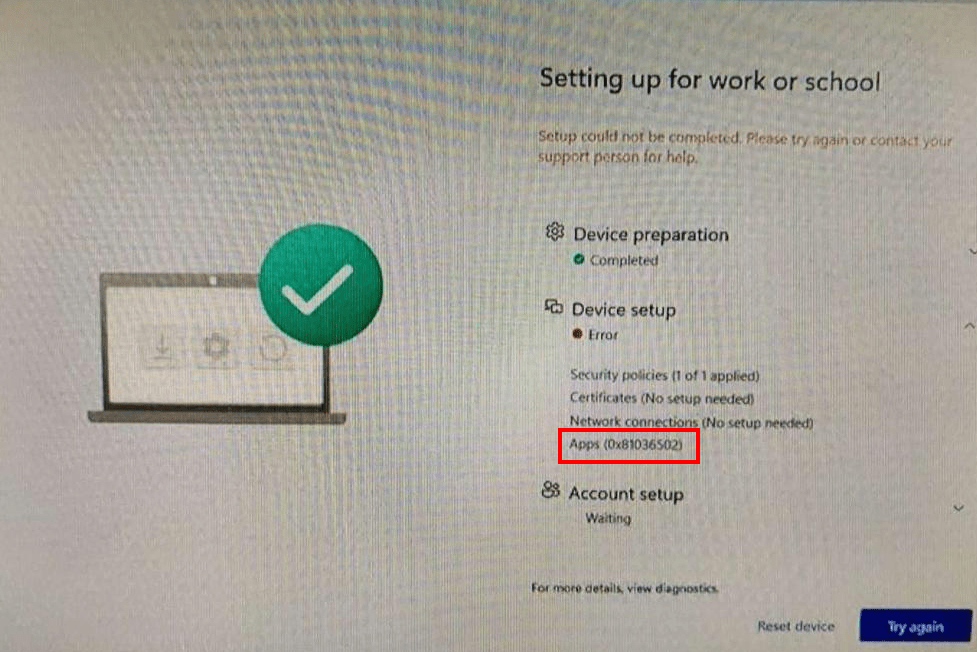
Howdy folks! Here is a fun topic for today. Most anyone who works with Autopilot has probably been sent a fuzzy cellphone picture of an ESP failure at one point or another. More often than not, at least in my personal experience, that failure is usually at the Apps stage with the mysterious error 0x81036502. So, what do you do to troubleshoot this?
What Does 0x81036502 Mean?
First, we need to understand what that error code translates to. 0x81036502 means that one of the apps which this machine was required to install during ESP failed to install properly. It also likely means that you have your ESP set to not allow the device to be used unless all apps install successfully.
Now, this is where I see a lot of folks go wrong. If lots of folks are running into this error telling them it’s not a fluke, they make their next steps to go look at every app in their ESP, try to figure out which would have been sent to this device, make an educated guess about which of those is a problem, and then start building test exclusions and running devices through ESP over and over to try and play an elimination game. Please don’t do that, it’s a horrible waste of time.
Yes, it’s good troubleshooting strategy to ask “what changed.” If you just deployed an update to an ESP app last night and now devices are failing, or just added a new app to ESP, or just altered a scoping for a ESP app such that new devices now get it in ESP, you should stop reading and go look into that. However, not everything is ones and zeros. You might be facing something like I ran into where some devices are getting right through while others fail 3x in a row to get through ESP before finally getting through. In a situation like that, trying to play the elimination game will prove almost fruitless as success will be hard to tell from luck.
So, what do you do?
1: Collecting ESP Logs
Important Update, August 2024: Sometime recently they changed the application install logs to go from the IntuneManagementExtension.log to the AppWorkload.Log located in the same location. And further references to the IntuneManagementExtension.log should be directed to the AppWorkload.Log file.
Autopilot devices make a lot of logs during ESP. What you need to do is collect these logs and there is a certain log we can look in for our answers clearly laid out in plain text. So, first, how do you get these logs? Any of these three options will get you the information you need.
1. Right from the device.
As seen in my realistically blurry image at the top, there is a button near the bottom that reads. For more details, View Diagnostics. If you click that option, it will take you into an incredibly useless menu. Yes, credit to Microsoft, this menu is great for telling when things went wrong in ESP for anything other than an App Install. However, for apps, it just says something like “apps failed” and doesn’t tell you which one. I would love to see that improved; the information is most definitely there as we shall soon see. More usefully, if you look around you will find an Export Logs option. Click on that and you will be presented with a file explorer to save a ZIP. Toss that ZIP onto a thumb drive and get that ZIP over to a working machine for analysis.
2. Manually from the device.
I don’t know why you would want to do this, but if for some reason you can’t use the above to get the logs, you can also do this. Hit SHIFT+F10 (or possibly SHIFT+FN+F10) to escape the ESP menu. You might see some sort of UAC prompt but ultimately you should get a CMD. Into this, type “explorer” and hit enter. This should then open a file explorer; you may need to use ALT+TAB to get to it. With this, you can navigate to the (hidden) C:\ProgramData\Microsoft\IntuneManagementExtension\Logs and locate the IntuneManagementExtension.log (application install logs are now in the AppWorkload.Log in the same location). Copy that file to a thumb drive and again, get it to a working device for analysis.
3. From Intune.
Last but not least, you can do this from Intune itself.
Edit: When a device fails ESP, Intune will automatically initiate a log collection. So long as the device stays online, this typically completes in under 30 minutes and thus often makes this the fastest way to get the logs for an ESP failure. Note that if anything is done to remove that Intune record such as a Wipe, the Intune record and thus log are lost.
At this point in ESP, the device should have an Intune record, granted it might take a moment to show up on your end. You can then go into this record and initiate a Diagnostics Collection. However, I have found this option to be… less than ideal. Sometimes it works in 15 minutes, sometimes it’s hours, sometimes it’s never. To speed it up, reboot the device immediately after you initiate the collection. It should sync the moment it comes back online and see the request and thus fulfill it.

Once complete, you should see something like this on the device overview.
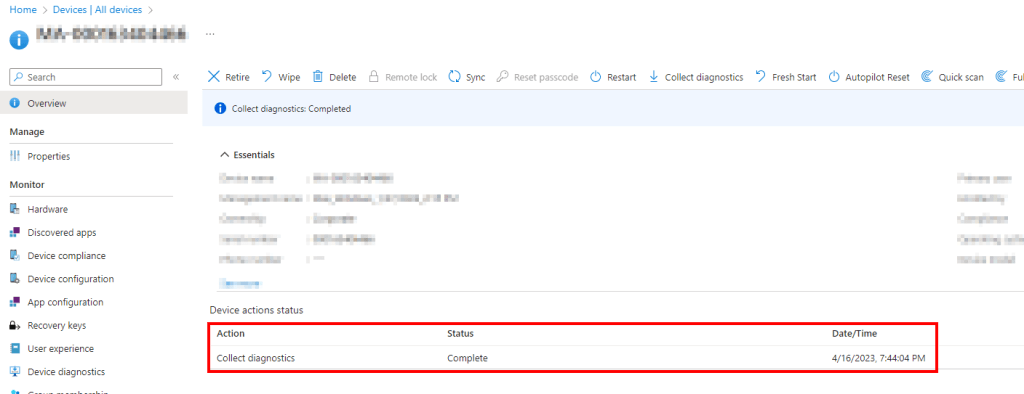
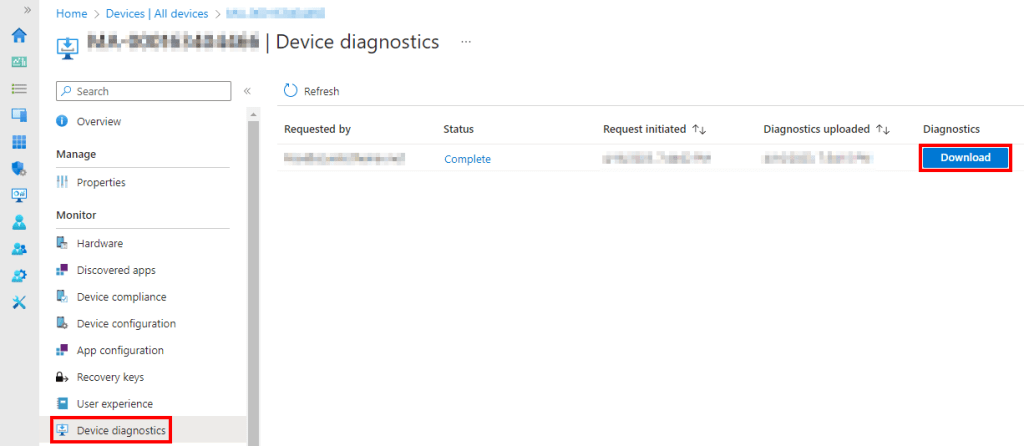
Strangely, the popup we clicked to initiate this says that to download said logs you should go to “Monitor -> Device Diagnostics.” Well, under the top-level Devices menu is a Monitor menu, but there is no Device Diagnostics menu inside that. What you actually need to do is just look a little over to the left as the Device Diagnostics menu is actually inside this same device menu. In there is the download option although, sometimes this won’t appear for several more minutes after the overview screen says it’s completed.
2: Getting the Intune Management Extension Log App Workload Log File
Important Update, August 2024: Sometime recently they changed the application install logs to go from the IntuneManagementExtension.log to the AppWorkload.Log located in the same location. And further references to the IntuneManagementExtension.log should be directed to the AppWorkload.Log file.
For those who went with option one: You should have a MDMDiagReport.zip file. Pop the zip open and you will find a good number of various files and file types. Locate the one named IntuneManagementExtension.log AppWorkload.Log and extract it.
For those who went with option two: You don’t need to do anything, you are already holding the log file you need.
For those who went with option three: You should have a DiagLogs-DeviceName-Time.zip file. Inside that should be a folder named something like (62) FoldersFiles ProgramData_Microsoft_IntuneManagementExtension_Logs and inside that is the IntuneManagementExtension.log AppWorkload.Log.
Once you have the file, move on to the next section.
3: Reading the Intune Management Extension Log File
Now, I can’t tell you how to interpret every circumstance possible but there are some clear lines and text I can point you to for app failures. For the sake of example, I will be walking through a real failure I had to deal with.
If you just want to know the line to Ctrl+F for that is the actual failure, scroll down to the similarly orange header.
Go ahead and open the log file. I would suggest either using Notepad++ or better yet, CMTrace.exe. At the least use something with a decent search function. I like CMtrace for this particular log because it highlights yellow/red for errors and warnings. You can download CMtrace here (for now). Just download the EXE, extract it like a ZIP (7-zip), head into “SMSSETUP\TOOLS\” and pull out CMtrace.exe. It’s a drag and drop EXE you can run from wherever, I just keep a copy in my OneDrive.
If those using CMTrace, you might be a bit taken aback by the pure amount of yellow and red. Truth be told, that’s not horribly anormal from what I have seen even during a success. That noise is not helpful. Since this is a top-down search, get up to the top line and select it. Use the binoculars at the top to search, you can use F3 to advance to the next instance of the searched phrase.
Device ESP starts:
The first thing to look for is the two lines below, they are admittedly somewhat ambiguous. You would think this is the start of app installs but I almost always see this followed by script and policy processing, not apps. This does give you a good starting time indicator for ESP itself though.
[Win32App] #################### Start processing SelectedApps ####################
[Win32App] In EspPhase: DeviceSetup
Check if required apps are already installed:
Next, look for this minus the [xxxx] portion. This is a bit confusing to read but let me tell you what that string of letters and numbers is, it’s the ID of the app. How can you tell what an ID corresponds to? Sometimes the name is nearby in the log, otherwise you can go to Intune, go to Apps, go into one of your ESP apps, and look at the URL. At the tail end of the URL while inside the app is that same ID. Just go through ESP apps until you find the matching one. Or, read the next section as it will list names and ID’s!
Shortly after this line you will likely see a warning with details of the detection rule running and not being satisfied. This is because the detection rule didn’t find the app which is normal, ESP hasn’t actually installed any yet. It’s just trying to see if by chance some of them are already there as part of its “what apps do you need” calculation.

[Win32App][ActionProcessor] Found: 1 apps with intent to install: [XXXXXX-XXXXX-4e85-938d-96bdae2a5e24].What apps will need to be installed:
Next, look for this line. This will be at the start of a large chunk detailing the ID and Name for all apps which will be installed as part of ESP. It will also tell you how many total apps are going to be installed.

[Win32App][EspManager] In EspPhase: DeviceSetup. AppApps downloading and installing:
Now that you have the names and IDs of every app, you can search the log for those IDs to find when they installed. As each one kicks off, you will again find Intune double checking that the detection rule fails so it knows the app is not yet installed.
You should then see a log like this indicating the app has begun to download.
[Win32App] Content cache miss for app (id = XXXXX-XXXXXX, name = APP-NAME), start downloading…This will be followed by several logs like this which indicate the download progress. This can be very useful for determining how long the downloads are taking and thus if a bandwidth problem may have caused a timeout on ESP.
[StatusService] Downloading app (id = XXXXX-XXXXXX, name APP-NAME) via DO, bytes 0/0 for user 00000000-0000-0000-0000-000000000000
[StatusService] Downloading app (id = XXXXX-XXXXXX, name APP-NAME) via DO, bytes 8914512/39323216 for user 00000000-0000-0000-0000-000000000000
etc
The download completes…
Notified DO Service the job is complete.The file is decrypted (multiple lines excluded), and total time to download (and unclearly also unencrypt) noted.
[Win32App] Starts decrypting sidecar Content Info
[Win32App] Decryption is done successfully.
[Win32App DO] DO download and decryption is successfully done
[Win32App] Downloaded file time 29,507.00
The file is then extracted and moved to the IMEcache (where all app installs execute from) in preparation to actually run it.
[Win32App] Unzipping file on session 0 from C:\Program Files (x86)\Microsoft Intune Management Extension\Content\Staging\XXXXX-XXXXXX_1\XXXXX-XXXXXX_1.zip to C:\Windows\IMECache\XXXXX-XXXXXX_1The detection rule will then run again before these lines are generated… This is the actual app install happening. We launch the app using the content, run your command you fed into Intune when creating the app, change to the content folder (it’s likely the change is prior to execution and logged backwards), we get a process ID to monitor, wait for that process to exit, check the exit code, calculate what reboot type that code corresponds with (1 is none), wait 10 seconds, and… this is where things went wrong for me.
[Win32App][Win32AppExecutionExecutor] Using content at: C:\Windows\IMECache\XXXXX-XXXXXX_1.
[Win32App] ExecuteWithRetry Parsing InstallEx...
[Win32App] ===Step=== Execute retry 0
[Win32App] ===Step=== InstallBehavior RegularWin32App, Intent 3, UninstallCommandLine N/A
YOUR INTUNE WIN32 INSTALL COMMAND
[Win32App] SetCurrentDirectory: C:\Windows\IMECache\XXXXX-XXXXXX_1
[Win32App] process id = 596
[Win32App] Installation is done, collecting result
[Win32App] lpExitCode 0
[Win32App] DeviceRestartBehavior: 1
[Win32App] SetCurrentDirectory back to C:\Program Files (x86)\Microsoft Intune Management Extension
[Win32App] Wait 10 seconds for WMI and files refreshing...
[Win32App] removing content from cache C:\Program Files (x86)\Microsoft Intune Management Extension\Content\Incoming\XXXXX-XXXXXX_1.bin
What should happen next is a cleanup of the IMEcache\XXXXX-XXXXXX_1 folder followed by a successful detection rule passing and on to the next app. That’s what happened for the several apps that ran prior on my log. However, this app went off the rails at this next step.
First, it failed to clean up the install directory spitting out this ugly error.
[Win32App] folder C:\Windows\IMECache\XXXXX-XXXXXX_1 is failed to delete, marking it as pending delete until reboot. ex = System.UnauthorizedAccessException: Access to the path 'YOUR-APP.exe' is denied.
   at System.IO.Directory.DeleteHelper(String fullPath, String userPath, Boolean recursive, Boolean throwOnTopLevelDirectoryNotFound, WIN32_FIND_DATA& data)
   at System.IO.Directory.Delete(String fullPath, String userPath, Boolean recursive, Boolean checkHost)
   at Microsoft.Management.Clients.IntuneManagementExtension.Win32AppPlugIn.CacheManager.CleanUpStagedContentForApp(Guid appId, Int32 appVersion)
The detection rule then runs and fails. You should also see details on the detection itself, as in what file or reg key it looked for.
[Win32App] detectionManager SideCarRegistryDetectionManager got applicationDetectedByCurrentRule: False as system
[Win32App] Completed detectionManager SideCarRegistryDetectionManager, applicationDetectedByCurrentRule: False
The app is logged as failing…
[Win32App][ReportingManager] Execution state for app with id: XXXXX-XXXXXX has been updated. Report delta: {"EnforcementState":{"OldValue":"Success","NewValue":"Error"},"EnforcementErrorCode":{"OldValue":0,"NewValue":-2016345060}}And finally, ESP Declares a Failure:
This is ESP changing to a failed state. If you just want to know what app caused the failure, look for that red section. This line tells you the ID and name of the app at fault. If you just skipped to here, what it’s not going to tell you is the why part. However, the above logs as I detailed do tell a story.
[Win32App][EspManager] Updating ESP tracked install status from InProgress to Error for application XXXXX-XXXXXX with name: YOUR APP NAME.
[Win32App] Skip PopToastNotification. AppName: APP-NAME, ToastMessage: ToastFailureMessage, ToastState: 2
[Win32App][DetectionActionHandler] Detection for policy with id: XXXXX-XXXXXX resulted in action status: Success and detection state: NotDetected.
Hilariously, ESP will go right on installing apps and odds are you have miles of logs after this. Regardless, know that this line is the death sentence. When that line is logged, ESP is now at the big red 0x81036502 error.
So, what happened?
My case was a bit strange. For mine, the hint was in two things. First of all, I redacted the fact that this apps Win32 install command was a PowerShell script, even though I knew for fact this was a full-blown app which almost certainly had an EXE or MSI that PowerShell script kicked off. Secondly, a big hint came in the form of that big error about it failing to clean up the install directory and specifically the very EXE I knew must exist. Another big hint was some devices making it through while others failed. And lastly, I knew for fact this app was fully installing on even the failed devices after replicating the problem.
So, what was going on?
Well, I had a suspicion that turned out to be true. Someone did a…
start-process "intsaller.exe" -argumentlist "/s" And the problem with that chunk of code is a missing -wait switch. -Wait tells PowerShell to wait to progress further through the script until the started process exits. Without it, the process is started, and PowerShell continues on regardless of the other process completing. Because of that, and because the PowerShell script didn’t have much else to do, it very quickly completed. As we saw earlier, Intune is watching that PID for an exit to know the app is done installing. So, the PowerShell script exited while the app was still installing, Intune waited 10 seconds for the WMI refresh, and ran the detection. Some devices installed the app fast enough causing a success and ESP to continue while others weren’t quite there in time causing the app to not be seen and ESP to error.
With the -Wait now added, this has been resolved!
Conclusion:
While it’s going to be down to you to figure out what strange situation is occurring, hopefully this has given you a serious jump start in the right direction. At the least, you won’t have to fiddle around and argue over what app is causing a failure. You now know and can go from there. You likely even have a lot of hints and a helpful story in your own log.
Disclaimer
The following is the disclaimer that applies to all scripts, functions, one-liners, setup examples, documentation, etc. This disclaimer supersedes any disclaimer included in any script, function, one-liner, article, post, etc.
You running this script/function or following the setup example(s) means you will not blame the author(s) if this breaks your stuff. This script/function/setup-example is provided AS IS without warranty of any kind. Author(s) disclaim all implied warranties including, without limitation, any implied warranties of merchantability or of fitness for a particular purpose. The entire risk arising out of the use or performance of the sample scripts and documentation remains with you. In no event shall author(s) be held liable for any damages whatsoever (including, without limitation, damages for loss of business profits, business interruption, loss of business information, or other pecuniary loss) arising out of the use of or inability to use the script or documentation. Neither this script/function/example/documentation, nor any part of it other than those parts that are explicitly copied from others, may be republished without author(s) express written permission. Author(s) retain the right to alter this disclaimer at any time.
It is entirely up to you and/or your business to understand and evaluate the full direct and indirect consequences of using one of these examples or following this documentation.
The latest version of this disclaimer can be found at: https://azuretothemax.net/disclaimer/
 Azure to the Max
2 responses to “Troubleshooting Autopilot ESP App Failures: Error 0x81036502”
Great information, but where would I put the -wait switch in the cmd?
Also, just an FYI the script says intsaller.exe 🙂
LikeLike
Thank you for the compliment!
There’s a bit of confusion though. The purpose of this article is to cover how to troubleshoot Microsoft’s vague ESP app failure errors. This is accomplished primarily by looking up what app caused the failure. This gives you the necessary direction and hints to track down and resolve your specific cause of issue.
That correction isn’t something I can answer as every situation is, to some degree, different. To that point, the section “So, what happened?” is only a generic example of a real-world scenario. Hence to your comment, I generically used “Installer.exe” and not a real application name.
As far as your question, again, the solution I provided in my generic example isn’t meant to be a one-size-fits-all answer. Your problem could very easily be entirely different and need an entirely different solution. This article isn’t meant to be an in-depth package creation guide though, and that’s not something I’ve personally covered, so you’ll have to find resources for that elsewhere.
LikeLike