
Some of my up-and-coming PowerShell based Log Analytics guides make use of Windows Event logs for data gathering. While the Event Log has a ton of useful information by default, some events only log when enabled via additional policy. One such policy is the Auditing of Other Logon/Logoff Events. This policy enables a multitude of additional security event logs but, the one we are specifically interested in is the logging of RDP disconnect events which is needed for the Windows 365 monitoring guide series. Here is how to enable this via Intune and the policy can also be enabled via local AD if need be.
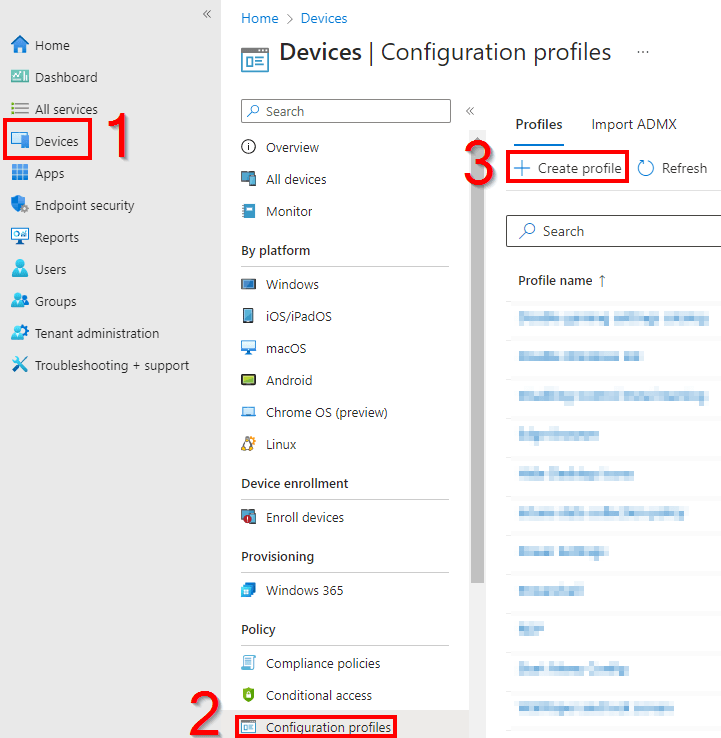
- Head to the Intune Home
- Go to Devices, Configuration Profiles, and hit Create Profile
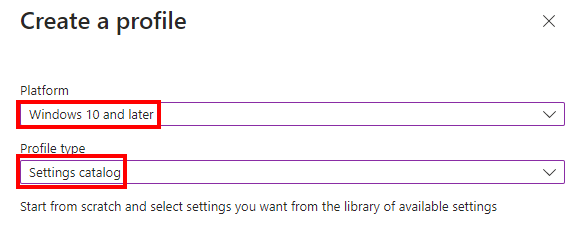
- Chose a platform of Windows 10 and Later and a profile type of Settings Catalog
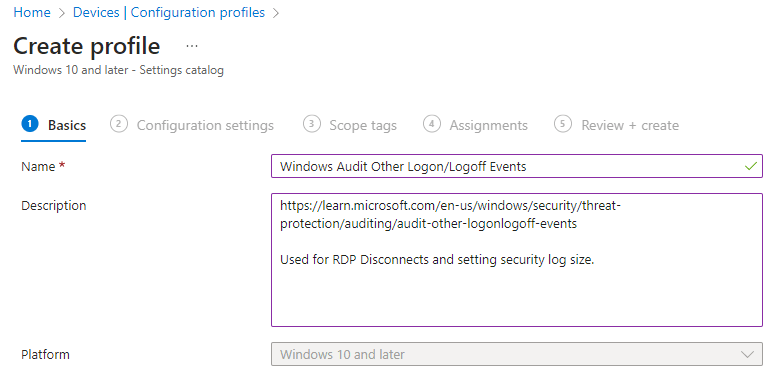
- Name it and describe it as you see fit, this doesn’t affect the policy itself.
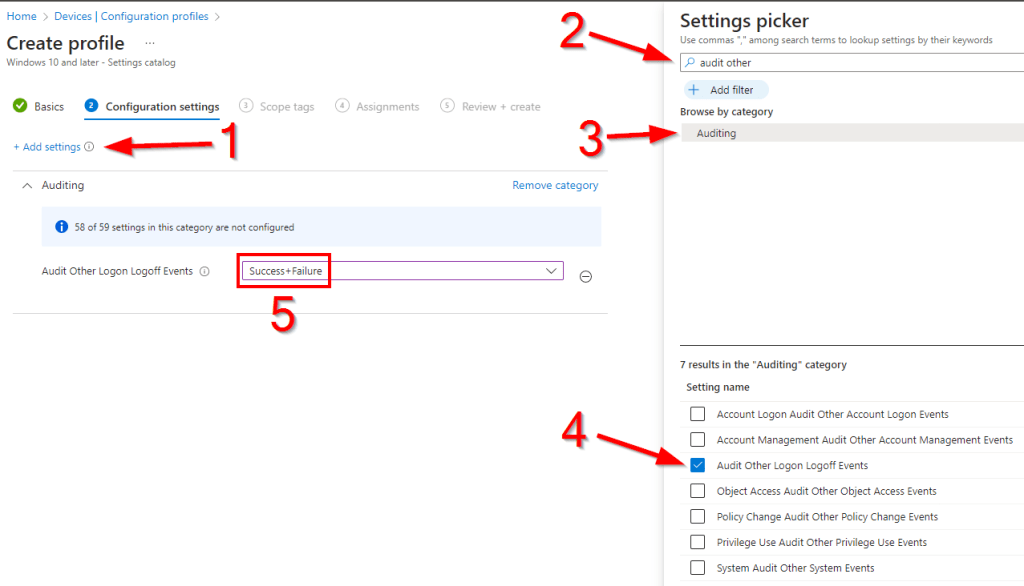
- Choose Add Settings
- Search for “Audit Other” and select the Auditing result
- Select Audit Other Logon Logoff Events
- Configure it for Success+Failure
This alone will configure the events to log however, there is one other improvement we can make while we are here. This is not necessarily required but allow me to explain why it’s nice to have. By default, the Security Log in Windows will reach a certain size (MB) and then begin overriding events to ensure it doesn’t break that size. And, by default, the maximum file size for the Security log is only 20 MB. That’s really not that big. Even with default logging only on a non-daily used system my log only goes back around 45 days. That’s not great, especially as you move to a daily driven system with even more logging enabled. You might find it running down into only a few day’s worth of logs. While the event collector scripts won’t have too much trouble collecting those events from something like an always online Windows 365 machine, physical devices are another story. Additionally, it’s not ideal for troubleshooting scenarios where you might want access to month’s worth of other non-collected events.
So, here is how you can change that. Unfortunately, there isn’t a ton of first party information on this policy but, all third-party information sites agree that you could make this value ridiculously huge. I am only going to go up to 200 MB which in my experiences gives me around two weeks on a production device that even has the auditing of executables enabled (very noisy). I have not had any issues with the Event Viewer misbehaving at this size.
- Hit Add Setting
- Search for Specify the maximum log file size
- Choose the \Security result
- Check the box for the Specify the Maximum Logfile Size option and Maximum Log Size if it does not auto select.
- Turn the policy to Enabled
- Enter a maximum size of 196608 which is 200 MB
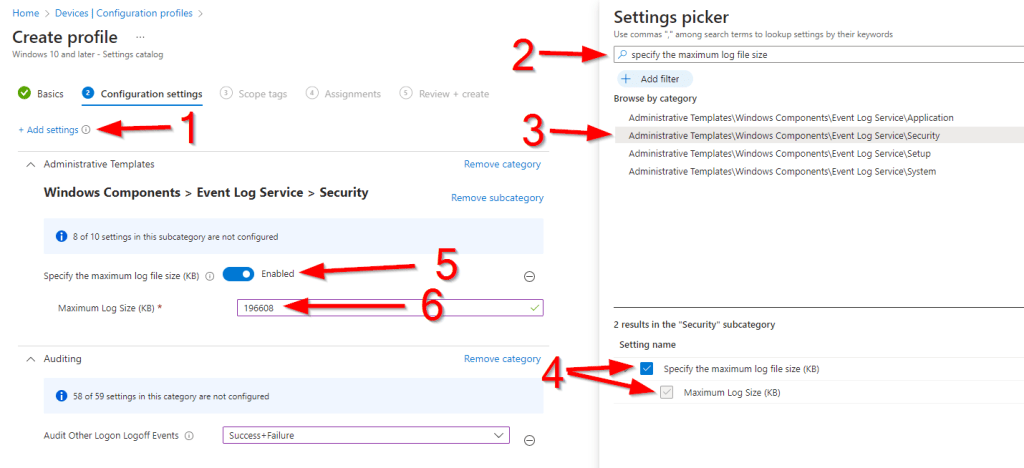
At this point you can his Next, scope it to tags as you see fit, assign it as needed, and create the policy!
Conclusion:
You should now have your audit event logging enabled for additional logon/logoff events! Keep in mind the policy will take time to sync to devices and may require a reboot to apply.
Disclaimer:
The following is the disclaimer that applies to all scripts, functions, one-liners, setup examples, documentation, etc. This disclaimer supersedes any disclaimer included in any script, function, one-liner, article, post, etc.
You running this script/function or following the setup example(s) means you will not blame the author(s) if this breaks your stuff. This script/function/setup-example is provided AS IS without warranty of any kind. Author(s) disclaim all implied warranties including, without limitation, any implied warranties of merchantability or of fitness for a particular purpose. The entire risk arising out of the use or performance of the sample scripts and documentation remains with you. In no event shall author(s) be held liable for any damages whatsoever (including, without limitation, damages for loss of business profits, business interruption, loss of business information, or other pecuniary loss) arising out of the use of or inability to use the script or documentation. Neither this script/function/example/documentation, nor any part of it other than those parts that are explicitly copied from others, may be republished without author(s) express written permission. Author(s) retain the right to alter this disclaimer at any time.
It is entirely up to you and/or your business to understand and evaluate the full direct and indirect consequences of using one of these examples or following this documentation.
The latest version of this disclaimer can be found at: https://azuretothemax.net/disclaimer/
 Azure to the Max