
I got reminded of this topic recently and realized there are a lot of people who might want this. This is how you can remove Microsoft Teams Personal from Windows 11 devices and keep it gone, as best as possible as of today at least.
There was at one point a registry key one could put in place to prevent the existence of Personal Teams. Or, if memory serves correctly, it more so prevented re-installs.
New-ItemProperty -Path "Registry::HKLM\SOFTWARE\Microsoft\Windows\CurrentVersion\Communications" -Name ConfigureChatAutoInstall -PropertyType DWord -Value 0 -Force
Sadly, this hasn’t worked for at least the last nine or so months. So, how can you remove it and keep it gone?
The Answer:
This does require Intune.
My answer at least was to make a seek and destroy Intune app with some wicked backwards logic compared to what the average Intune Win32 app is meant to achieve. This is something I have actually done many times for many apps following the same concept. This app can be named something like “Windows 11 Teams Personal Remover.” It then uses a detection rule that checks for the presence of Teams Personal. If found, this Win32 app is considered NOT installed.
The WIn32 app is then required to all Windows 11 devices. Any device with Teams Personal installed then considers this required app not installed. As a result, it runs the install which removes Teams Personal and now the Win32 app is considered installed.
You could reverse this logic and scope the app as required to uninstall if you wanted. Or, if you know how, you could change this into a proactive rendition. Food for thought.
Forgive me for not deeming these two short code chunks worthy of a github repo.
The Detection Rule PS1
#Check for Teams personal

$TeamsPersonal = Get-AppxPackage -allusers MicrosoftTeams

if ($TeamsPersonal -eq $null){
    write-output "No Teams Found"
    Exit 0
} else {
   #Teams was found
    exit 1
}
And the “Installer” PS1
#Kill Teams Personal EXE if running
TASKKILL /IM msteams.exe /f

#Remove it
Get-AppxPackage MicrosoftTeams -allusers | Remove-AppxPackage -allusers

Exit 0
The Deployment:
Package the installer into your Win32 app and set it as an App in Intune like this…
Note that you will obviously need to adjust the install command below to reflect the name of the file you choose for the installer.
powershell.exe -executionpolicy bypass -windowstyle hidden ".\TeamsPersanolRemover.ps1"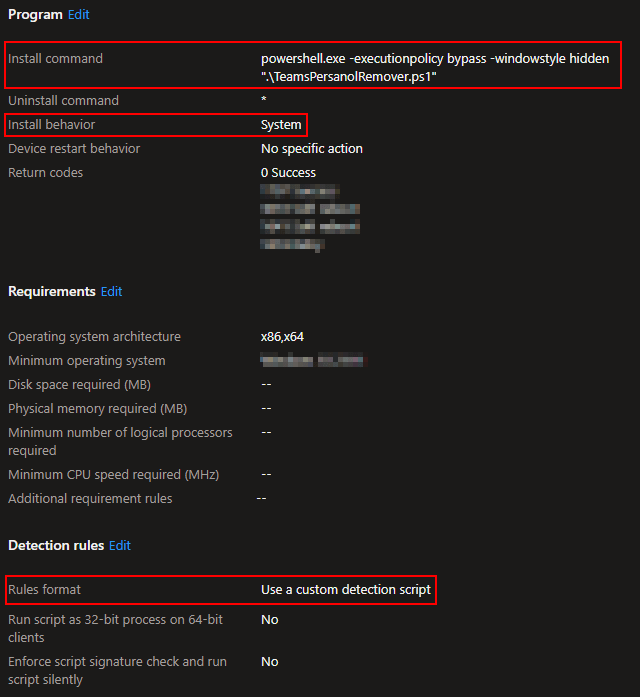
Then, just require the app to the groups you need it to hit, and it will go remove the personal Teams.
Q&A:
Does this effect the business versions of Microsoft Teams?
No, this doesn’t hit the O365 Teams nor the Cloud PC / Win365 Teams. Those versions of Teams are not Appx Packages, they are EXE’s and MSI’s. Therefore, they won’t be seen or removed by this script.
If there is some Teams version out there besides Teams personal which IS an Appx, I don’t know about it and I doubt the name matches the Appx for personal Teams exactly. That would be really stupid of someone to make.
Does this need to run more than once?
I personally have yet to see a device re-install the Microsoft Teams after hitting it with the -allusers removal IF that removal came AFTER the user logged in. That said, there is always the potential (knowing Microsoft) they will deploy some sort of update that causes it to come back and thus this app re-runs. Hopefully, that is a one time deal.
What about ESP?
I would not recommend deploying this app as part of ESP.
I would however recommend this. Assuming you have a custom PowerShell branding script (Intune Win32 App) go during ESP as the user or device, drop these lines into it as well. This ensures the app won’t be present when the employee hits desktop and the remover app will simply keep it gone. I would NOT include logic in this secondary app that ensures Teams is gone though. Just let it try and run these lines and if it fails, the remover app will hit it post ESP.
#For apps that run as System
Get-AppxPackage MicrosoftTeams -allusers | Remove-AppxPackage -allusers

#For apps that run as User
Get-AppxPackage MicrosoftTeams | Remove-AppxPackage
Conclusion:
This should allow you to keep Microsoft Teams Personal at bay on Windows 11. Hopefully, there will be better solutions to disable this app going forward than what Microsoft has provides so far in the life of Windows 11.
Disclaimer
The following is the disclaimer that applies to all scripts, functions, one-liners, setup examples, documentation, etc. This disclaimer supersedes any disclaimer included in any script, function, one-liner, article, post, etc.
You running this script/function or following the setup example(s) means you will not blame the author(s) if this breaks your stuff. This script/function/setup-example is provided AS IS without warranty of any kind. Author(s) disclaim all implied warranties including, without limitation, any implied warranties of merchantability or of fitness for a particular purpose. The entire risk arising out of the use or performance of the sample scripts and documentation remains with you. In no event shall author(s) be held liable for any damages whatsoever (including, without limitation, damages for loss of business profits, business interruption, loss of business information, or other pecuniary loss) arising out of the use of or inability to use the script or documentation. Neither this script/function/example/documentation, nor any part of it other than those parts that are explicitly copied from others, may be republished without author(s) express written permission. Author(s) retain the right to alter this disclaimer at any time.
It is entirely up to you and/or your business to understand and evaluate the full direct and indirect consequences of using one of these examples or following this documentation.
The latest version of this disclaimer can be found at: https://azuretothemax.net/disclaimer/
 Azure to the Max