
This post will discuss the topic of disabling Application Insights on a Function App when not needed in order to save money.
I decided this would be best to have as its own post given the amount of post’s I will likely have around Function Apps. This way, I can easily reference back to this article whenever the topic comes up.
What are Applicaiton Insights?
Briefly, for those who are not familiar with Azure Application Insights, with specific regards to things like PowerShell Function Apps, it takes the PowerShell output/traces along with a ton of other useful information and performance metrics from your Function App and shoves it into a Log Analytics Workspace.
Assuming you have put some good “Write-host” comments in your script to tell you about what it’s doing, this can prove to be a great assist in testing and debugging as it lets you view those comments on the real live Azure function app in almost real time. Additionally, this will let you see the errors your app produces making it invaluable to troubleshooting it in an outage.
In other words, you do want this setup and enabled for your Function App.
The Cost:
As great as it may be, I have found that Application Insights is pretty expensive. I genuinely can’t understand the relationship between the Function Apps cost and the Application Insights cost. Even a relatively cheap function app (45$ a month) can easily rack up several hundred dollars’ worth of Application Insights cost.
The best way to check on your Application Insights cost is via the Cost Management (preview) menu in Azure. This can be found using the resource search at the top of Azure. One day this feature will change names as it comes out of preview, likely just dropping the suffix.
Once opened, you should be prevented with a list of views. Look for Resource Groups or Subscriptions. These let you view the cost breakdowns of resources within a given Resource Group or Subscription.

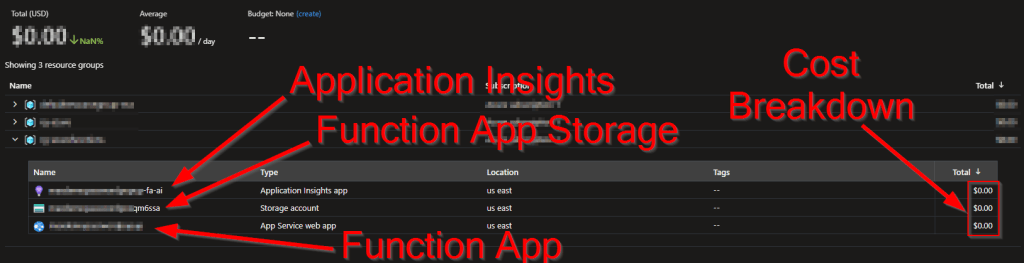
Once clicked into the subsequent menu’s, you can see a breakdown of the various elements and what they cost. The application insights will be named like FunctionAppName-FA-AI. The Storage for your appwill be named like FunctionAppNameGarbleXXX, and the Function App itself will simply be named as itself.
Please note:
There is a filter at the top for adjusting the date range as needed. As these are only Demo functions, no cost has been incurred yet.
Is it Worth the 24/7 Cost?
I can’t answer this question for you, it’s up to you to evaluate the gains versus the cost and determine if it’s worth it (or needed) by your organization. What I can tell you is that turning off and on Application insights only takes a few seconds and a reboot to the Function App. I have had a few functions going for months now and have successful re-engaged Application Insights on them only when needed saving hundreds of dollars in the process.
How to Disable Application Insights Temporarily:
If you have decided you want to go ahead and shut off application insights for a given Function App temporarily, there is actually a very easy way to do this.
Just head into the Function App, locate Configuration under the Settings header on the left, and locate the APPINSIGHTS_INSTRUMENTATIONKEY value.

Click on the key and you should see something like this. Simply append the Name of the key with something like _DISABLED and hit OK.

You should then see your edited value and can hit Save at the top. This will reboot the Function App!

Once the change is made, the Function App menu’s relating to Application insights will think Application Insights is not setup for the Function App and, the Function App will stop sending data to its corresponding Application Insights and thus you will stop incurring cost. The FA-AI line item will continue to exist, but the dollar amount should slow and stop within an hour.
Update 2/20/2023: Two Strings!
After some playing around today, it appears that breaking the APPINSIGHTS_INSTRUMENTATIONKEY alone no longer works. I noticed that dispite having _DISABLE added on (which simply breaks the name and makes the value unfindable) it was continuing to move data into Application Insights and rack up cost.
I had long known there was a second key in there named APPLICATIONINSIGHTS_CONNECTION_STRING. I ended up playing around with this for a while and for some reason, only when you add _DISABLE to both does the flow of data stop.
I don’t udnerstand how data is being sent to Application Insights with a key yet no connection string, or a connection string yet no key, (rebooted function app several times), but… it is.
In any case, add _DISABLE to the APPLICATIONINSIGHTS_CONNECTION_STRING string as well and data flow should cease instnatly. Just watch the overview metrics inside the Application Insights and the charts should drop to zero or change to dotted lines.
That said, this is a new development so I would urge extra caution. I will update accordingly if I have any issues with it. I did several tests of disabling and reenabling the keys this evening and had no issues getting data flow to start/stop again to the same Insights Workspace. So far, so good! I would recommend you test the same on a dev app just to be safe.
Keep in mind this obviously effects the re-enable steps. I would recommend uncommenting _DISABLE from both strings, even if they somehow seem to work with only one string enabled.
Re-enabling Application Insights:
Simple, remove the _DISABLED from the Instrumentation Key, hit save, wait for the Function App to reboot, and you’re done. Data will again flow from the Function App to Application Insights. Do know that things like traces take several minutes post execution to show up in Application Insights, so it might be a few minutes before you see anything.
Once you’re done getting what you needed, simply put the _DISABLED back and reboot the app once more.
Disclaimer:
The following is the disclaimer that applies to all scripts, functions, one-liners, setup examples, documentation, etc. This disclaimer supersedes any disclaimer included in any script, function, one-liner, article, post, etc.
You running this script/function or following the setup example(s) means you will not blame the author(s) if this breaks your stuff. This script/function/setup-example is provided AS IS without warranty of any kind. Author(s) disclaim all implied warranties including, without limitation, any implied warranties of merchantability or of fitness for a particular purpose. The entire risk arising out of the use or performance of the sample scripts and documentation remains with you. In no event shall author(s) be held liable for any damages whatsoever (including, without limitation, damages for loss of business profits, business interruption, loss of business information, or other pecuniary loss) arising out of the use of or inability to use the script or documentation. Neither this script/function/example/documentation, nor any part of it other than those parts that are explicitly copied from others, may be republished without author(s) express written permission. Author(s) retain the right to alter this disclaimer at any time.
It is entirely up to you and/or your business to understand and evaluate the full direct and indirect consequences of using one of these examples or following this documentation.
The latest version of this disclaimer can be found at: https://azuretothemax.net/disclaimer/
 Azure to the Max